


The Assignment Report in Practice Mode
The Assignment Report
The Assignment Report provides teachers with detailed information about student performance on an assignment. Teachers can review class and student performance, examine individual problems and student responses, and take action based on assignment results.
Accessing the Assignment Report
From the Assignment List, select an assignment.
The Quick Insights tab opens automatically and provides an at-a-glance view of assignment completion and performance.
%20(1).gif)
Quick Insights
Quick Insights provides an overview of assignment data, including:
- Completion Summary
- Performance Summary
- Class Average
- Performance Summary by Standard
- Student Clusters
Student Clusters group students based on their performance on the assignment. Teachers can select + Group to add students from a cluster to an existing Student Group or create a new group.
Learn more about Quick Insights here.
Reviewing the Detailed Report
Select the Problems tab to review the Detailed Report.
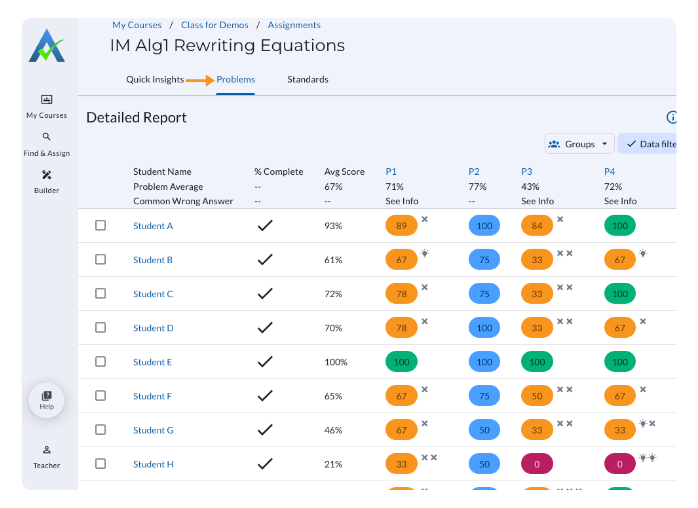
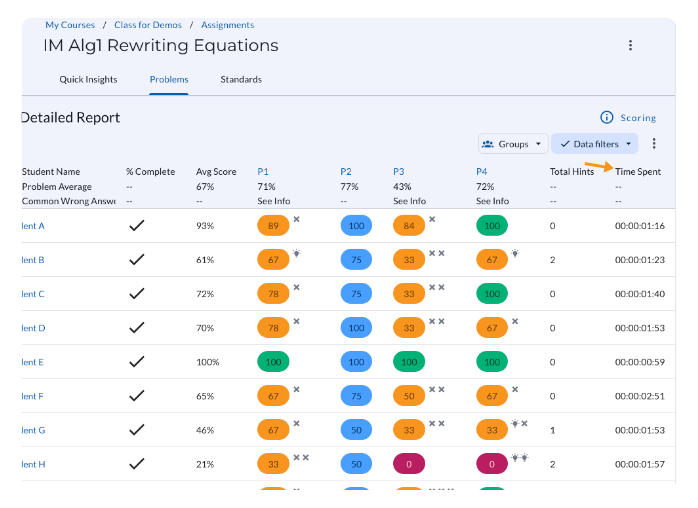
The Detailed Report includes:
- Percent Complete: The percentage of the assignment each student has completed. Select the column header to sort students in ascending or descending order.
- Average Score: The average score for the assignment and each student’s average score.
- Problem Average: The average score across all students for a specific problem.
- Common Wrong Answers: See Info identifies responses that multiple students answered incorrectly.
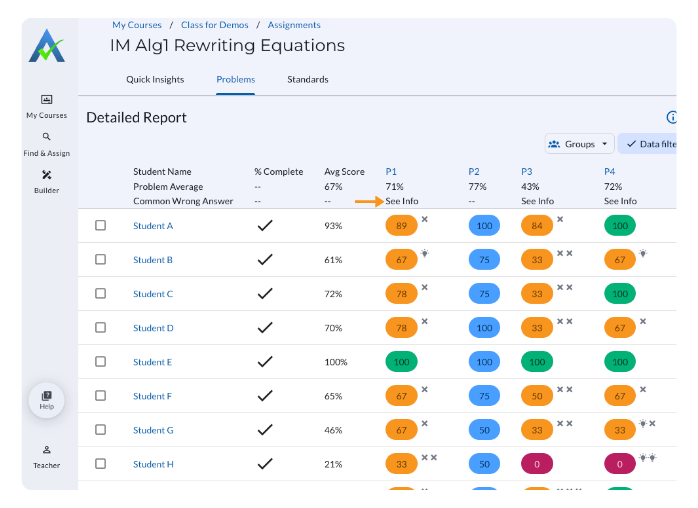
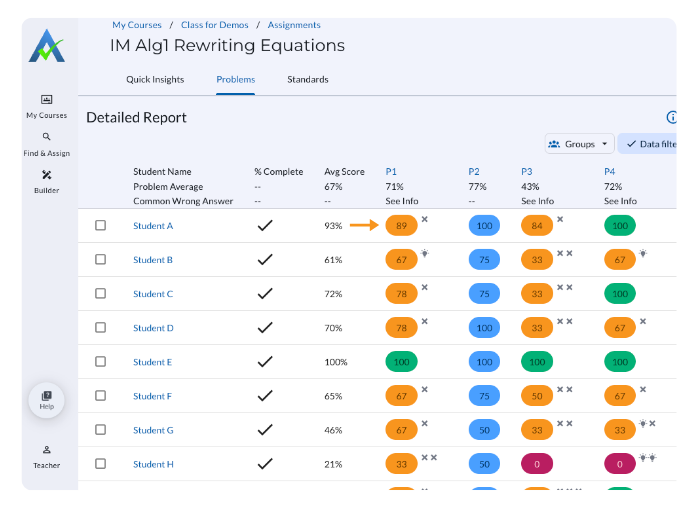
- Score Chip: Displays each student’s score for an individual problem. Select a Score Chip to review details about the student’s work on the problem and Edit Student Score.
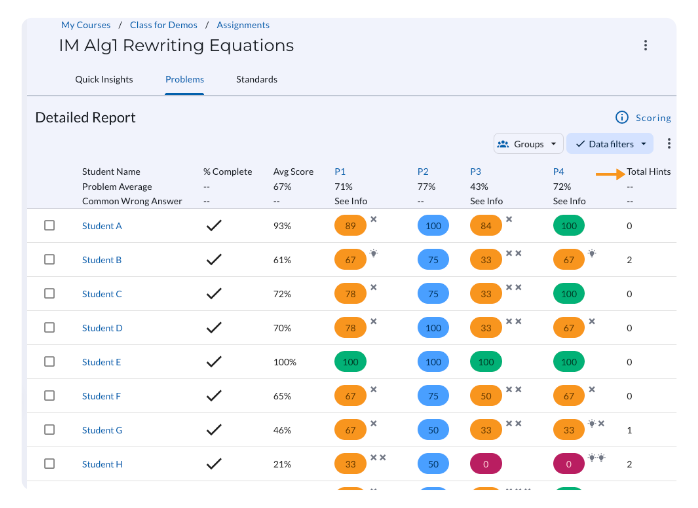
- Total Hints: The total number of hints each student used on the assignment, when applicable.
- Time Spent: The total amount of time each student spent working on the assignment.
- Open Response Answers: Open response questions are indicated by Assess in the Detailed Report. Select Assess to review student responses, provide feedback, and provide or adjust scores. Learn more about scoring and feedback on open response questions here.
.gif)
Reviewing Individual Problems
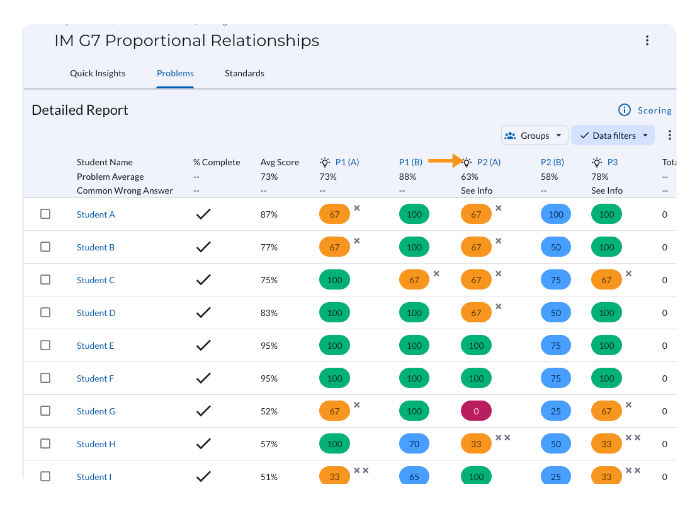
Select a problem column header to open the Problem Overview and review additional information about the problem and student performance.
Common Wrong Answers: When available, identifies responses that multiple students answered incorrectly.
When available, select the light bulb icon beside a problem to view Instructional Recommendations.
Reviewing Individual Students
Select a student’s name to open the Student Details Report and review more information about their work on the assignment.
.gif)
Learn more about the Student Details Report here.
Managing Student Options
Select one or more students and select Student Options to access available actions for the selected students.
.gif)
Student Options include:
Additional features are available for ASSISTments Plus users.
Understanding Unsaved Responses
A gray chip with a black dot signifies that a problem has been started:
- In Progress: Displayed on hover when a student has opened or viewed the problem.
- Response Entered: Displayed on hover once the student has made at least one attempt.
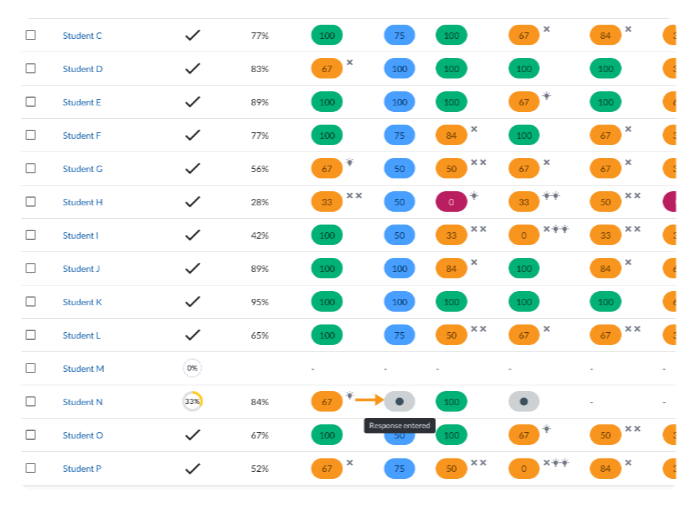
Teachers can use Force Complete when they need to access the student’s entered response.
Filtering Assignment Data
Use the Group filter to view assignment data for a specific Student Group.
.gif)
Use Data Filters to choose which information is displayed in the Detailed Report, including:
- Names
- Percent Complete
- Average Score
- Time
- Total Hints
- Problem Average
Teachers can remove Names using Data Filters when they want to display assignment data anonymously.
.gif)
Downloading and Uploading Assignment Data
Select the Triple dots (⫶) to:
- Download assignment data as a CSV
- Upload grades to your LMS
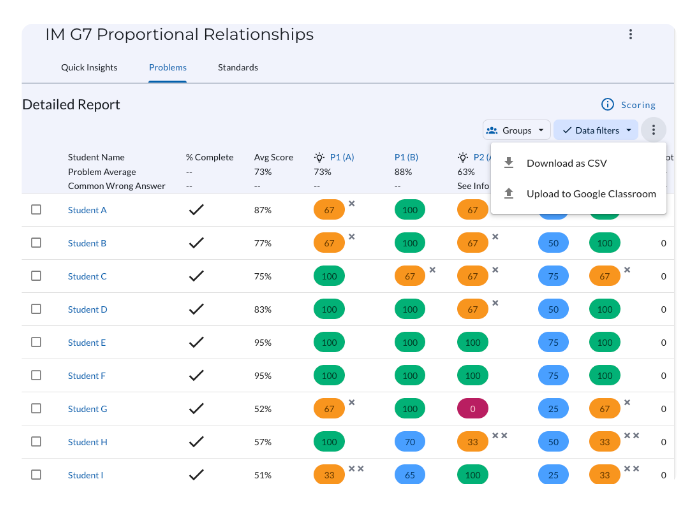
Note: Scores do not automatically upload to your learning management system (Google Classroom, Canvas, Schoology) gradebook. Teachers must select Upload to to send scores from ASSISTments to their learning management system gradebook.
Standards View
Select the Standards tab to view student performance for the standards represented in the assignment.
.png)
The Standards view displays the average score for each standard and individual student performance for problems aligned to that standard.
Additional features are available for ASSISTments Plus users.
ASSISTments Plus
ASSISTments Plus users have access to additional features within the Assignment Report.
Quick Insights Plus uses AI to analyze assignment results and highlight Key Trends, Students to Note, and Learning Gaps.
Teachers can also create Targeted Follow Up Assignments for selected students through Student Options.
The Standards Over Time Report allows teachers to view class performance over time for a specific standard or set of standards.
Learn more about ASSISTments Plus here.
The Assignment Report
The Assignment Report provides teachers with detailed information about student performance on an assignment. Teachers can review class and student performance, examine individual problems and student responses, and take action based on assignment results.
Accessing the Assignment Report
From the Assignment List, select an assignment.
The Quick Insights tab opens automatically and provides an at-a-glance view of assignment completion and performance.
Quick Insights
Quick Insights provides an overview of assignment data, including:
- Completion Summary
- Performance Summary
- Class Average
- Performance Summary by Standard
- Student Clusters
Student Clusters group students based on their performance on the assignment. Teachers can select + Group to add students from a cluster to an existing Student Group or create a new group.
Learn more about Quick Insights here.
Reviewing the Detailed Report
Select the Problems tab to review the Detailed Report.
The Detailed Report includes:
- Percent Complete: The percentage of the assignment each student has completed. Select the column header to sort students in ascending or descending order.
- Average Score: The average score for the assignment and each student’s average score.
- Problem Average: The average score across all students for a specific problem.
- Common Wrong Answers: See Info identifies responses that multiple students answered incorrectly.
- Score Chip: Displays each student’s score for an individual problem. Select a Score Chip to review details about the student’s work on the problem and Edit Student Score.
- Total Hints: The total number of hints each student used on the assignment, when applicable.
- Time Spent: The total amount of time each student spent working on the assignment.
- Open Response Answers: Open response questions are indicated by Assess in the Detailed Report. Select Assess to review student responses, provide feedback, and provide or adjust scores. Learn more about scoring and feedback on open response questions here.
Reviewing Individual Problems
Select a problem column header to open the Problem Overview and review additional information about the problem and student performance.
Common Wrong Answers: When available, identifies responses that multiple students answered incorrectly.
When available, select the light bulb icon beside a problem to view Instructional Recommendations.
Reviewing Individual Students
Select a student’s name to open the Student Details Report and review more information about their work on the assignment.
Learn more about the Student Details Report here.
Managing Student Options
Select one or more students and select Student Options to access available actions for the selected students.
Student Options include:
Additional features are available for ASSISTments Plus users.
Understanding Unsaved Responses
A gray chip with a black dot signifies that a problem has been started:
- In Progress: Displayed on hover when a student has opened or viewed the problem.
- Response Entered: Displayed on hover once the student has made at least one attempt.
Teachers can use Force Complete when they need to access the student’s entered response.
Filtering Assignment Data
Use the Group filter to view assignment data for a specific Student Group.
Use Data Filters to choose which information is displayed in the Detailed Report, including:
- Names
- Percent Complete
- Average Score
- Time
- Total Hints
- Problem Average
Teachers can remove Names using Data Filters when they want to display assignment data anonymously.
Downloading and Uploading Assignment Data
Select the Triple dots (⫶) to:
- Download assignment data as a CSV
- Upload grades to your LMS
Note: Scores do not automatically upload to your learning management system (Google Classroom, Canvas, Schoology) gradebook. Teachers must select Upload to to send scores from ASSISTments to their learning management system gradebook.
Standards View
Select the Standards tab to view student performance for the standards represented in the assignment.
The Standards view displays the average score for each standard and individual student performance for problems aligned to that standard.
Additional features are available for ASSISTments Plus users.
ASSISTments Plus
ASSISTments Plus users have access to additional features within the Assignment Report.
Quick Insights Plus uses AI to analyze assignment results and highlight Key Trends, Students to Note, and Learning Gaps.
Teachers can also create Targeted Follow Up Assignments for selected students through Student Options.
The Standards Over Time Report allows teachers to view class performance over time for a specific standard or set of standards.
Learn more about ASSISTments Plus here.
Didn't Find What You Were Looking For?
.avif)
Charitable Number: 83-4228740


