

Editing Scores
Edit Student Scores
Editing Student Scores is helpful when awarding partial credit or making final score adjustments to ensure a student’s assignment score accurately reflects their performance.
- Start on the My Courses Homepage
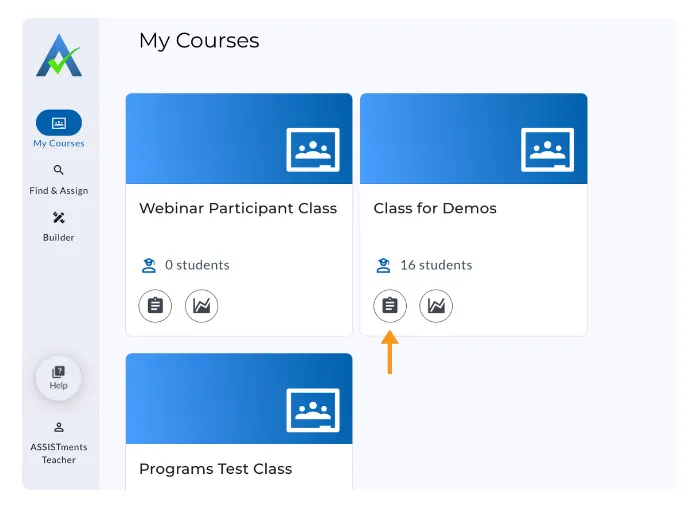
- Select the Assignments icon for the preferred course.
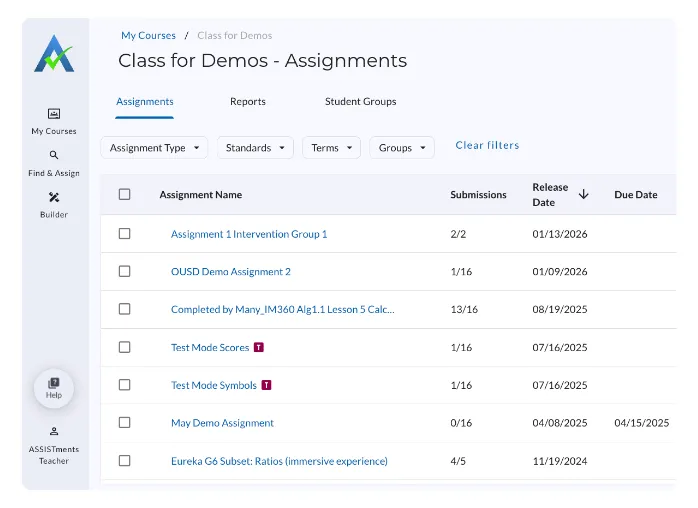
- Click the assignment name to open the Assignment Report.
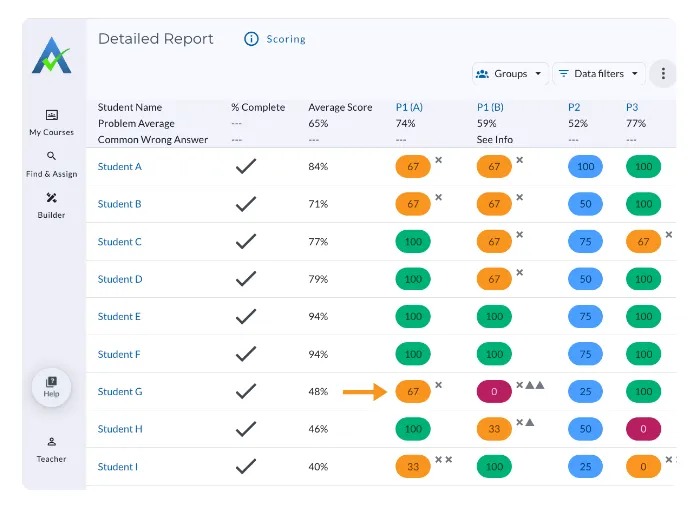
- Select the score chip for the student score you want to edit.
- The Student Problem Overview will open.
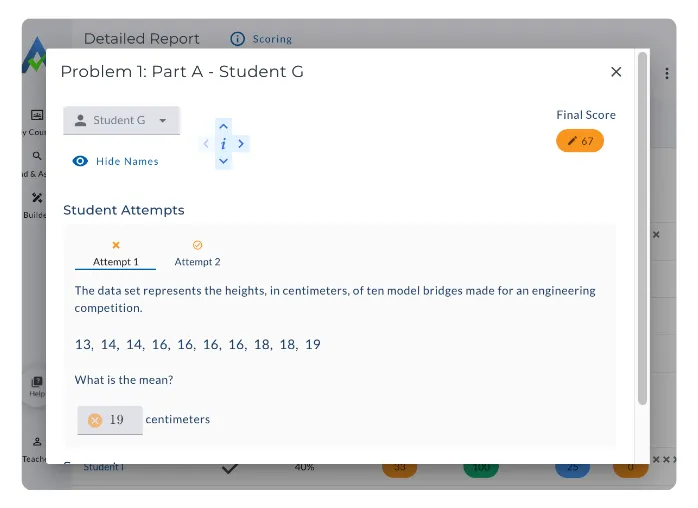
- In the top-right corner, locate Final Score.
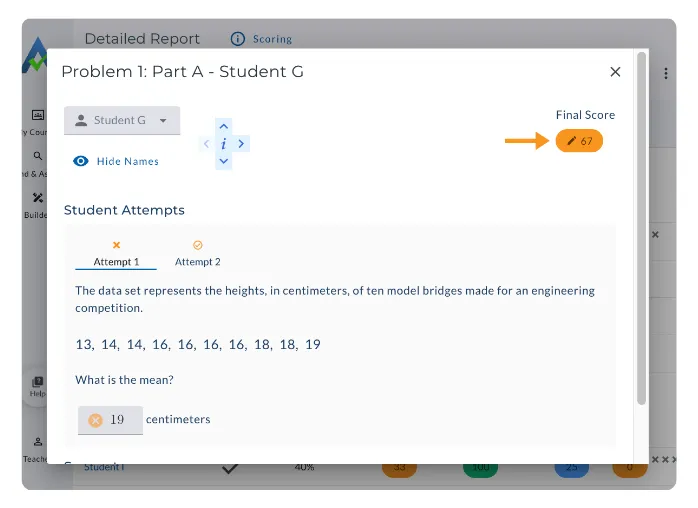
- Select the pencil icon.
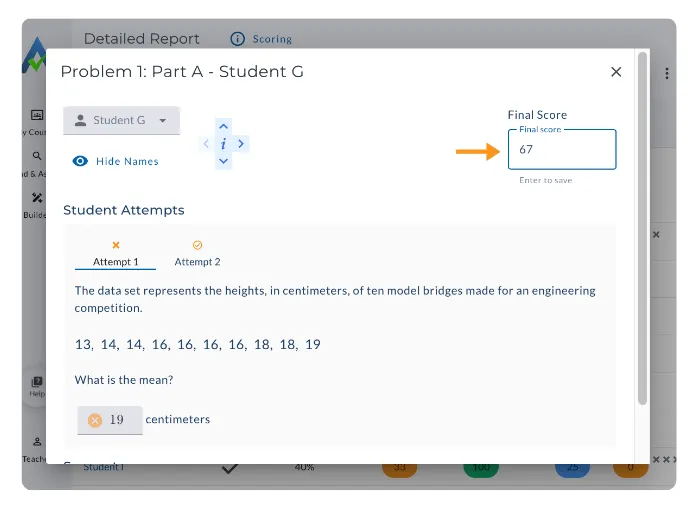
- Enter a new score and hit ‘Enter’ to save
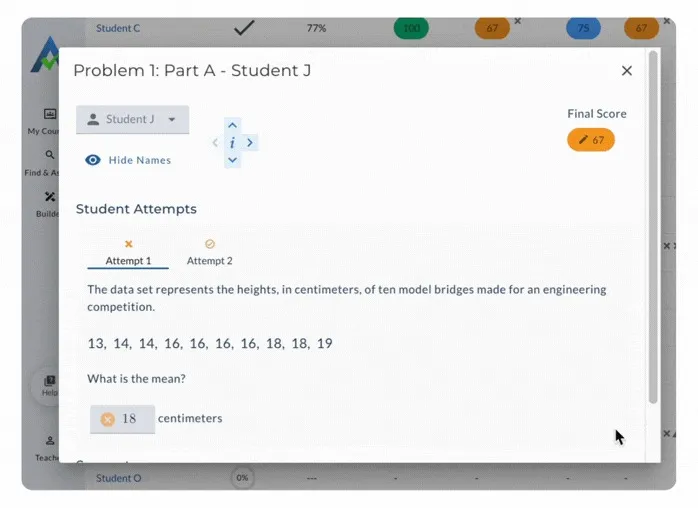
When you edit a score on the assignment report, it will automatically adjust the student's average score. You can then upload this updated average score for the ASSISTments assignment to your Learning Management System (Google Classroom, Canvas, Schoology, etc.) Learn more about uploading scores from ASSISTments here.
Frequently Asked Questions
Q: I edited a student’s score, but it’s not reflected in my Learning Management System (LMS). Why?
A: After editing a score, you must upload scores to the learning management systems (Google Classroom, Canvas, Schoology, etc.) again for the change to appear in your LMS
Q: Why are some score chips blue without editing a score?
A: Graded open-response scores will always appear blue and are graded on a 0–4 scale. A blue score chip represents a teacher action. For example, a teacher edited a score or a teacher graded an open-response problem.
Edit Student Scores
Editing Student Scores is helpful when awarding partial credit or making final score adjustments to ensure a student’s assignment score accurately reflects their performance.
- Start on the My Courses Homepage
- Select the Assignments icon for the preferred course.
- Click the assignment name to open the Assignment Report.
- Select the score chip for the student score you want to edit.
- The Student Problem Overview will open.
- In the top-right corner, locate Final Score.
- Select the pencil icon.
- Enter a new score and hit ‘Enter’ to save
When you edit a score on the assignment report, it will automatically adjust the student's average score. You can then upload this updated average score for the ASSISTments assignment to your Learning Management System (Google Classroom, Canvas, Schoology, etc.) Learn more about uploading scores from ASSISTments here.
Frequently Asked Questions
Q: I edited a student’s score, but it’s not reflected in my Learning Management System (LMS). Why?
A: After editing a score, you must upload scores to the learning management systems (Google Classroom, Canvas, Schoology, etc.) again for the change to appear in your LMS
Q: Why are some score chips blue without editing a score?
A: Graded open-response scores will always appear blue and are graded on a 0–4 scale. A blue score chip represents a teacher action. For example, a teacher edited a score or a teacher graded an open-response problem.
Didn't Find What You Were Looking For?
.avif)
Charitable Number: 83-4228740


