

Targeted Follow Up Assignments: ASSISTments Plus
Targeted Follow Up Assignments
⭐️ ASSISTments Plus Feature
This feature is available exclusively with ASSISTments Plus for Schools & Districts. Learn more here.
Targeted Follow Up Assignments provide students with additional practice based on problems they struggled with in a previous assignment. Teachers can create personalized follow up assignments for students using similar and standard-aligned problems
Creating a Targeted Follow Up Assignment
- From the Problems tab of the Assignment Report, select one or more students.
- Select Student Options.
- Select Create Follow Up Assignment.
.gif)
Select Targeted Follow Up Problems
After selecting students and clicking Create Follow-Up Assignment, the Targeted Follow-Up Assignment screen shows the selected students and the number of problems each student struggled with on the original assignment.
Select the number of follow-up problems to assign for each missed problem:
- 1 problem
- 2 problems
- 3 problems
Teachers can also choose to allow the reuse of a previously assigned problem in the follow up assignment
.gif)
After selecting the number of problems, continue to Assign Time Options.
Assign Time Options for Targeted Follow Up Assignments
Review the Assign Time Options for the Targeted Follow Up Assignment:
- Assignment Name: Automatically generated as “Follow-Up : ” and cannot be edited.
- Release Date: Choose when the assignment becomes available to students.
- No release date → the assignment is immediately available to students.
- Due Date: Set the date the assignment is due.
- With a due date → students can still complete the assignment after the deadline, but work will be marked late in your Assignment Report. A due date is required for Schoology.
- Student Table: View each selected student and the number of problems that will be assigned.
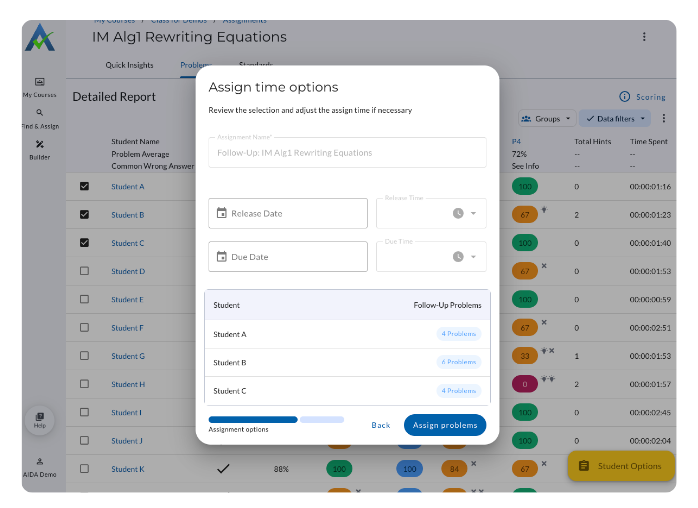
Select Assign problems to assign.
Note: A separate Targeted Follow Up Assignment is created for each student. For example, if three students are selected, three separate Targeted Follow Up Assignments will be created.
Viewing Targeted Follow Up Assignments
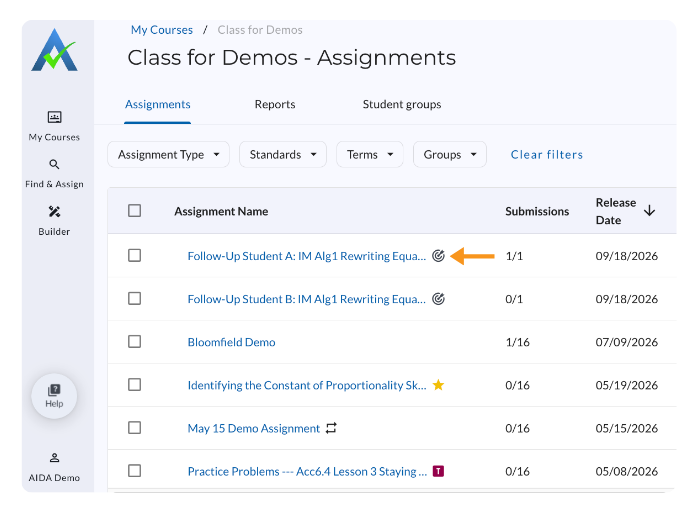
Targeted Follow Up Assignments appear on the Assignments List with a Targeted Assignment icon.
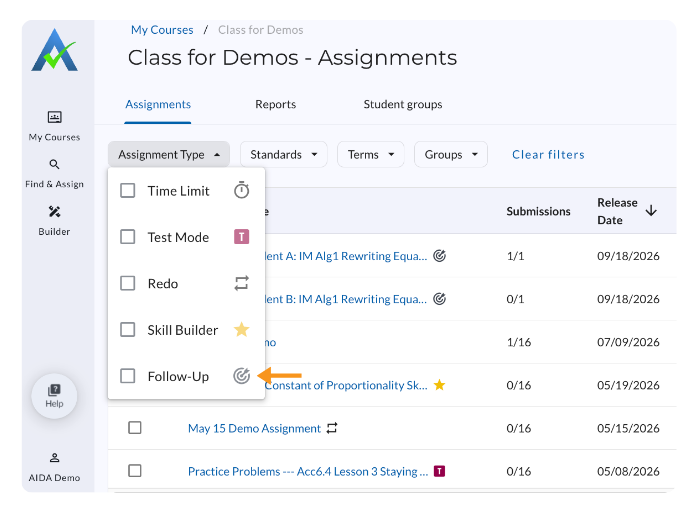
Teachers can use the Assignment Type filter and select Follow-Up to view Targeted Follow Up Assignments.
Assigning a Targeted Follow Up Skill Builder
After reviewing the Targeted Follow Up Assignment Report, teachers can provide additional practice using a Skill Builder aligned to the standard or standards the student struggled with.
- Select the checkbox next to the student’s name.
- Select Student Options.
- Select Assign a skill builder.
After selecting the student and clicking Assign a skill builder, the Targeted Follow-Up Skill Builder screen shows Skill Builders aligned to the standard(s) the student struggled with on the Follow-Up Assignment.
Select one or more Skill Builders to assign, then continue to Assign Time Options.
.gif)
Assign Time Options for Targeted Follow Up Skill Builder
Review the Assign Time Options before assigning:
- Assignment Name: When one Skill Builder is selected, the assignment name is automatically generated as “Follow-Up: ” and cannot be edited. If multiple Skill Builders are selected, the Assignment Name will not appear.
- Release Date: Choose when the assignment becomes available to students.
- No release date → the assignment is immediately available to students.
- Due Date: Set the date the assignment is due.
- With a due date → students can still complete the assignment after the deadline, but work will be marked late in your Assignment Report. A due date is required for Schoology.
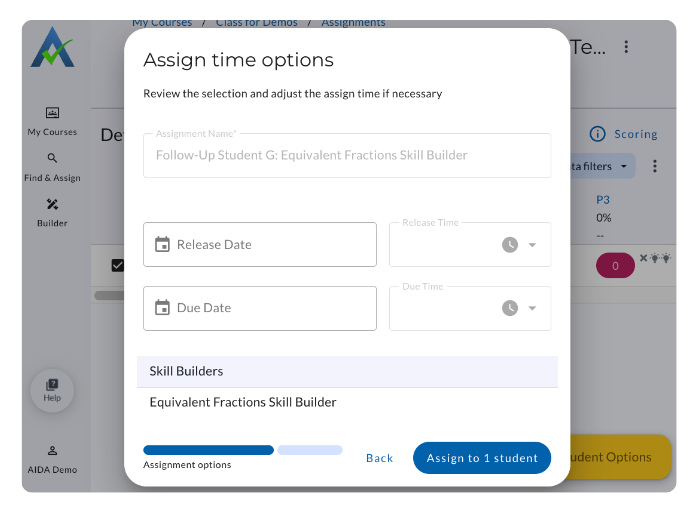
Select Assign to Student to assign.
Targeted Follow Up Assignments
⭐️ ASSISTments Plus Feature
This feature is available exclusively with ASSISTments Plus for Schools & Districts. Learn more here.
Targeted Follow Up Assignments provide students with additional practice based on problems they struggled with in a previous assignment. Teachers can create personalized follow up assignments for students using similar and standard-aligned problems
Creating a Targeted Follow Up Assignment
- From the Problems tab of the Assignment Report, select one or more students.
- Select Student Options.
- Select Create Follow Up Assignment.
Select Targeted Follow Up Problems
After selecting students and clicking Create Follow-Up Assignment, the Targeted Follow-Up Assignment screen shows the selected students and the number of problems each student struggled with on the original assignment.
Select the number of follow-up problems to assign for each missed problem:
- 1 problem
- 2 problems
- 3 problems
Teachers can also choose to allow the reuse of a previously assigned problem in the follow up assignment
After selecting the number of problems, continue to Assign Time Options.
Assign Time Options for Targeted Follow Up Assignments
Review the Assign Time Options for the Targeted Follow Up Assignment:
- Assignment Name: Automatically generated as “Follow-Up : ” and cannot be edited.
- Release Date: Choose when the assignment becomes available to students.
- No release date → the assignment is immediately available to students.
- Due Date: Set the date the assignment is due.
- With a due date → students can still complete the assignment after the deadline, but work will be marked late in your Assignment Report. A due date is required for Schoology.
- Student Table: View each selected student and the number of problems that will be assigned.
Select Assign problems to assign.
Note: A separate Targeted Follow Up Assignment is created for each student. For example, if three students are selected, three separate Targeted Follow Up Assignments will be created.
Viewing Targeted Follow Up Assignments
Targeted Follow Up Assignments appear on the Assignments List with a Targeted Assignment icon.
Teachers can use the Assignment Type filter and select Follow-Up to view Targeted Follow Up Assignments.
Assigning a Targeted Follow Up Skill Builder
After reviewing the Targeted Follow Up Assignment Report, teachers can provide additional practice using a Skill Builder aligned to the standard or standards the student struggled with.
- Select the checkbox next to the student’s name.
- Select Student Options.
- Select Assign a skill builder.
After selecting the student and clicking Assign a skill builder, the Targeted Follow-Up Skill Builder screen shows Skill Builders aligned to the standard(s) the student struggled with on the Follow-Up Assignment.
Select one or more Skill Builders to assign, then continue to Assign Time Options.
Assign Time Options for Targeted Follow Up Skill Builder
Review the Assign Time Options before assigning:
- Assignment Name: When one Skill Builder is selected, the assignment name is automatically generated as “Follow-Up: ” and cannot be edited. If multiple Skill Builders are selected, the Assignment Name will not appear.
- Release Date: Choose when the assignment becomes available to students.
- No release date → the assignment is immediately available to students.
- Due Date: Set the date the assignment is due.
- With a due date → students can still complete the assignment after the deadline, but work will be marked late in your Assignment Report. A due date is required for Schoology.
Select Assign to Student to assign.
Didn't Find What You Were Looking For?
.avif)
Charitable Number: 83-4228740


