


Student Options
Using Student Options in the Assignment Report
Student Options on the Assignment Report gives teachers access to various tools to manage student progress and take next steps within an assignment.
- Choose an assignment from the Assignments List.
- Select the Problems tab.
- Select one or more students using the checkboxes next to student names.
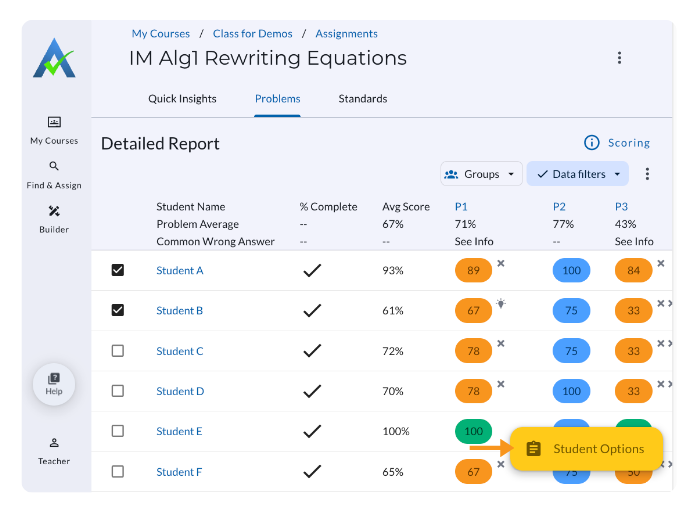
- Once one or more students have been selected, select Student Options.
- When selected, Student Options will open additional options:
- Force Complete
- Delete Student Progress
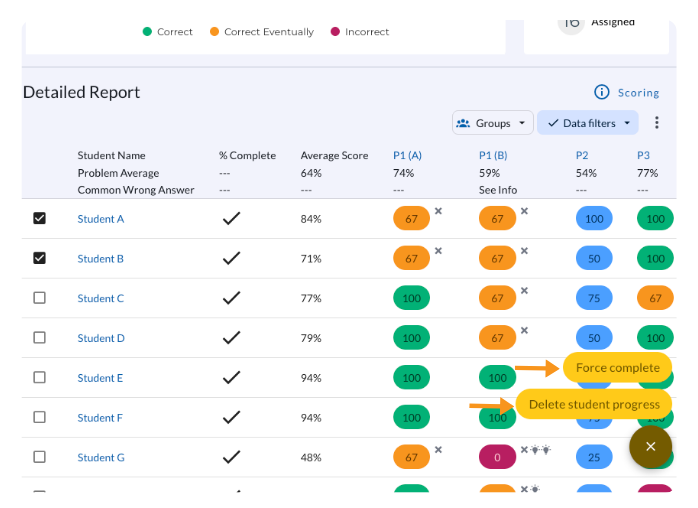
- To close the menu, select the X.
- To remove Student Options, deselect all students.
Force Complete
Force Complete allows teachers to close an assignment for the selected student(s).
How to Force Complete an Assignment
- Select one or more students for Student Options to appear.
- Click Student Options and select Force Complete.
- Note: Force Complete can only be used for students who have completed at least one problem.
- Confirm selected students and click Complete Assignment.
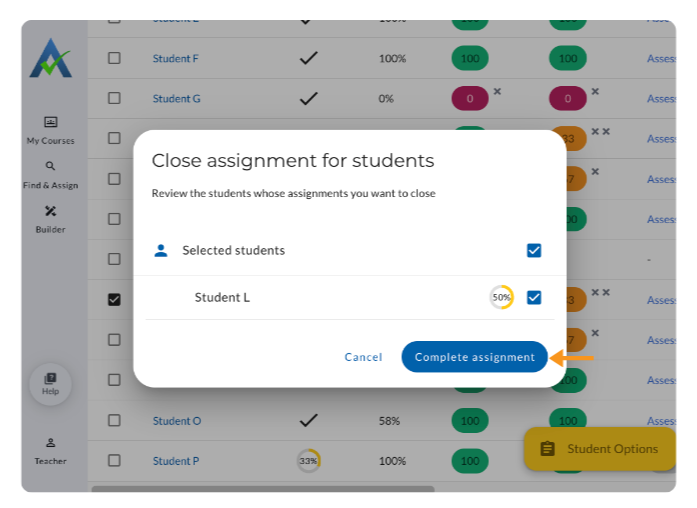
What Happens When Force Complete Is Selected
- The assignment is immediately closed for the selected student(s) and they can no longer work on the assignment
- The student can view the Student Report for the assignment by visiting the Completed tab on the Student Homepage.
Student Score Details with Force Complete
- For incomplete problems:
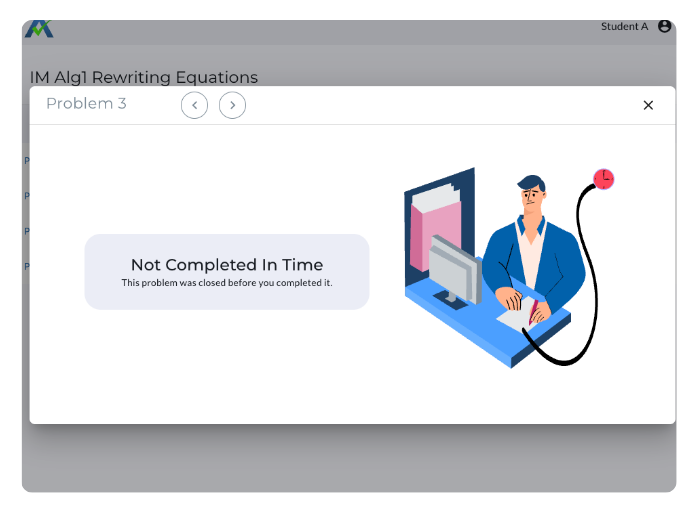
- The Student Score Details will display a “Not Completed in Time” message, stating that the assignment was closed prior to student completion.
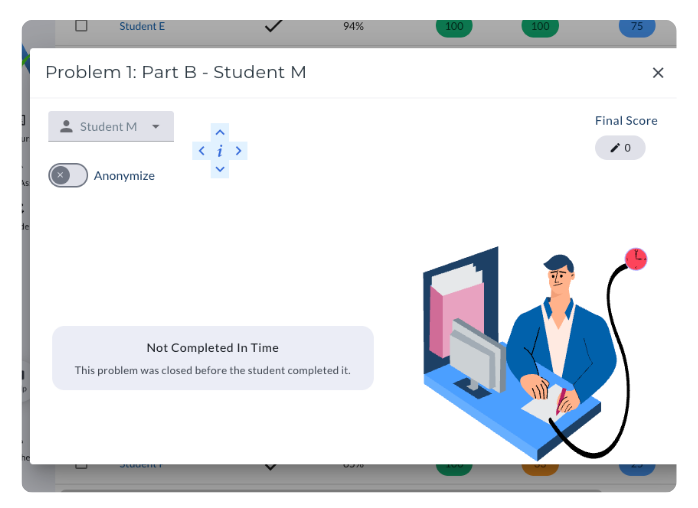
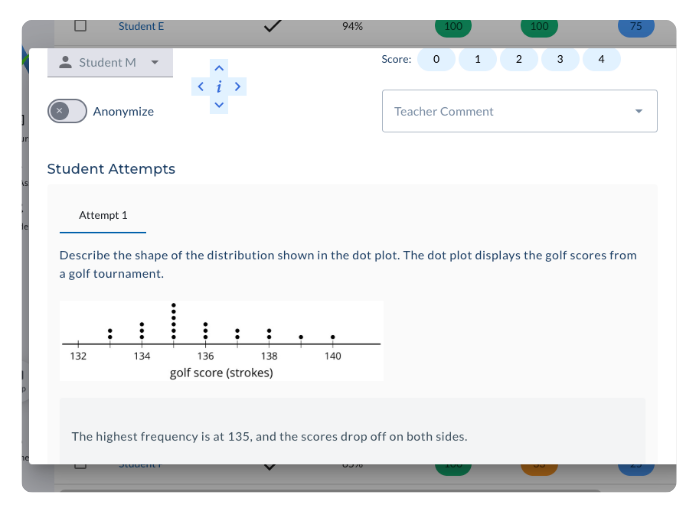
- For Open Response problems:
- The student score details will show any student open response attempts.
Next Steps
After a teacher has selected force complete on an assignment, teachers can:
- Edit Student Score: Award partial credit or make final score adjustments to ensure a student’s assignment score accurately reflects their performance.

- Delete Student Progress: Clear out all of the student’s data and allow them to redo the assignment using the original assignment link.

Next Step for Students after Force Complete
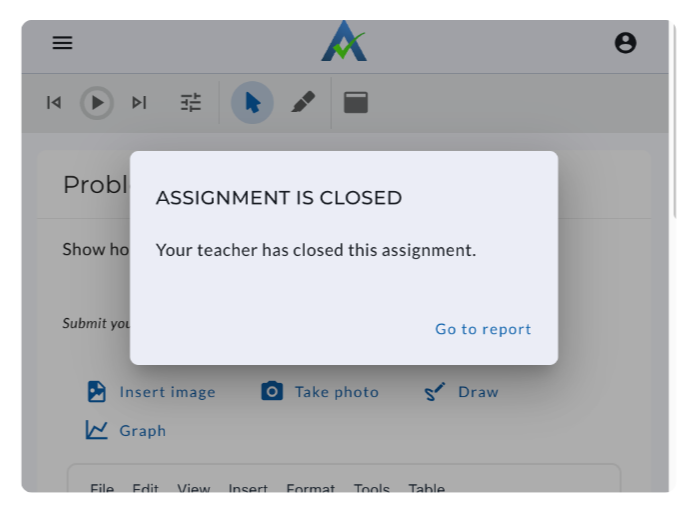
- If the student has the assignment open they will get a message that their teacher has closed the assignment and they can view the Student Report.
- The assignment will appear in the Completed tab on the Student Homepage.
- For incomplete problems, the Student Report will display a “Not Completed in Time” message.
Delete Student Progress
The Delete Student Progress button will clear out all of the student’s data and allow them to redo the assignment using the original assignment link.
How to Delete Student Progress
- Select one or more students in the Assignment Report
- Select Student Options > Delete Student Progress
- Select Delete Progress to confirm
.gif)
Note: Delete Student Progress is only available for students who have started the assignment (submitted at least one response).
What Happens When Delete Student Progress Is Selected
- All student responses are permanently removed
- The student’s progress is reset to not started
Next Steps for Students after Deleting Student Progress
- The assignment appears in the Assigned tab on the Student Homepage
- The student can restart the assignment using the original assignment link.
Using Student Options in the Assignment Report
Student Options on the Assignment Report gives teachers access to various tools to manage student progress and take next steps within an assignment.
- Choose an assignment from the Assignments List.
- Select the Problems tab.
- Select one or more students using the checkboxes next to student names.
- Once one or more students have been selected, select Student Options.
- When selected, Student Options will open additional options:
- Force Complete
- Delete Student Progress
- To close the menu, select the X.
- To remove Student Options, deselect all students.
Force Complete
Force Complete allows teachers to close an assignment for the selected student(s).
How to Force Complete an Assignment
- Select one or more students for Student Options to appear.
- Click Student Options and select Force Complete.
- Note: Force Complete can only be used for students who have completed at least one problem.
- Confirm selected students and click Complete Assignment.
What Happens When Force Complete Is Selected
- The assignment is immediately closed for the selected student(s) and they can no longer work on the assignment
- The student can view the Student Report for the assignment by visiting the Completed tab on the Student Homepage.
Student Score Details with Force Complete
- For incomplete problems:
- The Student Score Details will display a “Not Completed in Time” message, stating that the assignment was closed prior to student completion.
- For Open Response problems:
- The student score details will show any student open response attempts.
Next Steps
After a teacher has selected force complete on an assignment, teachers can:
- Edit Student Score: Award partial credit or make final score adjustments to ensure a student’s assignment score accurately reflects their performance.
- Delete Student Progress: Clear out all of the student’s data and allow them to redo the assignment using the original assignment link.
Next Step for Students after Force Complete
- If the student has the assignment open they will get a message that their teacher has closed the assignment and they can view the Student Report.
- The assignment will appear in the Completed tab on the Student Homepage.
- For incomplete problems, the Student Report will display a “Not Completed in Time” message.
Delete Student Progress
The Delete Student Progress button will clear out all of the student’s data and allow them to redo the assignment using the original assignment link.
How to Delete Student Progress
- Select one or more students in the Assignment Report
- Select Student Options > Delete Student Progress
- Select Delete Progress to confirm
Note: Delete Student Progress is only available for students who have started the assignment (submitted at least one response).
What Happens When Delete Student Progress Is Selected
- All student responses are permanently removed
- The student’s progress is reset to not started
Next Steps for Students after Deleting Student Progress
- The assignment appears in the Assigned tab on the Student Homepage
- The student can restart the assignment using the original assignment link.
Didn't Find What You Were Looking For?
.avif)
Charitable Number: 83-4228740


