


Scoring and Leaving Feedback on Open Response Questions
Scoring and Leaving Feedback on Open Response Questions
Open response questions let students explain their reasoning in their own words.
You can score these questions on a 4-point scale and add written feedback to help guide student learning.
Students can view their scores and teacher comments for open responses in the Student Report, giving them an opportunity to review and reflect on their responses.
Two Ways to Score and Provide Feedback
There are two ways to score and provide feedback in ASSISTments. You can use the Assignment Report to grade and give feedback on a single open response question for all students, or use the Student Details Report to score one student’s open response answer in comparison to their answers across the assignment.
When you type a comment on an open-response question, ASSISTments saves it for quick reuse within the same assignment report. For example, if you write “Great Explanation” for one student, you can select that same comment for another student without retyping it.
Note: Saved comments are only available within the current assignment report. If you open a new report, your saved comments will reset—you’ll need to type them again before they can be reused.
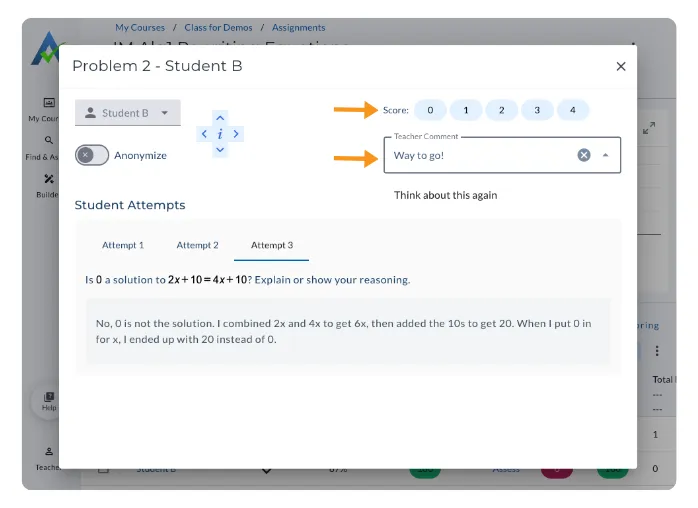
Grade by Question
Use the Assignment Report to grade and give feedback on a single open-response question for all students.
- Open the Assignment Report for the assignment with the open response question you want to grade and click on ‘Assess’.
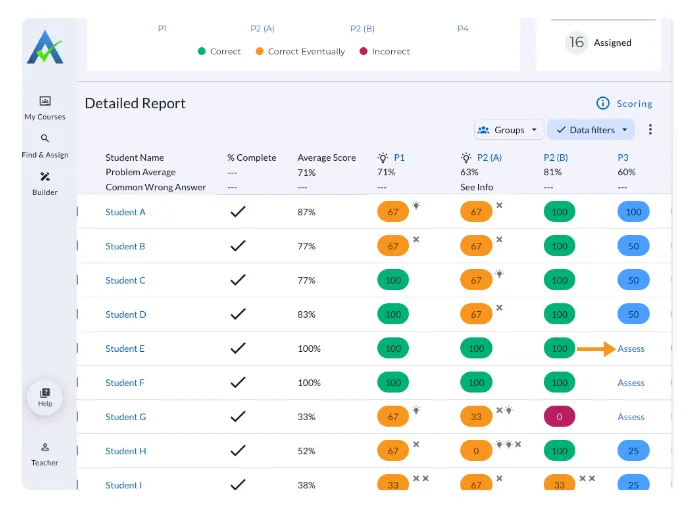
- Click the center “𝑖” to see all student responses.
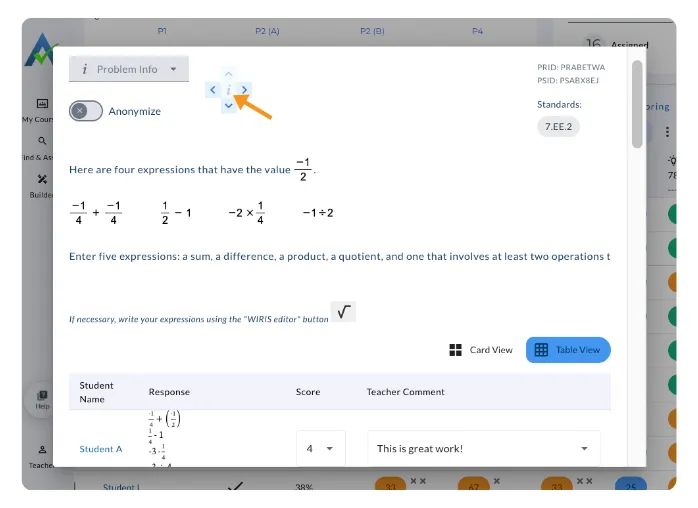
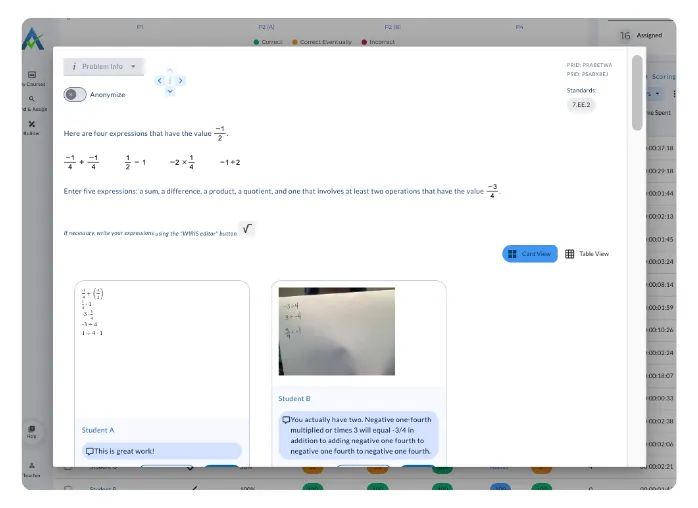
There are two ways to view student responses:
- Table (above)
- Card (below)
Grade by Student
Use the Student Details Report to grade one student’s open-response answers across the entire assignment.
Option 1:
Open the Assignment Report for the assignment with the open response question you want to grade and click on ‘Assess’.
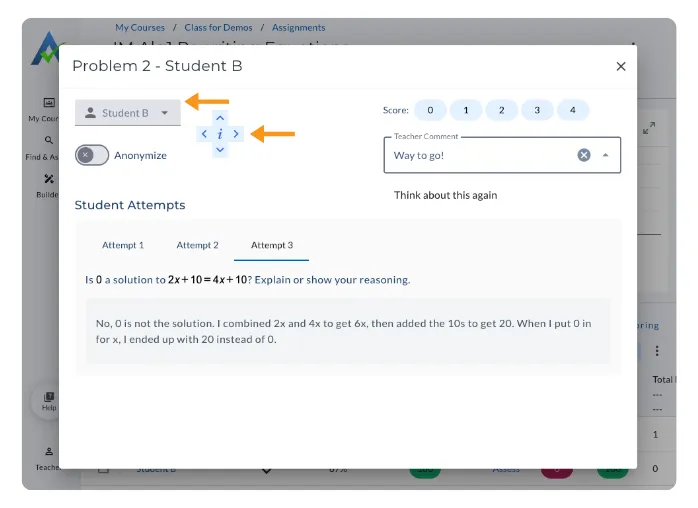
Use the student dropdown or the up and down arrows to navigate between students. Use the left and right arrows to navigate between answers from a particular student.
Option 2:
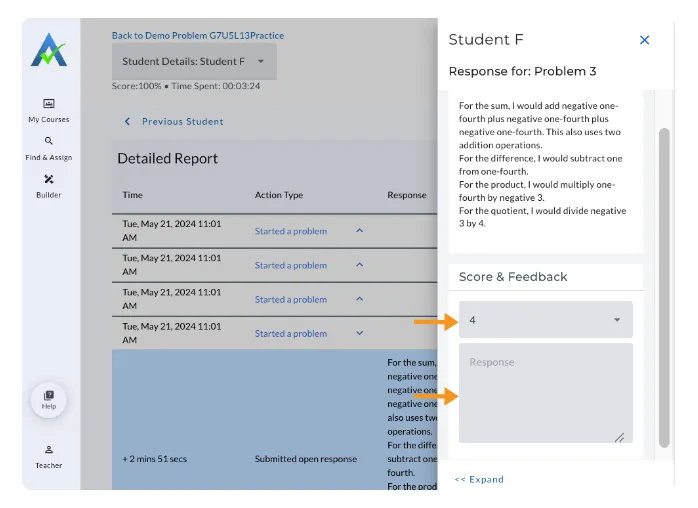
Click on the Student's Name from the Assignment Report and select the Open Response Question. Enter Score & Feedback.
View Open Response Attempts
Open Response Attempts allows teachers to see all of the open response answers a student has submitted so they can review how the student worked through the problem. This provides insight into student revisions and thinking.
- Open the Assignment Report for the assignment with the open response question.
- Click on Assess.
- Select a student using the dropdown or navigation arrows.
- Navigate through the student’s responses to view all submitted attempts.
.gif)
Once you’ve entered scores and feedback, your work is complete. Students will see your comments in their Student Report, and you can review your feedback at any time in the Assignment Report.
Scoring and Leaving Feedback on Open Response Questions
Open response questions let students explain their reasoning in their own words.
You can score these questions on a 4-point scale and add written feedback to help guide student learning.
Students can view their scores and teacher comments for open responses in the Student Report, giving them an opportunity to review and reflect on their responses.
Two Ways to Score and Provide Feedback
There are two ways to score and provide feedback in ASSISTments. You can use the Assignment Report to grade and give feedback on a single open response question for all students, or use the Student Details Report to score one student’s open response answer in comparison to their answers across the assignment.
When you type a comment on an open-response question, ASSISTments saves it for quick reuse within the same assignment report. For example, if you write “Great Explanation” for one student, you can select that same comment for another student without retyping it.
Note: Saved comments are only available within the current assignment report. If you open a new report, your saved comments will reset—you’ll need to type them again before they can be reused.
Grade by Question
Use the Assignment Report to grade and give feedback on a single open-response question for all students.
- Open the Assignment Report for the assignment with the open response question you want to grade and click on ‘Assess’.
- Click the center “𝑖” to see all student responses.
There are two ways to view student responses:
- Table (above)
- Card (below)
Grade by Student
Use the Student Details Report to grade one student’s open-response answers across the entire assignment.
Option 1:
Open the Assignment Report for the assignment with the open response question you want to grade and click on ‘Assess’.
Use the student dropdown or the up and down arrows to navigate between students. Use the left and right arrows to navigate between answers from a particular student.
Option 2:
Click on the Student's Name from the Assignment Report and select the Open Response Question. Enter Score & Feedback.
View Open Response Attempts
Open Response Attempts allows teachers to see all of the open response answers a student has submitted so they can review how the student worked through the problem. This provides insight into student revisions and thinking.
- Open the Assignment Report for the assignment with the open response question.
- Click on Assess.
- Select a student using the dropdown or navigation arrows.
- Navigate through the student’s responses to view all submitted attempts.
Once you’ve entered scores and feedback, your work is complete. Students will see your comments in their Student Report, and you can review your feedback at any time in the Assignment Report.
Didn't Find What You Were Looking For?
.avif)
Charitable Number: 83-4228740


