

Smarter Tools, Less Stress: What’s New in ASSISTments
.svg)

.svg)
.svg)

At ASSISTments, every update we make is designed with one goal in mind: to make your work as a teacher easier, more efficient, and more impactful. Whether you’re assigning content, preparing for tests, or navigating the content library, these new features are here to save you time and help you make more confident instructional decisions.
From simplifying standards alignment to streamlining test-taking and organizing your favorite content, here’s what’s new—and how it can support you in the classroom.
Pin Your Go-To Content for Easy Access
Save time by pinning your most-used content to the top of your Content Library.
With our new Pin Content feature, your favorite units are always right where you need them. Want to pin a specific unit? Just click the 📌 icon next to the unit title. That’s it.
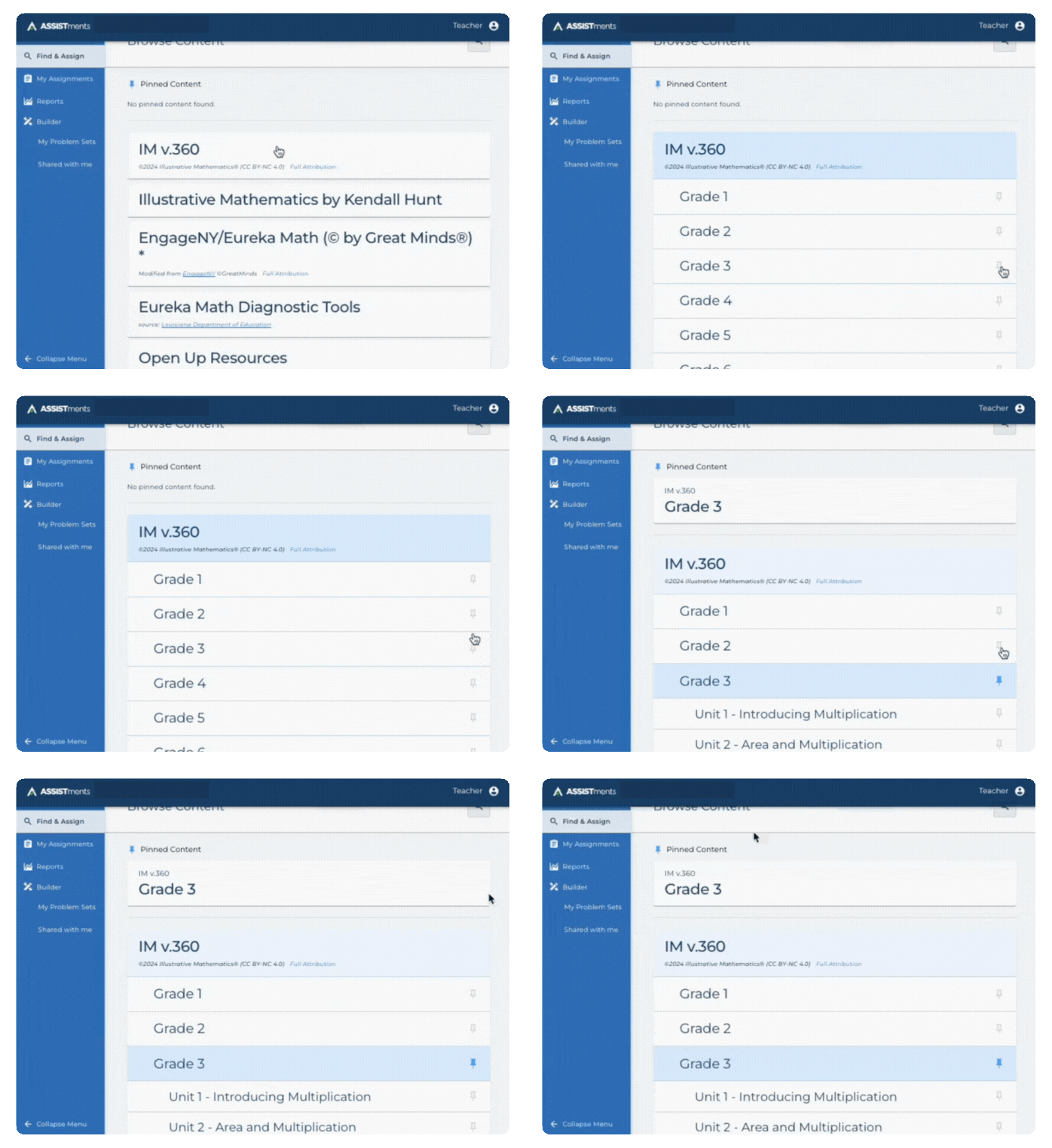
Pro tip: If your settings are up to date, we’ve already pre-pinned content that matches your curriculum and grade level.
Need to unpin something? Navigate to the unit and deselect the pin icon.
Pin Your Favorite Content →
Organize Data by School Terms
You can now set school terms in ASSISTments based on custom date ranges. Whether it’s trimesters, semesters, or marking periods, this new feature allows you to:
- Filter assignments by term
- View student progress and reports within specific date ranges
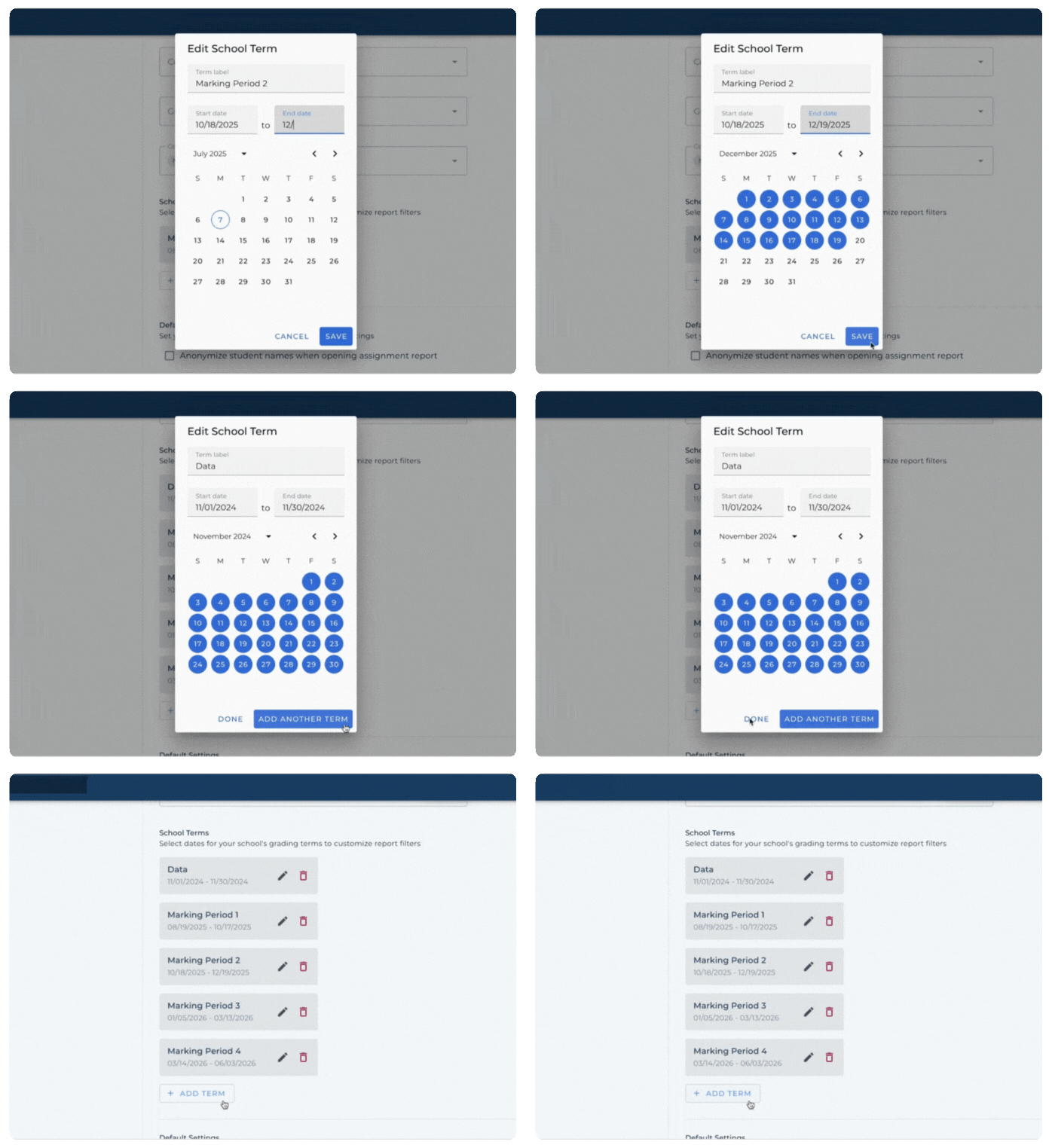
This is especially helpful when analyzing growth over time or preparing for report cards.
Streamline Collaboration with Shared With Me Folders
Easily share and assign custom content across your team.
Shared With Me Folders allow teachers to collaborate by sharing problem sets and content they’ve built—perfect for teams using the Builder feature or customizing assignments.
Use cases include:
- Experienced teachers sharing ready-to-go problem sets with new colleagues
- District leads distributing custom content across schools
- Grade-level teams building and reusing consistent content
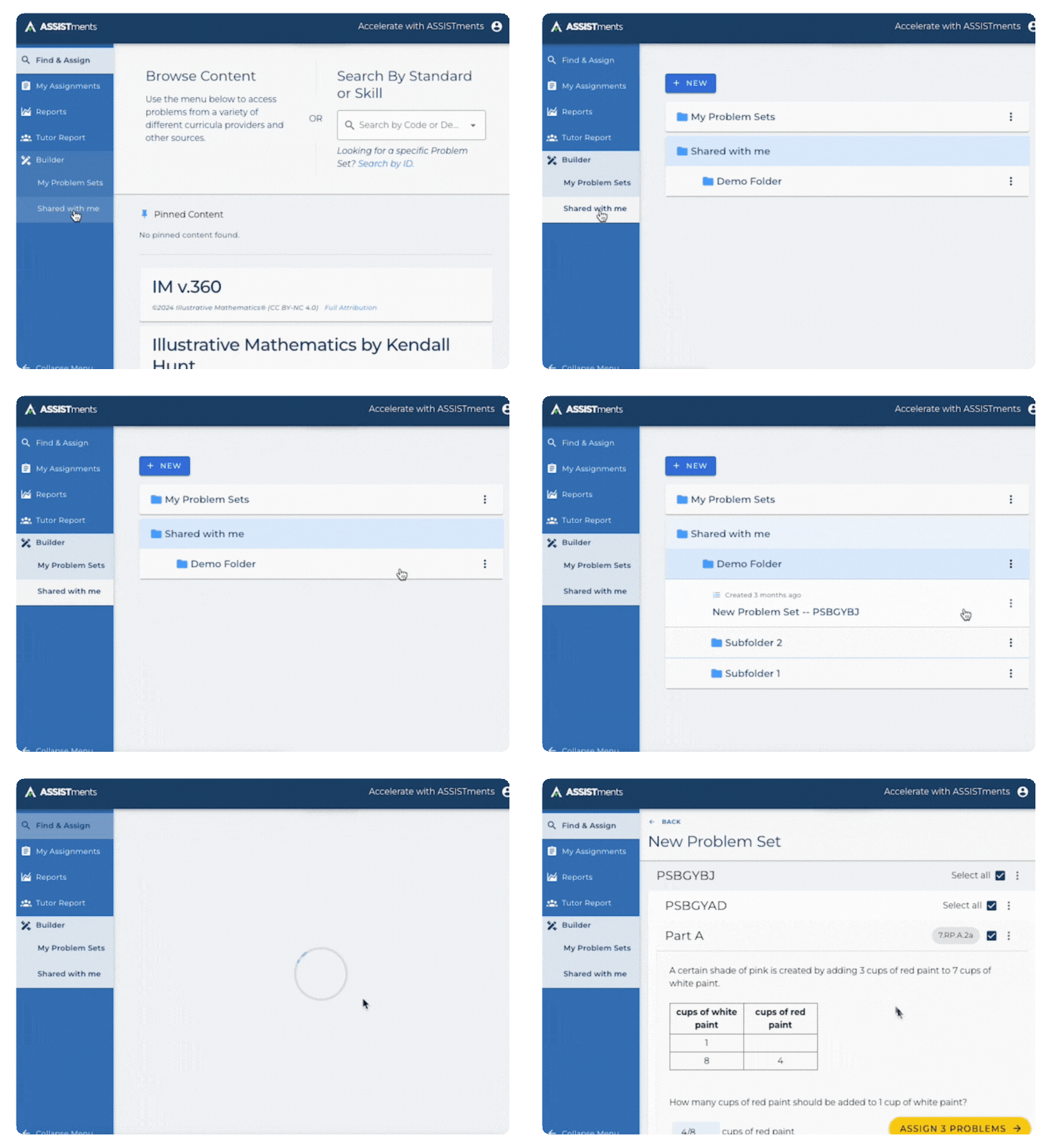
It’s never been easier to work together and support each other’s success.
Explore Shared with Me Folders →
A More Flexible Experience: Test Mode and Open Response with Revisions
We’ve upgraded Test Mode and Open Response questions to give students more control—just like they would have with pencil and paper.
With these updates, students can:
- Revise their responses before submitting
- Bookmark questions they want to return to
- Navigate questions in any order they choose
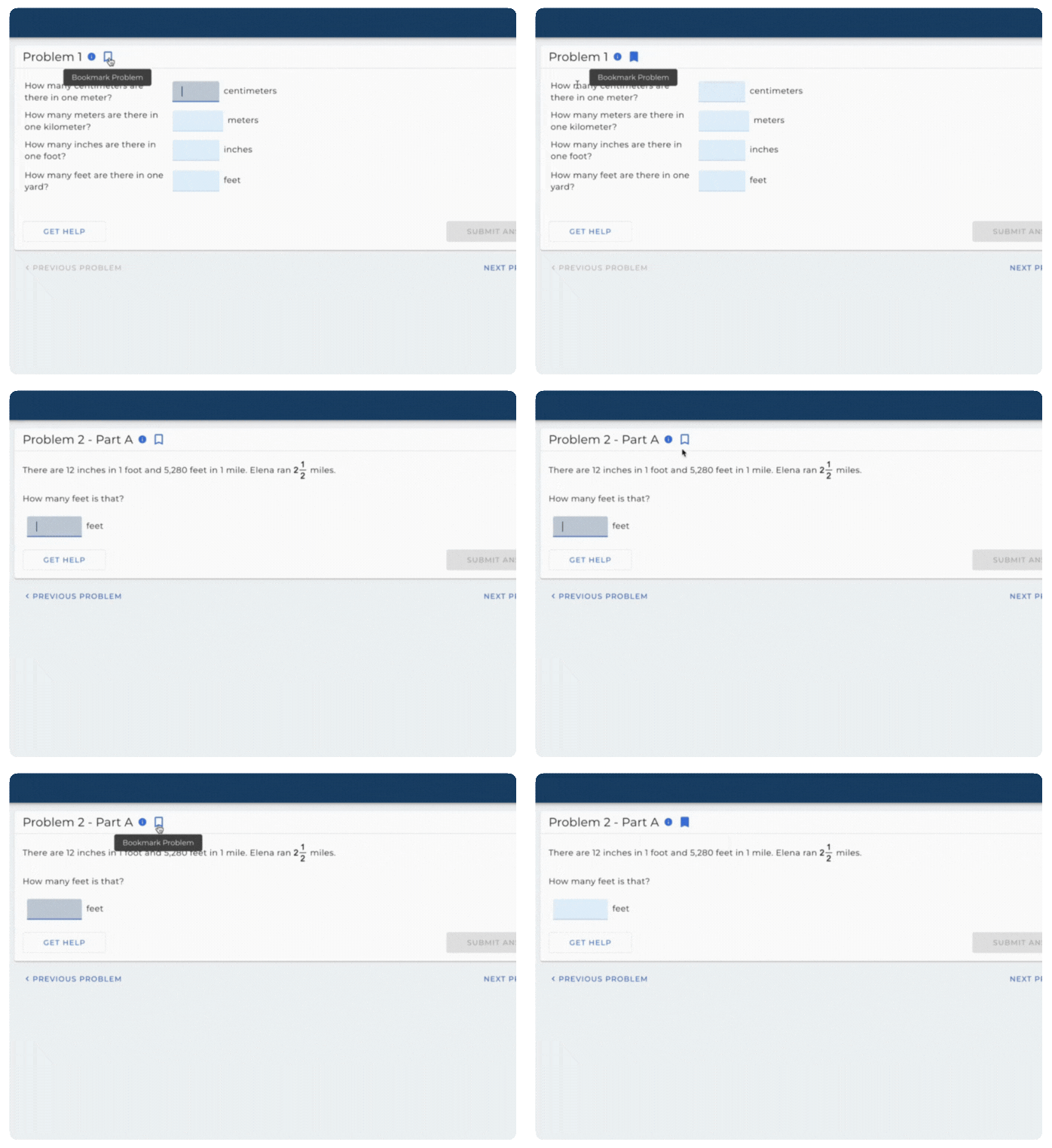
No more getting stuck. No more unnecessary reset requests. Just confident problem-solving.
Note: We’ve made Test Mode with Revisions your default setting, so it’s ready to go next time you assign a test.
Learn More about Test Mode with Revisions →
Extra Motivation for Students with Progress Stars
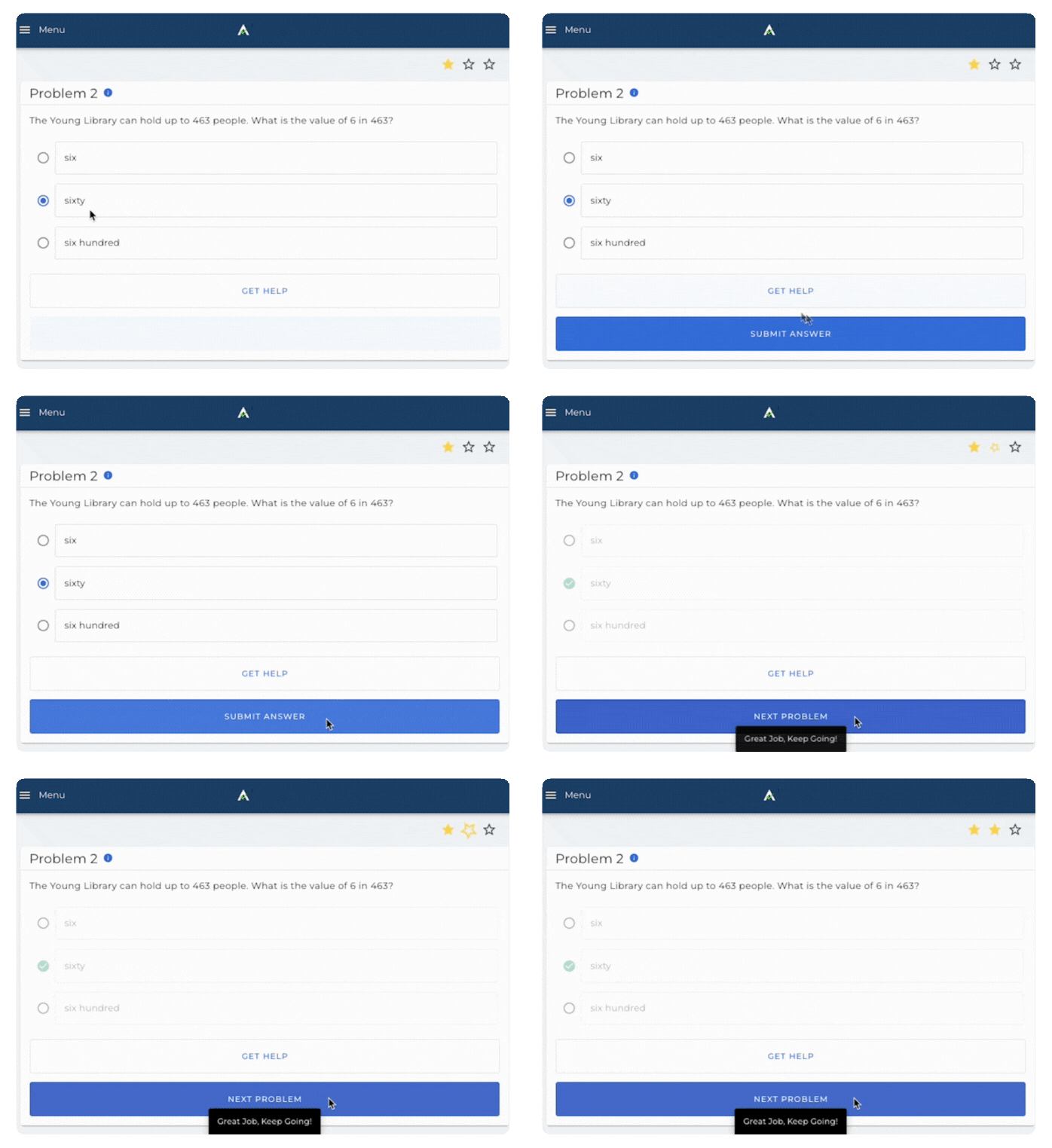
We’ve made Skill Builders more engaging for students with the addition of Progress Stars—a fun, visual way to keep them focused and motivated while they build mastery.
- As students answer correctly, stars in the corner fill up.
- If they miss a problem, the stars explode and reset.
- Finished successfully? They’ll get a congratulatory message that celebrates their hard work.
Assign with Confidence Using State Standards
Take the guesswork out of finding standards-aligned problems.
We’ve just added New York and California standards to the ASSISTments content library—making it easier than ever to assign content that meets your instructional goals. With over 200,000 problems to choose from, you can now ensure you’re assigning from problems that align with your state’s standard. (Note: more state specific standards are being added on a rolling basis!)
How to turn it on:
- Log in to ASSISTments
- Click your name in the top right corner
- Select Settings > Preferences
- Enter your curriculum, standards, grade level, and school
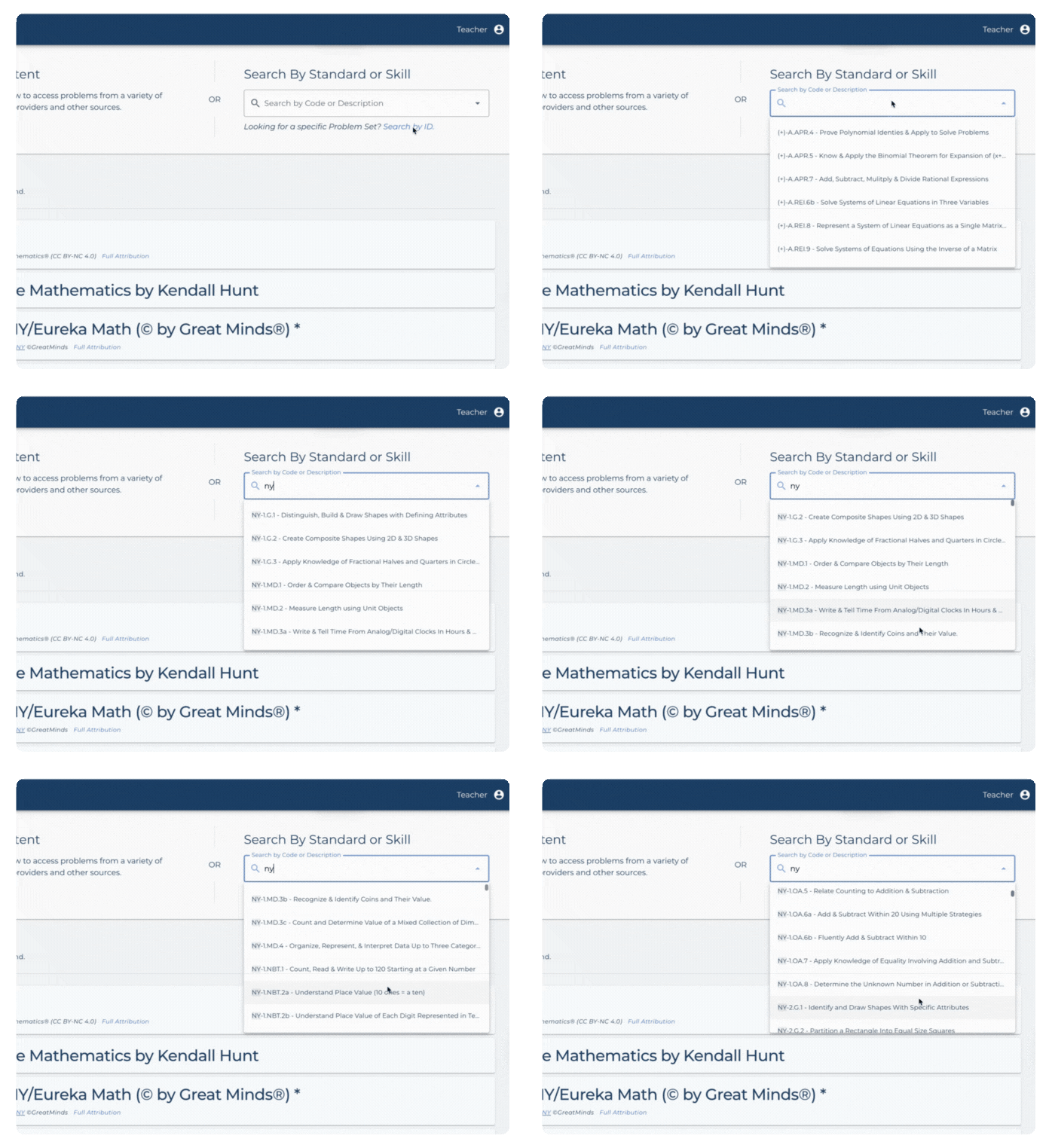
Once saved, you’ll start seeing your standards appear throughout the content library.
We’re committed to continually improving ASSISTments to meet the needs of real classrooms like yours. Have feedback or ideas? Let us know →
Happy teaching!
Share on socials!


.webp)
.webp)
.avif)


