


The Student Experience Completing an Assignment in Test Mode
The Student Experience in Test Mode with Revisions
This guide explains what students will experience when completing an assignment in Test Mode with revisions allowed. You'll learn how answers are submitted, what feedback is displayed, and how results are delivered upon completion.
ASSISTments assignments will appear to students as embedded links in their learning management system (Google Classroom, Schoology, or Canvas).
The assignment link will direct students to a landing page that provides them with the option to begin the assignment.

Test Mode Student Experience
Test mode is similar to a traditional summative test.
- Students will not receive immediate feedback as they submit their answers. Instead, they will see a blue dot indicating their answer has been submitted.
- Students will not have access to any available hints, explanations, or the “Show Answer” button that they see in Practice Mode.
- Students will still be able to preview their previous answers submitted
- Students will have the ability to resubmit their answers and return to any problem until they turn in their assignment.

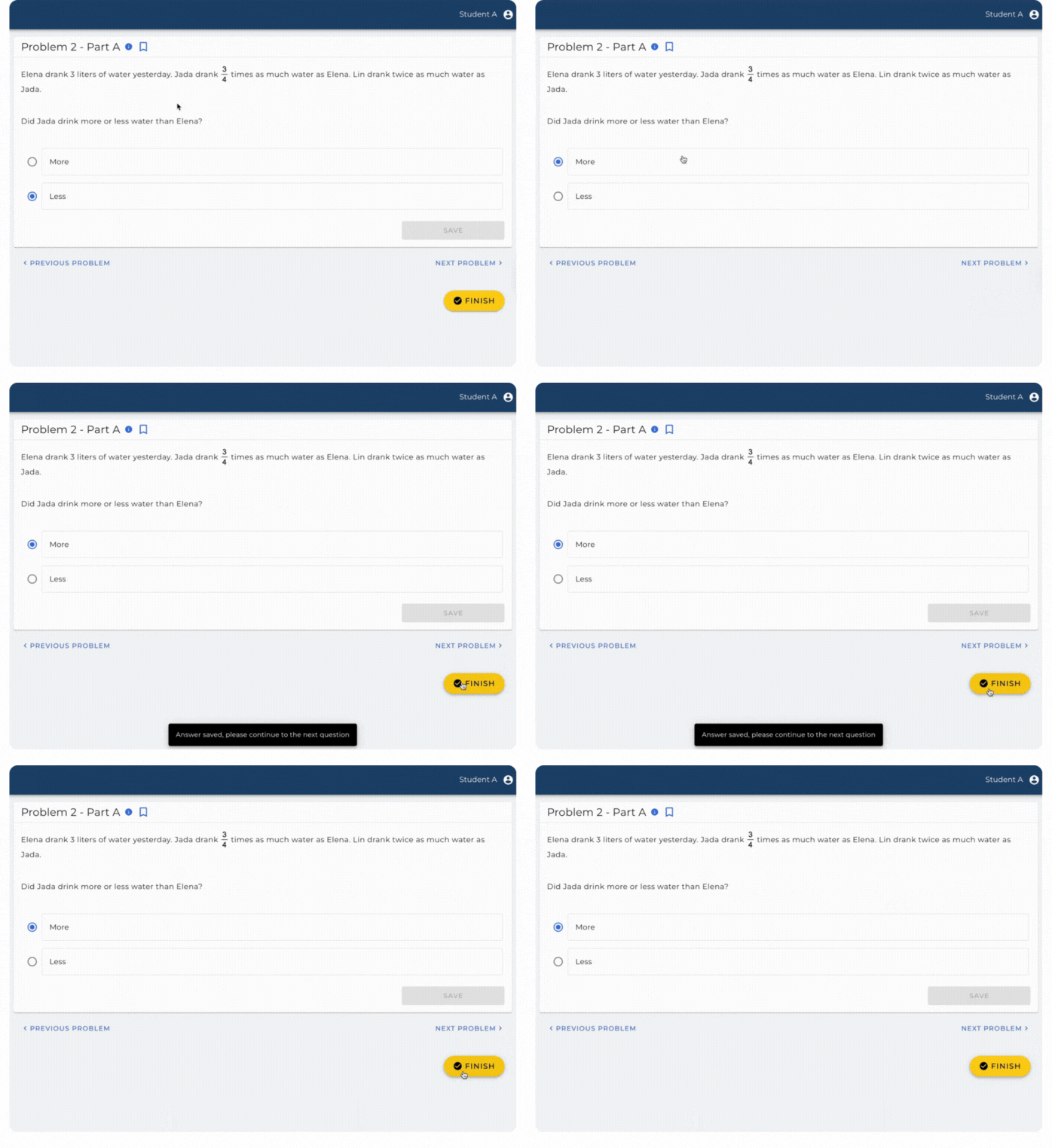
Once students have entered their answer, they will be prompted to save their answer.

Once students have saved an answer for every question, a yellow finish button will appear. When students click the button, they will be asked to confirm that they are finished, and the assignment will be submitted.


Revisions to Answers
As noted previously, students will have the opportunity to resubmit their answers and return to any problem until they submit their assignment. If students choose to make an edit to a problem they have previously completed, the yellow finish button will disappear, and students will be prompted to save their edited answer.
Student Report in Test Mode
After completing an assignment, students will see a report (Symbols of Success or Scoring and Class Average) with their results. The report they see depends on which score delivery option the teacher has chosen at Assign-Time or the default setting they have chosen in Settings.

If student score delivery is set to ‘Success Symbols’, students will be able to see:
a) The problem name, which they can click to view the problem they answered.
b) The score symbol they received for each problem
c) The number of hints, if any, did they used while completing the assignment

If student score delivery is set to ‘Score and Class Average’, students will be able to see:
a) The problem name, which they can click to view the problem they answered.
b) Their overall score on the assignment and the score they received on each problem.
c) The class average score for each problem.
d) The number of hints, if any, they used while completing the assignment.
Troubleshooting Tips
Problem: Students can’t see the “Finish” button.
- Solution: Ensure all answers are saved. The yellow “Finish” button appears only when all answers have been saved. Students should look for a grey circle and checkmark on each problem.
Problem: Don’t want students to receive a student report.
- Solution: If you would not like students to receive a student report, follow the directions here to disable.
Problem: Students do not have the ability to revise their answers
- Solution: Ensure that the assignment was assigned in Test Mode with the box marked next to allow revisions before final submission.
The Student Experience in Test Mode with Revisions
This guide explains what students will experience when completing an assignment in Test Mode with revisions allowed. You'll learn how answers are submitted, what feedback is displayed, and how results are delivered upon completion.
ASSISTments assignments will appear to students as embedded links in their learning management system (Google Classroom, Schoology, or Canvas).
The assignment link will direct students to a landing page that provides them with the option to begin the assignment.
Test Mode Student Experience
Test mode is similar to a traditional summative test.
- Students will not receive immediate feedback as they submit their answers. Instead, they will see a blue dot indicating their answer has been submitted.
- Students will not have access to any available hints, explanations, or the “Show Answer” button that they see in Practice Mode.
- Students will still be able to preview their previous answers submitted
- Students will have the ability to resubmit their answers and return to any problem until they turn in their assignment.
Once students have entered their answer, they will be prompted to save their answer.
Once students have saved an answer for every question, a yellow finish button will appear. When students click the button, they will be asked to confirm that they are finished, and the assignment will be submitted.
Revisions to Answers
As noted previously, students will have the opportunity to resubmit their answers and return to any problem until they submit their assignment. If students choose to make an edit to a problem they have previously completed, the yellow finish button will disappear, and students will be prompted to save their edited answer.
Student Report in Test Mode
After completing an assignment, students will see a report (Symbols of Success or Scoring and Class Average) with their results. The report they see depends on which score delivery option the teacher has chosen at Assign-Time or the default setting they have chosen in Settings.
If student score delivery is set to ‘Success Symbols’, students will be able to see:
a) The problem name, which they can click to view the problem they answered.
b) The score symbol they received for each problem
c) The number of hints, if any, did they used while completing the assignment
If student score delivery is set to ‘Score and Class Average’, students will be able to see:
a) The problem name, which they can click to view the problem they answered.
b) Their overall score on the assignment and the score they received on each problem.
c) The class average score for each problem.
d) The number of hints, if any, they used while completing the assignment.
Troubleshooting Tips
Problem: Students can’t see the “Finish” button.
- Solution: Ensure all answers are saved. The yellow “Finish” button appears only when all answers have been saved. Students should look for a grey circle and checkmark on each problem.
Problem: Don’t want students to receive a student report.
- Solution: If you would not like students to receive a student report, follow the directions here to disable.
Problem: Students do not have the ability to revise their answers
- Solution: Ensure that the assignment was assigned in Test Mode with the box marked next to allow revisions before final submission.
Didn't Find What You Were Looking For?
.avif)
Charitable Number: 83-4228740


