


Pinned Content
Pinning Content in Find & Assign
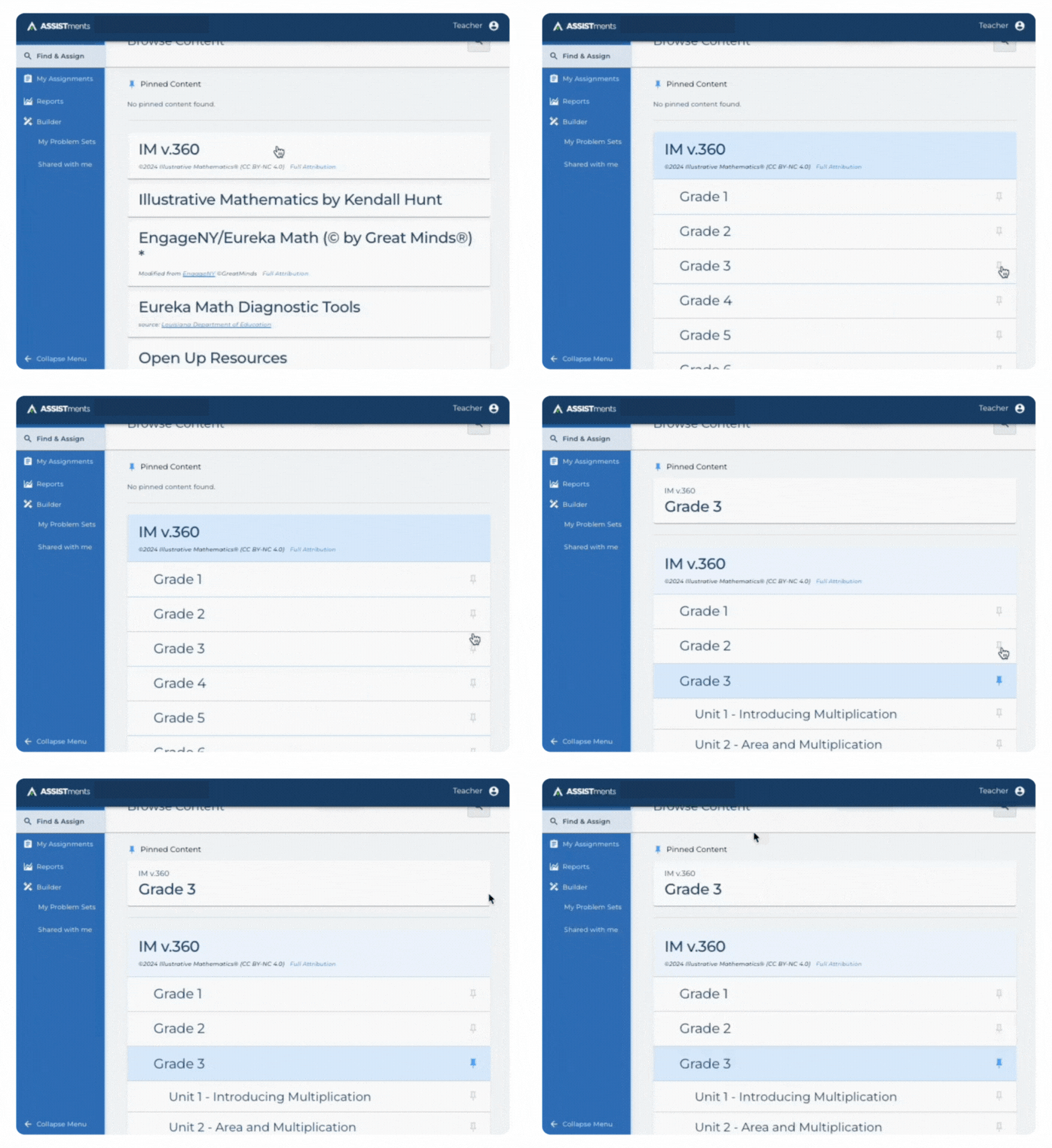
Pin important folders and subfolders in Find & Assign so they appear at the top for easy access. You can pin content automatically using your Settings or manually using the pin icon in the content library.
Pinned folders appear at the top of your Find & Assign view.

How to Pin Content
Option 1: Pin Automatically via Settings
- Log in to your account.
- Click Settings in the top navigation.

- Select Preferences.
- Under Grades Taught and Curriculum, choose the options that match what you teach.

- Click Save.

Note: Folders are automatically pinned in Find & Assign if you select BOTH a grade level and a curriculum in your preferences.
Option 2: Pin Manually in the Content Library
- Go to Find & Assign.
- Browse the content library to locate the folder or subfolder you want to pin.
- Click the push pin icon next to the folder name.
How to Unpin Content
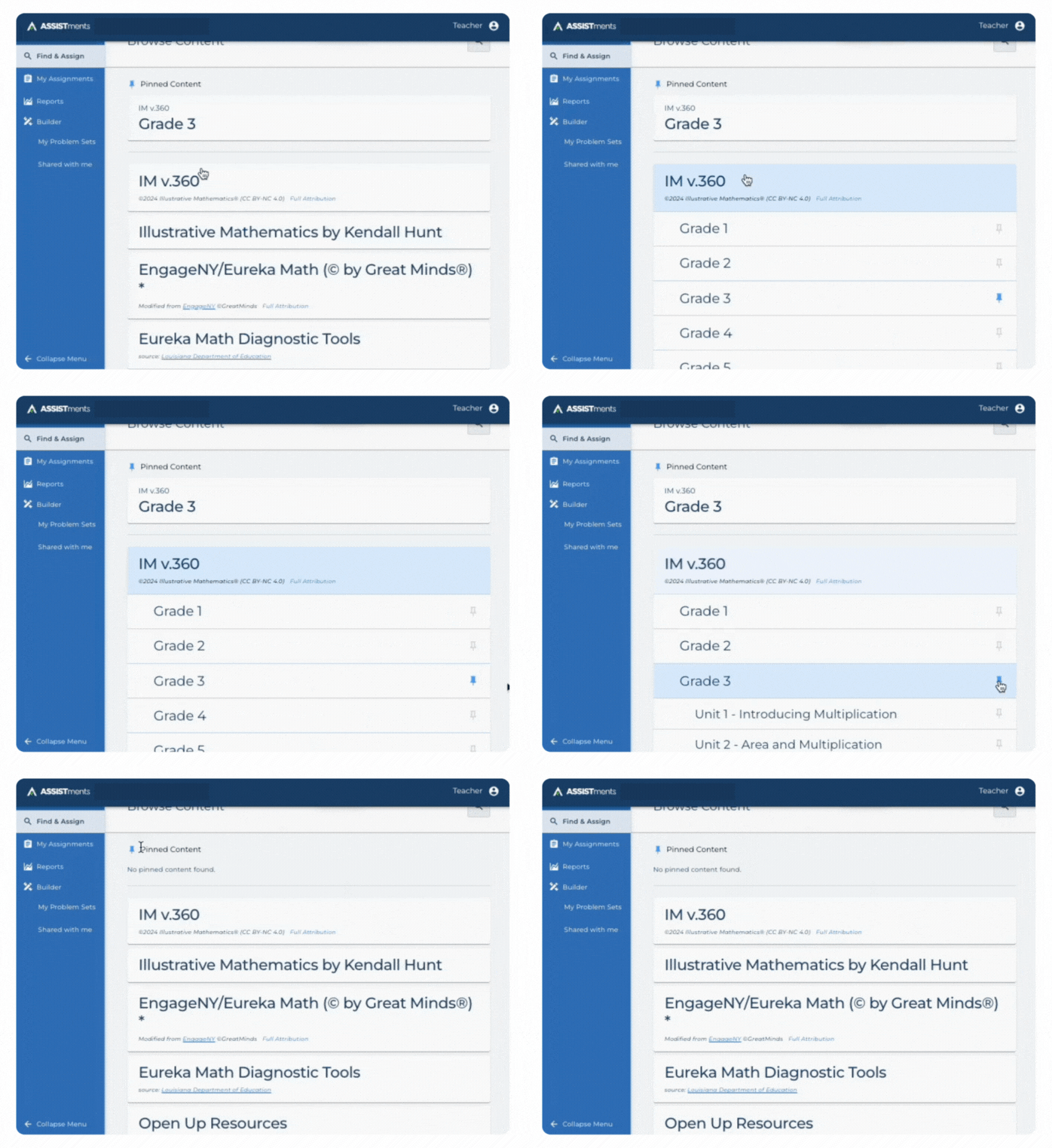
- Go to Find & Assign.
- Navigate to the pinned folder in the content library.
- Click the push pin icon again to remove it.
Note: Once unpinned, the folder will no longer appear at the top of Find & Assign.
Troubleshooting Tips
Problem: Can’t unpin a folder
- Solution: Make sure you're viewing the content from our content library folders, not just in your pinned section. Click the pushpin icon next to the folder name in the library to remove it.
Problem: Wrong folders are pinned
- Solution:
- Navigate our content library and unpin the wrong folders.
- Check your Settings > Preferences page.
- Update Grades Taught and Curriculum to match what you want pinned.
- Click Save to refresh your pinned content.
Pinning Content in Find & Assign
Pin important folders and subfolders in Find & Assign so they appear at the top for easy access. You can pin content automatically using your Settings or manually using the pin icon in the content library.
Pinned folders appear at the top of your Find & Assign view.
How to Pin Content
Option 1: Pin Automatically via Settings
- Log in to your account.
- Click Settings in the top navigation.
- Select Preferences.
- Under Grades Taught and Curriculum, choose the options that match what you teach.
- Click Save.
Note: Folders are automatically pinned in Find & Assign if you select BOTH a grade level and a curriculum in your preferences.
Option 2: Pin Manually in the Content Library
- Go to Find & Assign.
- Browse the content library to locate the folder or subfolder you want to pin.
- Click the push pin icon next to the folder name.
How to Unpin Content
- Go to Find & Assign.
- Navigate to the pinned folder in the content library.
- Click the push pin icon again to remove it.
Note: Once unpinned, the folder will no longer appear at the top of Find & Assign.
Troubleshooting Tips
Problem: Can’t unpin a folder
- Solution: Make sure you're viewing the content from our content library folders, not just in your pinned section. Click the pushpin icon next to the folder name in the library to remove it.
Problem: Wrong folders are pinned
- Solution:
- Navigate our content library and unpin the wrong folders.
- Check your Settings > Preferences page.
- Update Grades Taught and Curriculum to match what you want pinned.
- Click Save to refresh your pinned content.
Didn't Find What You Were Looking For?
.avif)
Charitable Number: 83-4228740


