


Assign Time Options
Assign Time Options
Assign Time Options let you customize an assignment before assigning it to students. After selecting an assignment from Find & Assign and selecting Assign to Class, you can choose who receives the assignment, set release and due dates, and adjust other assignment details.
The options available at assign time may vary depending on whether you are using ASSISTments or ASSISTments Plus.
Assign Time Options with ASSISTments
After selecting Assign to Class, you can review the assignment details, choose which courses and students will receive the assignment, set the release and due dates, and customize the Student Experience.
At Assign Time, you can access the following options:
- Assignment Name: Review or update the assignment name.
- Course: Select the imported course or courses that will receive the assignment.
- Assignees: Assign to all students, select students, or student groups.
- Release Date: Choose when the assignment becomes available to students.
- No release date → the assignment is immediately available to students.
- Due Date: Set the date the assignment is due.
- With a due date → students can still complete the assignment after the deadline, but work will be marked late in your Assignment Report. A due date is required for Schoology.
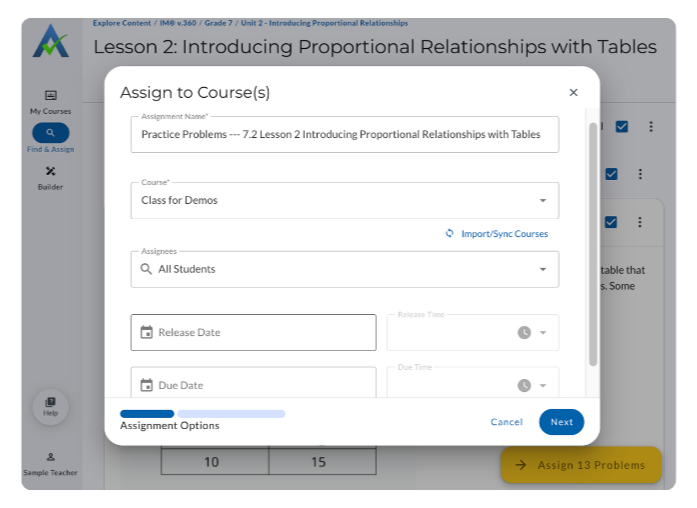
Select Next to continue to additional Student Experience options.
Customize the Student Experience
Student Experience options let you control how students complete an assignment and what they see during and after the assignment.
Select the ⓘ icon next to a Student Experience option to view a brief description of the setting.
- Test Mode (optional): Learn more about Test Mode here.
- Set Time Limit (optional): Limit how long, in minutes, students have to complete the assignment. Teachers may Pause Assignments. Learn more here.
- Redo (optional): Allow students to try a similar and standard-aligned problem to the one they missed. The better of the two problem scores is used to calculate the student’s score. Learn more here.
- Embedded Calculator (optional): Choose a four-function or scientific calculator for students to use while completing the assignment. Learn more here.
- Student Score Delivery: Choose what students see in their assignment report after completing the assignment. Select Success Symbols to show ASSISTments Symbols of Success, or Score & Class Average to show the student’s percentage and the class average.
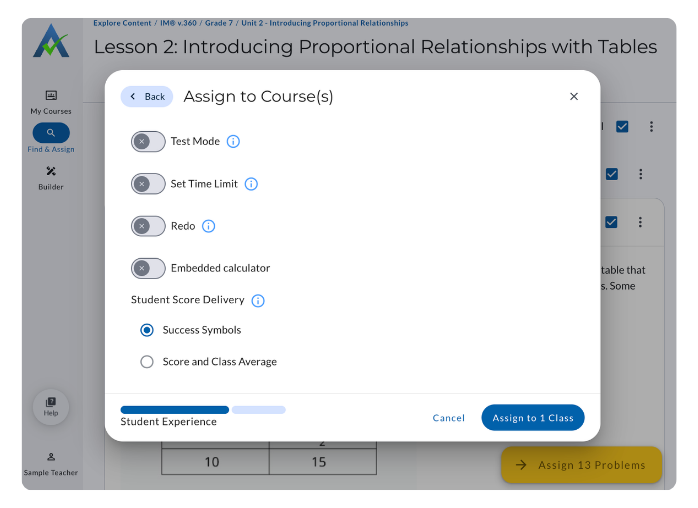
Select Assign to Class to complete the assigning process.
Assign Time Options with ASSISTments Plus
ASSISTments Plus includes additional options for customizing an assignment at Assign Time.
At Assign Time, you can access the following additional options:
- Scoring Category: Select the scoring category used to calculate student scores. Custom Scoring is an ASSISTments Plus feature. Learn more about Custom Scoring.
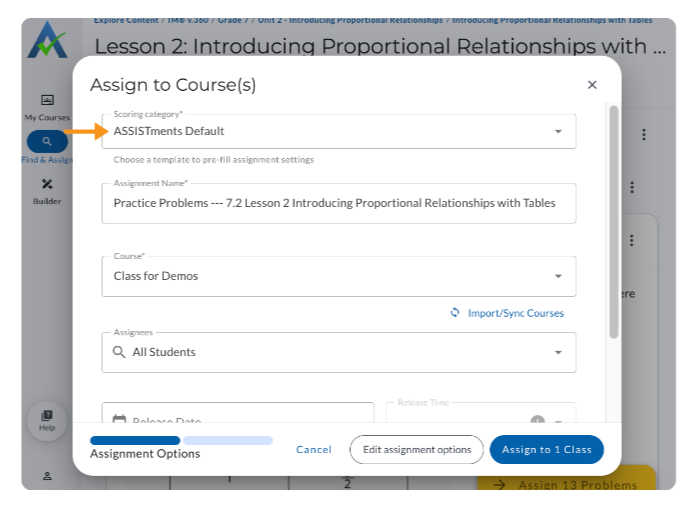
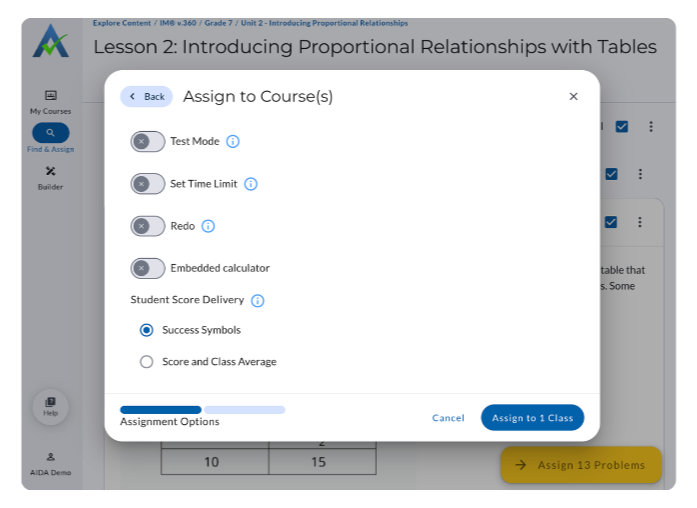
Select Assign to Class to complete the assigning process.
Assigning with Schoology
Schoology users must select a Grading Category before assigning an assignment. After reviewing your assignment options and customizing the Student Experience, select a Grading Category for the assignment.
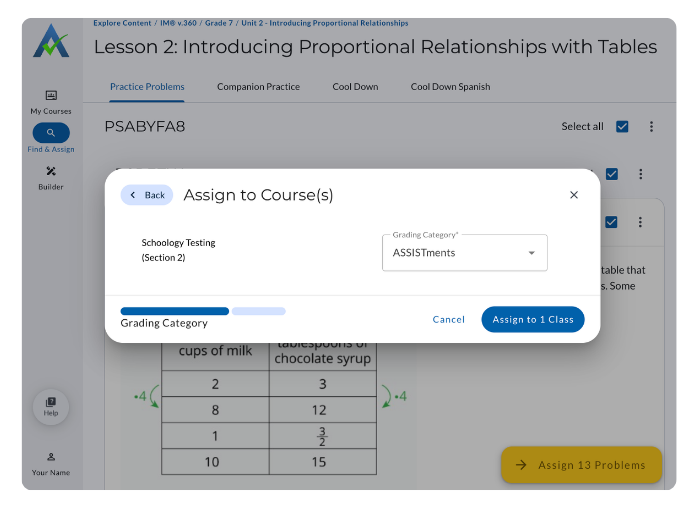
Select Assign to Class to complete the assigning process.
Assign Time Options
Assign Time Options let you customize an assignment before assigning it to students. After selecting an assignment from Find & Assign and selecting Assign to Class, you can choose who receives the assignment, set release and due dates, and adjust other assignment details.
The options available at assign time may vary depending on whether you are using ASSISTments or ASSISTments Plus.
Assign Time Options with ASSISTments
After selecting Assign to Class, you can review the assignment details, choose which courses and students will receive the assignment, set the release and due dates, and customize the Student Experience.
At Assign Time, you can access the following options:
- Assignment Name: Review or update the assignment name.
- Course: Select the imported course or courses that will receive the assignment.
- Assignees: Assign to all students, select students, or student groups.
- Release Date: Choose when the assignment becomes available to students.
- No release date → the assignment is immediately available to students.
- Due Date: Set the date the assignment is due.
- With a due date → students can still complete the assignment after the deadline, but work will be marked late in your Assignment Report. A due date is required for Schoology.
Select Next to continue to additional Student Experience options.
Customize the Student Experience
Student Experience options let you control how students complete an assignment and what they see during and after the assignment.
Select the ⓘ icon next to a Student Experience option to view a brief description of the setting.
- Test Mode (optional): Learn more about Test Mode here.
- Set Time Limit (optional): Limit how long, in minutes, students have to complete the assignment. Teachers may Pause Assignments. Learn more here.
- Redo (optional): Allow students to try a similar and standard-aligned problem to the one they missed. The better of the two problem scores is used to calculate the student’s score. Learn more here.
- Embedded Calculator (optional): Choose a four-function or scientific calculator for students to use while completing the assignment. Learn more here.
- Student Score Delivery: Choose what students see in their assignment report after completing the assignment. Select Success Symbols to show ASSISTments Symbols of Success, or Score & Class Average to show the student’s percentage and the class average.
Select Assign to Class to complete the assigning process.
Assign Time Options with ASSISTments Plus
ASSISTments Plus includes additional options for customizing an assignment at Assign Time.
At Assign Time, you can access the following additional options:
- Scoring Category: Select the scoring category used to calculate student scores. Custom Scoring is an ASSISTments Plus feature. Learn more about Custom Scoring.
Select Assign to Class to complete the assigning process.
Assigning with Schoology
Schoology users must select a Grading Category before assigning an assignment. After reviewing your assignment options and customizing the Student Experience, select a Grading Category for the assignment.
Select Assign to Class to complete the assigning process.
Didn't Find What You Were Looking For?
.avif)
Charitable Number: 83-4228740


