


Custom Scoring: ASSISTments Plus Feature
Custom Scoring
⭐️ ASSISTments Plus Feature
This feature is available exclusively with ASSISTments Plus for Schools & Districts. Learn more here.
Custom Scoring allows teachers to choose how assignments are scored. Teachers can use points, rubrics, pass/fail, or percentages to align assignment scores with their grading practices. Scores can also be reflected in the teacher’s learning management system (LMS) gradebook.
Watch the video or follow the instructions below.
How to Access Score Settings
- Click or hover over your name in the bottom-left corner of the screen.
- Select Score Settings.

The default Score Setting is the ASSISTments Default, which will score assignments out of 100%.
Scoring Categories
Point Scoring
Point-based grading with customizable penalties for hints and revealing answers.
- Assign a custom point value to the assignment (e.g., out of 10).
- Student scores are converted from percentages to your chosen point scale.

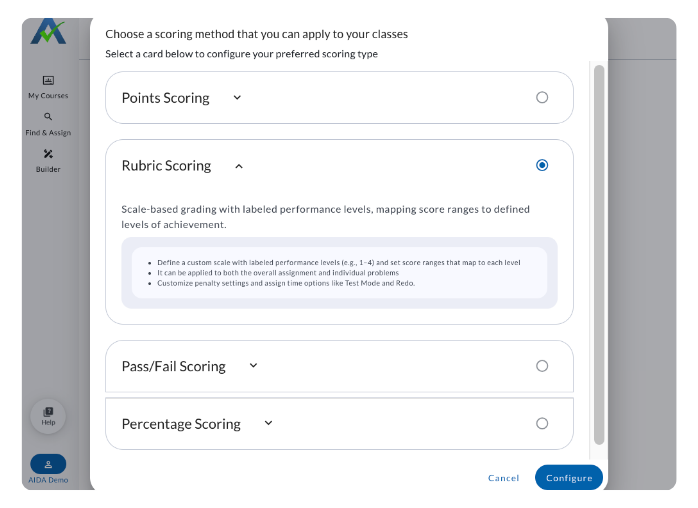
Rubric Scoring
Scale-based grading with labeled performance levels, mapping score ranges to defined levels of achievement.
- Define a custom scale with labeled performance levels (e.g., 1–4) and set score ranges that map to each level.
- Rubric Scoring can be applied to both the overall assignment and individual problems.
Pass/Fail Scoring
Threshold-based grading where students receive either a pass or fail depending on whether their score meets a defined minimum.
- Set a passing threshold percentage.
- Students either pass or fail based on whether their average score meets that threshold.

Percentage Scoring
Percentage-based grading out of 100, the standard default scoring method.
- Score assignments out of 100%.

Scoring Category Cards
Each Scoring Category is displayed as a card on the Score Settings page.
Each card displays:
- The Scoring Category name
- The Scoring Category type (Points, Rubric, Pass/Fail, or Percentage)
- Whether it is the default Scoring Category
Select a Scoring Category card to open its configuration page.
ASSISTments Default
The ASSISTments Default is a Percentage Scoring Category that is set as the default for each user. The default Scoring Category includes hint and incorrect answer deductions set to 33%. Learn more about The default Scoring Category can be changed.

Create a Score Setting
- Select the + Scoring category button on the Score Settings page.

- Choose a Score Setting:
- Point Scoring
- Rubric Scoring
- Pass/Fail Scoring
- Percentage Scoring
- Select Configure.

Configure a Scoring Category
Each scoring type includes its own required configuration options in addition to shared settings such as Deduction Settings, Assign Time Options, and Send Schema to the LMS Gradebook.
Point Scoring
- Maximum Points (required)
Rubric Scoring
- Quick Presets (optional)
- Score and Performance Level Labels
- Score Minimum (required)
- Maximum Points (required)
- Rubric Label (required)
- Score or Range (required)
- Problem Level Calculation (optional)
Pass/Fail Scoring
- Pass Threshold (required)
Percentage Scoring
- Percentage (100%)
- Problem Level Calculation
All Scoring Categories also include:
- Scoring Category Name (required)
- Set as Default Scoring Method (optional)
- Deduction Settings (optional)
- Assign Time Options (optional)
- Send Schema to the LMS Gradebook (optional)
- Note: If this option is not selected, scores sent to the LMS gradebook will use the ASSISTments Default Score Setting.
View or Edit a Saved Score Setting
Select a saved Scoring Category Card on the Score Settings page to view or make changes to that Score Setting.
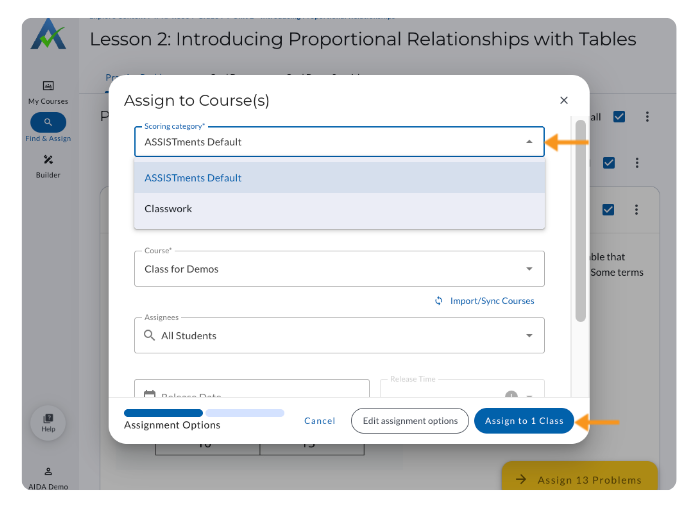
Use Scoring Category During Assign Time
During Assign Time, select a scoring category from the Scoring Category dropdown. The default scoring category will always be preselected.
To update Assign Time options for the selected Scoring Category, selelct Edit Assignment Options.
When you are ready, select Assign to complete the assignment process.
Send Scores to Your LMS Gradebook
To have scores reflected in your learning management system (LMS) gradebook, select the option to Send this scoring schema to the LMS gradebook when configuring a Scoring Category.
Note: If this option is not selected, scores sent to the LMS gradebook will use the ASSISTments Default scoring category and be scored out of 100%.

Once scores are sent to the LMS gradebook using the selected scoring schema, the student’s score will reflect the selected Scoring Category.

Custom Scoring
⭐️ ASSISTments Plus Feature
This feature is available exclusively with ASSISTments Plus for Schools & Districts. Learn more here.
Custom Scoring allows teachers to choose how assignments are scored. Teachers can use points, rubrics, pass/fail, or percentages to align assignment scores with their grading practices. Scores can also be reflected in the teacher’s learning management system (LMS) gradebook.
Watch the video or follow the instructions below.
How to Access Score Settings
- Click or hover over your name in the bottom-left corner of the screen.
- Select Score Settings.
The default Score Setting is the ASSISTments Default, which will score assignments out of 100%.
Scoring Categories
Point Scoring
Point-based grading with customizable penalties for hints and revealing answers.
- Assign a custom point value to the assignment (e.g., out of 10).
- Student scores are converted from percentages to your chosen point scale.
Rubric Scoring
Scale-based grading with labeled performance levels, mapping score ranges to defined levels of achievement.
- Define a custom scale with labeled performance levels (e.g., 1–4) and set score ranges that map to each level.
- Rubric Scoring can be applied to both the overall assignment and individual problems.
Pass/Fail Scoring
Threshold-based grading where students receive either a pass or fail depending on whether their score meets a defined minimum.
- Set a passing threshold percentage.
- Students either pass or fail based on whether their average score meets that threshold.
Percentage Scoring
Percentage-based grading out of 100, the standard default scoring method.
- Score assignments out of 100%.
Scoring Category Cards
Each Scoring Category is displayed as a card on the Score Settings page.
Each card displays:
- The Scoring Category name
- The Scoring Category type (Points, Rubric, Pass/Fail, or Percentage)
- Whether it is the default Scoring Category
Select a Scoring Category card to open its configuration page.
ASSISTments Default
The ASSISTments Default is a Percentage Scoring Category that is set as the default for each user. The default Scoring Category includes hint and incorrect answer deductions set to 33%. Learn more about The default Scoring Category can be changed.
Create a Score Setting
- Select the + Scoring category button on the Score Settings page.
- Choose a Score Setting:
- Point Scoring
- Rubric Scoring
- Pass/Fail Scoring
- Percentage Scoring
- Select Configure.
Configure a Scoring Category
Each scoring type includes its own required configuration options in addition to shared settings such as Deduction Settings, Assign Time Options, and Send Schema to the LMS Gradebook.
Point Scoring
- Maximum Points (required)
Rubric Scoring
- Quick Presets (optional)
- Score and Performance Level Labels
- Score Minimum (required)
- Maximum Points (required)
- Rubric Label (required)
- Score or Range (required)
- Problem Level Calculation (optional)
Pass/Fail Scoring
- Pass Threshold (required)
Percentage Scoring
- Percentage (100%)
- Problem Level Calculation
All Scoring Categories also include:
- Scoring Category Name (required)
- Set as Default Scoring Method (optional)
- Deduction Settings (optional)
- Assign Time Options (optional)
- Send Schema to the LMS Gradebook (optional)
- Note: If this option is not selected, scores sent to the LMS gradebook will use the ASSISTments Default Score Setting.
View or Edit a Saved Score Setting
Select a saved Scoring Category Card on the Score Settings page to view or make changes to that Score Setting.
Use Scoring Category During Assign Time
During Assign Time, select a scoring category from the Scoring Category dropdown. The default scoring category will always be preselected.
To update Assign Time options for the selected Scoring Category, selelct Edit Assignment Options.
When you are ready, select Assign to complete the assignment process.
Send Scores to Your LMS Gradebook
To have scores reflected in your learning management system (LMS) gradebook, select the option to Send this scoring schema to the LMS gradebook when configuring a Scoring Category.
Note: If this option is not selected, scores sent to the LMS gradebook will use the ASSISTments Default scoring category and be scored out of 100%.
Once scores are sent to the LMS gradebook using the selected scoring schema, the student’s score will reflect the selected Scoring Category.
Didn't Find What You Were Looking For?
.avif)
Charitable Number: 83-4228740


