


Understanding Test Mode vs Practice Mode
Understanding Test Mode vs. Practice Mode
This guide explains the difference between assigning in Practice Mode vs Test Mode and explains how to assign in Test Mode as well as change default settings.
Practice Mode provides immediate feedback, hints, and multiple attempts to support learning, while Test Mode disables these features to assess student understanding without support.
See the chart below for an overview of the differences between Practice Mode and Test Mode.
%20(1).avif)
In Practice Mode, students can only change their responses to answers on open-response questions.
In Test Mode, students by default have the opportunity to change any of their answers before their final submission.
Assigning in Test Mode
- Navigate to the assignment you'd like to give in ASSISTments. Select Assign to Class to reach the assign time options.
.avif)
- Toggle on Test Mode
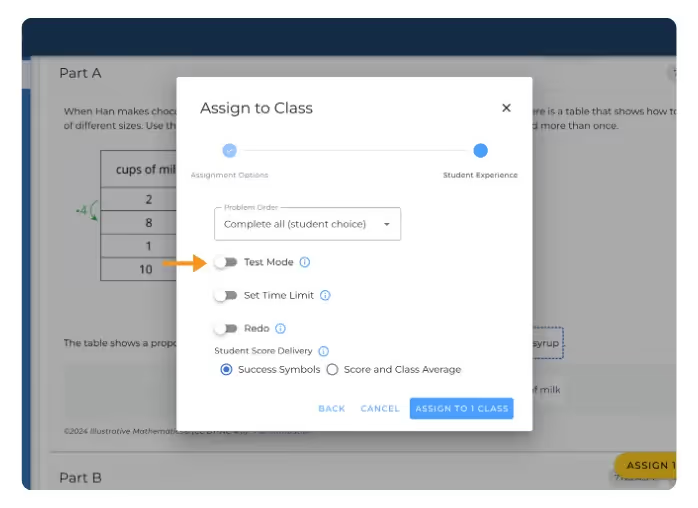
3. Click Assign to Class
.avif)
Student Experience in Test Mode
When Test Mode is assigned in the default experience, students are allowed to make corrections while working on assigned problem sets, they just will not receive immediate feedback or access to student supports.
Learn more about the student experience in test mode.
Adjusting Test Mode Settings
Assignments assigned in Test Mode default to allowing revisions for any question. This allows students to change their answers before final submission of the assignment. Teachers have the option to adjust this at assign time or change the default.
Without Revisions at Assign Time
- Toggle ‘Test Mode’ on and unselect ‘Allow revisions before final submission', and click “Assign”

Note: Students assigned this assignment in Test Mode will no longer be able to change their answers before final submission.
Adjust Test Mode Default Setting
- Click your profile icon in the top right and choose Settings.

- In the left-hand menu, click Feature Settings and in the Test Mode section, locate “Let students edit answers before final submission”, unselect the checkbox, and click Save Changes.

This changes the default option, allowing teachers to choose whether to enable revisions at assign time by checking the box.
Student Report Delivery
When an assignment is assigned in test mode, students will not automatically receive a score report when they have completed the assignment. Teachers have the option to adjust this at assign time or change the default.
Deliver Student Report at Assign Time
- Toggle ‘Test Mode’ on and ensure ‘Deliver student assignment report upon completion’ is selected and click ‘Assign’.

Students will now receive a student report of how they did upon completion.
Adjust Student Report Default Setting
- Click your profile icon in the top right and choose Settings.
- In the left-hand menu, click Feature Settings and in the Test Mode section, locate “Deliver student report at the end of the assignment”, unselect the checkbox, and click Save Changes.

This changes the default option, and teachers can choose not to deliver the student report at assign time by unchecking the box.
Troubleshooting Tips
- Problem: My students are not able to revise their answer ‘Open Response’ questions in Practice Mode.
- Solution: Ensure ‘Student Choice’ is selected at assign time.
- Problem: I accidentally assigned an assignment in Test Mode and unselected with revisions, and I want my students to try again.
- Solution: Reassign the assignment in Test Mode and make sure that “Allow revisions before final submission” is checked.
Understanding Test Mode vs. Practice Mode
This guide explains the difference between assigning in Practice Mode vs Test Mode and explains how to assign in Test Mode as well as change default settings.
Practice Mode provides immediate feedback, hints, and multiple attempts to support learning, while Test Mode disables these features to assess student understanding without support.
See the chart below for an overview of the differences between Practice Mode and Test Mode.
In Practice Mode, students can only change their responses to answers on open-response questions.
In Test Mode, students by default have the opportunity to change any of their answers before their final submission.
Assigning in Test Mode
- Navigate to the assignment you'd like to give in ASSISTments. Select Assign to Class to reach the assign time options.
- Toggle on Test Mode
3. Click Assign to Class
Student Experience in Test Mode
When Test Mode is assigned in the default experience, students are allowed to make corrections while working on assigned problem sets, they just will not receive immediate feedback or access to student supports.
Learn more about the student experience in test mode.
Adjusting Test Mode Settings
Assignments assigned in Test Mode default to allowing revisions for any question. This allows students to change their answers before final submission of the assignment. Teachers have the option to adjust this at assign time or change the default.
Without Revisions at Assign Time
- Toggle ‘Test Mode’ on and unselect ‘Allow revisions before final submission', and click “Assign”
Note: Students assigned this assignment in Test Mode will no longer be able to change their answers before final submission.
Adjust Test Mode Default Setting
- Click your profile icon in the top right and choose Settings.
- In the left-hand menu, click Feature Settings and in the Test Mode section, locate “Let students edit answers before final submission”, unselect the checkbox, and click Save Changes.
This changes the default option, allowing teachers to choose whether to enable revisions at assign time by checking the box.
Student Report Delivery
When an assignment is assigned in test mode, students will not automatically receive a score report when they have completed the assignment. Teachers have the option to adjust this at assign time or change the default.
Deliver Student Report at Assign Time
- Toggle ‘Test Mode’ on and ensure ‘Deliver student assignment report upon completion’ is selected and click ‘Assign’.
Students will now receive a student report of how they did upon completion.
Adjust Student Report Default Setting
- Click your profile icon in the top right and choose Settings.
- In the left-hand menu, click Feature Settings and in the Test Mode section, locate “Deliver student report at the end of the assignment”, unselect the checkbox, and click Save Changes.
This changes the default option, and teachers can choose not to deliver the student report at assign time by unchecking the box.
Troubleshooting Tips
- Problem: My students are not able to revise their answer ‘Open Response’ questions in Practice Mode.
- Solution: Ensure ‘Student Choice’ is selected at assign time.
- Problem: I accidentally assigned an assignment in Test Mode and unselected with revisions, and I want my students to try again.
- Solution: Reassign the assignment in Test Mode and make sure that “Allow revisions before final submission” is checked.
Didn't Find What You Were Looking For?
.avif)
Charitable Number: 83-4228740


