


Can I allow a student to go back and try an assignment again after submitting?
The Delete Student Progress option allows teachers to remove all work completed by selected student(s) on the assignment.
How to Delete Student Progress
- Select one or more students in the Assignment Report
- Select Assignment Actions > Delete Student Progress
- Select “Delete Progress” to confirm
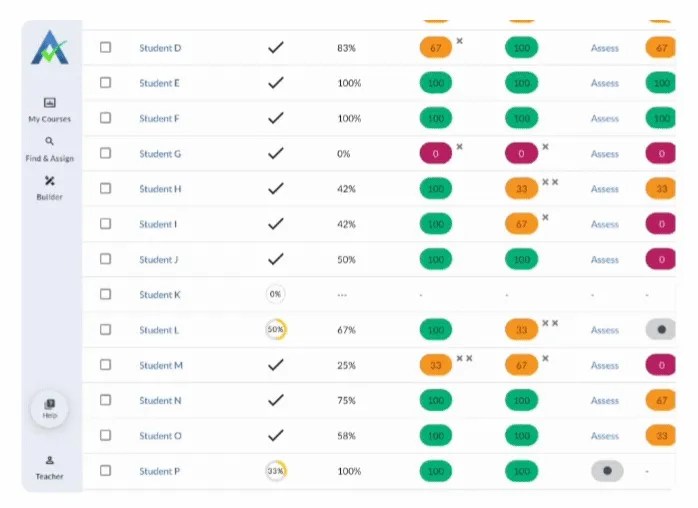
Note: Delete Student Progress is only available for students who have started the assignment (submitted at least one response).
What Happens When Delete Student Progress Is Selected
- All student responses are permanently removed
- The student’s progress is reset to not started
Next Steps for Students after Deleting Student Progress
- The assignment appears in the Assigned tab on the Student Homepage
- The student can restart the assignment using the original assignment link
Thank you! Your submission has been received!
Oops! Something went wrong while submitting the form.
The Delete Student Progress option allows teachers to remove all work completed by selected student(s) on the assignment.
How to Delete Student Progress
- Select one or more students in the Assignment Report
- Select Assignment Actions > Delete Student Progress
- Select “Delete Progress” to confirm
Note: Delete Student Progress is only available for students who have started the assignment (submitted at least one response).
What Happens When Delete Student Progress Is Selected
- All student responses are permanently removed
- The student’s progress is reset to not started
Next Steps for Students after Deleting Student Progress
- The assignment appears in the Assigned tab on the Student Homepage
- The student can restart the assignment using the original assignment link
Thank you! Your submission has been received!
Oops! Something went wrong while submitting the form.
Didn't Find What You Were Looking For?
.avif)
The ASSISTments Foundation is a 501(c)(3) non-profit organization sponsored by Worcester Polytechnic Institute.
Charitable Number: 83-4228740
Charitable Number: 83-4228740


© 2026 ASSISTments. All rights reserved.