


How do I add or delete students from my ASSISTments class?
Adding or Removing Students from an Imported Class
Students in your imported ASSISTments class are rostered directly from your Learning Management System (Google Classroom, Canvas, Schoology).
Before synchronizing your class in ASSISTments, first confirm that the student has already been added to or removed from your Learning Management System.
Once the update has been made in your Learning Management System, you can synchronize your class in ASSISTments to reflect those changes.
How to Remove Students from Your ASSISTments Class
- The student has been removed class in the Learning Mangement System
- Log into ASSISTments
- Click your name in the bottom left corner.
- Select Import/ Sync.
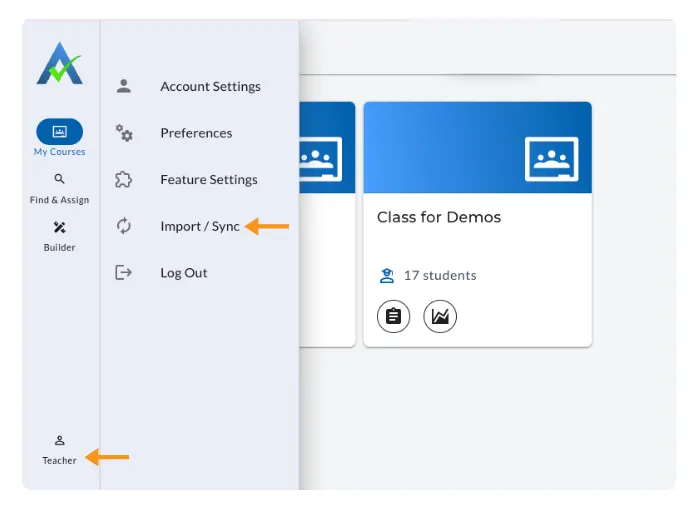
- Click Synchronize.
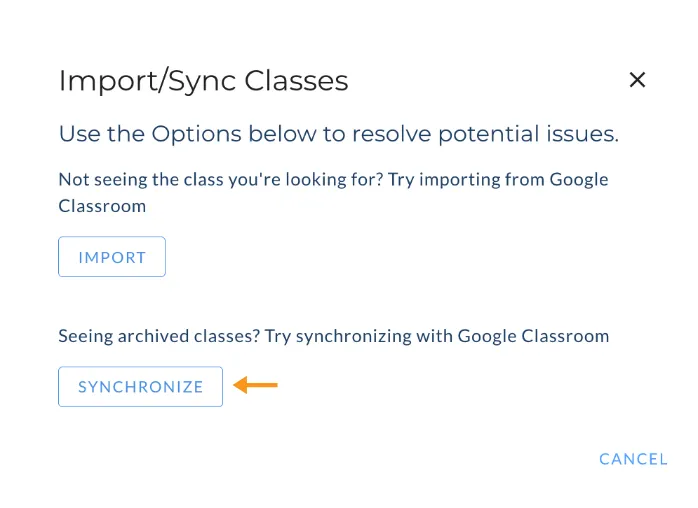
This updates your roster with the most current students from your Learning Management System (Google Classroom, Canvas, Schoology).
How to Add a Student to ASSISTments
Students appear in ASSISTments after completing the ASSISTments handshake through your Learning Management System (Google Classroom, Canvas, Schoology).
Follow these steps to add missing students.
- Assign an ASSISTments assignment (for example, a practice problem set) to the entire class.
- Ask the students who are not appearing in your roster to click the assignment link from your Learning Management System.
- When students click the link, they will be prompted to complete the ASSISTments handshake, which connects their Learning Management System account to ASSISTments. Learn more about students accessing ASSISTments Assignment for the first time here.
- After students complete the handshake, log in to your ASSISTments teacher account and synchronize your roster.
Note: This process only works if the student has completed the ASSISTments handshake. If a student does not appear after syncing, confirm that the student has accessed the assigned ASSISTments assignment. Learn more about the ASSISTments handshake here.
Adding or Removing Students from an Imported Class
Students in your imported ASSISTments class are rostered directly from your Learning Management System (Google Classroom, Canvas, Schoology).
Before synchronizing your class in ASSISTments, first confirm that the student has already been added to or removed from your Learning Management System.
Once the update has been made in your Learning Management System, you can synchronize your class in ASSISTments to reflect those changes.
How to Remove Students from Your ASSISTments Class
- The student has been removed class in the Learning Mangement System
- Log into ASSISTments
- Click your name in the bottom left corner.
- Select Import/ Sync.
- Click Synchronize.
This updates your roster with the most current students from your Learning Management System (Google Classroom, Canvas, Schoology).
How to Add a Student to ASSISTments
Students appear in ASSISTments after completing the ASSISTments handshake through your Learning Management System (Google Classroom, Canvas, Schoology).
Follow these steps to add missing students.
- Assign an ASSISTments assignment (for example, a practice problem set) to the entire class.
- Ask the students who are not appearing in your roster to click the assignment link from your Learning Management System.
- When students click the link, they will be prompted to complete the ASSISTments handshake, which connects their Learning Management System account to ASSISTments. Learn more about students accessing ASSISTments Assignment for the first time here.
- After students complete the handshake, log in to your ASSISTments teacher account and synchronize your roster.
Note: This process only works if the student has completed the ASSISTments handshake. If a student does not appear after syncing, confirm that the student has accessed the assigned ASSISTments assignment. Learn more about the ASSISTments handshake here.
Didn't Find What You Were Looking For?
.avif)
Charitable Number: 83-4228740


