

Uploading Scores from ASSISTments
Uploading Scores From ASSISTments
You can upload scores from any ASSISTments Assignment Report or Skill Builder Report to your LMS gradebook.
An LMS (Learning Management System) is the platform schools use to manage classes, assignments, and grades. Common LMS examples include Google Classroom, Canvas, and Schoology.
Uploading Scores from the Assignment Report
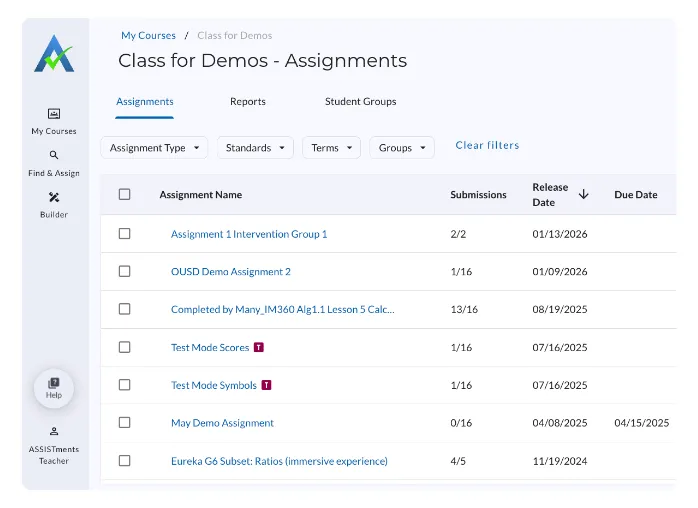
- Open the Assignment Report with the scores you would like to upload to your LMS from your Assignments List.
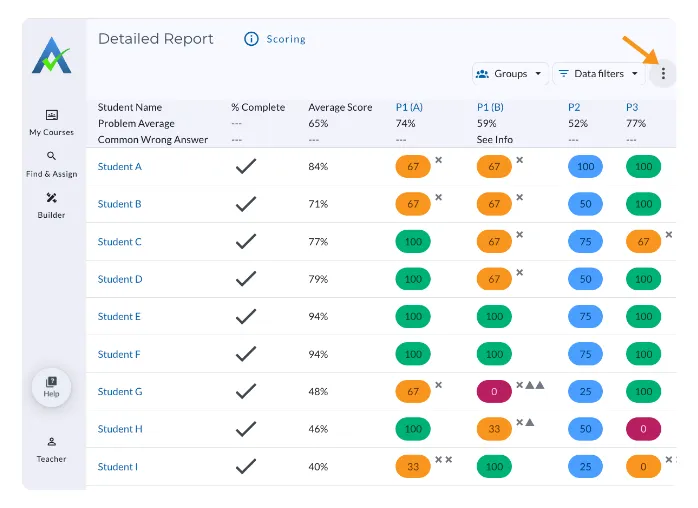
- Click the triple dots located in the top right corner of the Assignment Report.
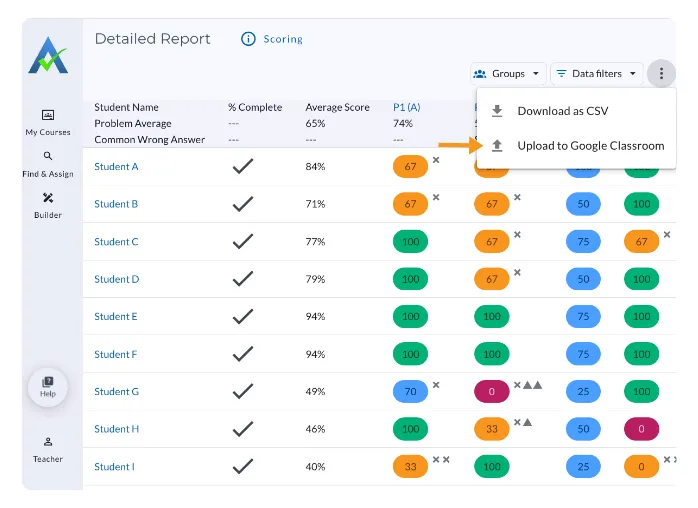
- “Select Upload to [LMS]”
- A dialogue box will appear asking, “Are You Sure?”
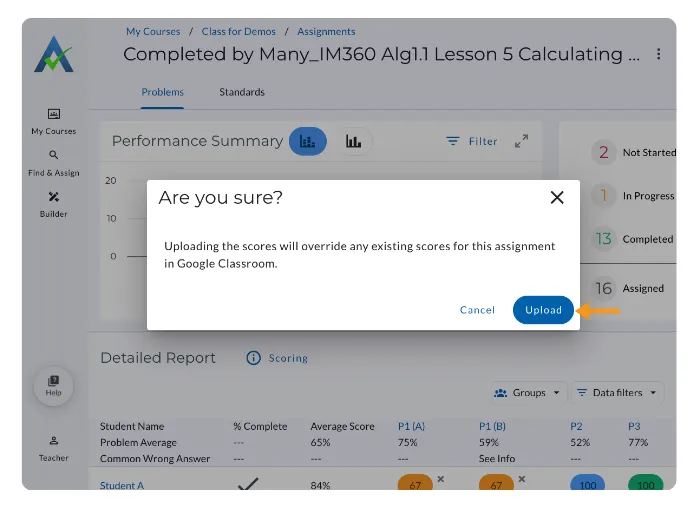
Note: Uploading scores from ASSISTments will replace any existing scores, including changes made directly within the LMS gradebook.
- Select “Upload”
- Confirm successful upload. You will receive a confirmation, “Uploaded scores to [LMS] successfully.”
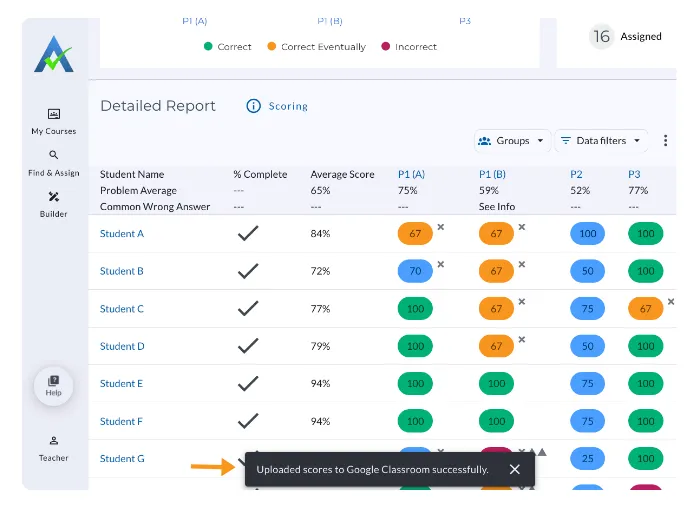
Scores will automatically publish to Canvas.
Publish Scores in Google Classroom
After scores have been pushed from ASSISTments to Google Classroom, follow these steps in Google Classroom to publish them to students.
- Log in to Google Classroom.
- Select the Class that you uploaded scores to from ASSISTments Select the assignment from the Stream tab

- Open the Student Work tab. Note: Draft indicates the score has uploaded from ASSISTments, but not published in Google Classroom.
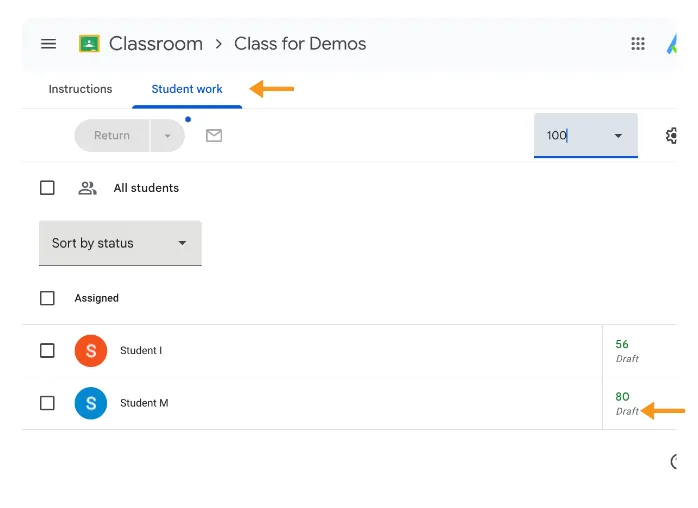
- Check ‘Assigned’ to select all students.
- Click Return, then confirm.
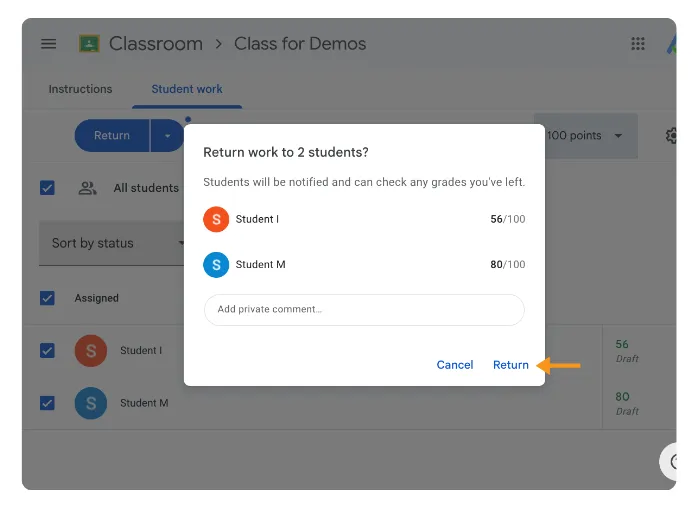
Once you click Return:
- Scores are published to the Google Classroom gradebook
- Students can view their scores just like any other Classroom assignment
Note: Only students who have completed the assignment will receive a score.
Students who have not begun the assignment will remain ungraded until they submit their work
Uploading the Skill Builder Report
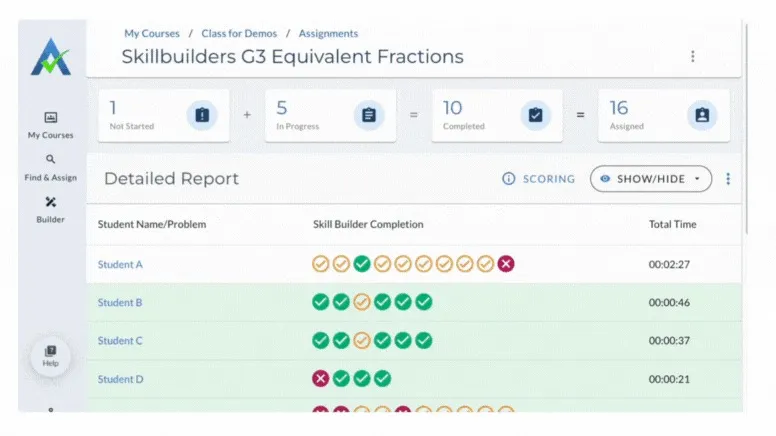
Skill Builders are mastery-based. Students who successfully complete a Skill Builder will appear with a 100% score in the downloaded report. Students who have not yet completed the Skill Builder will appear with a 0% score, making mastery easy to identify at a glance.
- Access the Skill Builder Report from your Assignments List.
- Click the triple dots located in the top right corner of the Skill Builder Report.
- “Select Upload to [LMS]”
- A dialogue box will appear asking, “Are You Sure?”
- Uploading scores from ASSISTments will replace any existing scores, including changes made directly within the LMS gradebook.
- Select “Upload”
- Confirm successful upload. You will receive a confirmation, “Uploaded scores to [LMS] successfully.”
Uploading Scores using Bulk Upload
Bulk Upload in ASSISTments allows you to upload scores for multiple assignments (including Skill Builder Reports) at once and sync them directly to your LMS.
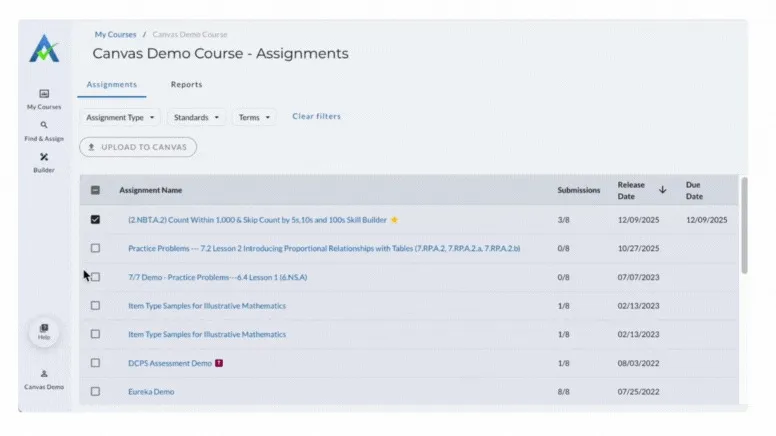
- Go to your Assignments List
- Select the checkbox next to the Assignments you would like to upload scoresfor.
- Select the Upload to LMS (Google Classroom, Canvas, Schoology) button.
- Once scores have been uploaded to Google Classroom, Canvas, or Schoology, a green message will appear at the top of your Assignments List that says, “Successfully uploaded # of # assignments to [LMS].”
Note: For Google Classroom, you will have to follow the steps for ‘Publish in Google’ for each assignment.
FAQs
Q: Will uploading scores overwrite grades in my LMS?
A: Yes. Uploading scores from ASSISTments will replace any existing scores for that assignment in Google Classroom, Canvas, or Schoology, including grades edited directly in the LMS.
Q: Can I upload scores for multiple assignments at once?
A: Yes. Use Bulk Upload to select multiple assignments from your Assignments List and upload scores for multiple assignments to Google Classroom, Canvas, or Schoology quickly.
Q: How do I know the upload was successful?
A: You’ll see a confirmation message either at the top of the assignment list or at the bottom of the assignment report indicating that scores were successfully uploaded to your LMS.
Q: Can I make edits to student grades in ASSISTments?
A: Yes, you can edit student grades within the Assignment Report. Learn more about Editing Student Grades here.
Uploading Scores From ASSISTments
You can upload scores from any ASSISTments Assignment Report or Skill Builder Report to your LMS gradebook.
An LMS (Learning Management System) is the platform schools use to manage classes, assignments, and grades. Common LMS examples include Google Classroom, Canvas, and Schoology.
Uploading Scores from the Assignment Report
- Open the Assignment Report with the scores you would like to upload to your LMS from your Assignments List.
- Click the triple dots located in the top right corner of the Assignment Report.
- “Select Upload to [LMS]”
- A dialogue box will appear asking, “Are You Sure?”
Note: Uploading scores from ASSISTments will replace any existing scores, including changes made directly within the LMS gradebook.
- Select “Upload”
- Confirm successful upload. You will receive a confirmation, “Uploaded scores to [LMS] successfully.”
Scores will automatically publish to Canvas.
Publish Scores in Google Classroom
After scores have been pushed from ASSISTments to Google Classroom, follow these steps in Google Classroom to publish them to students.
- Log in to Google Classroom.
- Select the Class that you uploaded scores to from ASSISTments Select the assignment from the Stream tab
- Open the Student Work tab. Note: Draft indicates the score has uploaded from ASSISTments, but not published in Google Classroom.
- Check ‘Assigned’ to select all students.
- Click Return, then confirm.
Once you click Return:
- Scores are published to the Google Classroom gradebook
- Students can view their scores just like any other Classroom assignment
Note: Only students who have completed the assignment will receive a score.
Students who have not begun the assignment will remain ungraded until they submit their work
Uploading the Skill Builder Report
Skill Builders are mastery-based. Students who successfully complete a Skill Builder will appear with a 100% score in the downloaded report. Students who have not yet completed the Skill Builder will appear with a 0% score, making mastery easy to identify at a glance.
- Access the Skill Builder Report from your Assignments List.
- Click the triple dots located in the top right corner of the Skill Builder Report.
- “Select Upload to [LMS]”
- A dialogue box will appear asking, “Are You Sure?”
- Uploading scores from ASSISTments will replace any existing scores, including changes made directly within the LMS gradebook.
- Select “Upload”
- Confirm successful upload. You will receive a confirmation, “Uploaded scores to [LMS] successfully.”
Uploading Scores using Bulk Upload
Bulk Upload in ASSISTments allows you to upload scores for multiple assignments (including Skill Builder Reports) at once and sync them directly to your LMS.
- Go to your Assignments List
- Select the checkbox next to the Assignments you would like to upload scoresfor.
- Select the Upload to LMS (Google Classroom, Canvas, Schoology) button.
- Once scores have been uploaded to Google Classroom, Canvas, or Schoology, a green message will appear at the top of your Assignments List that says, “Successfully uploaded # of # assignments to [LMS].”
Note: For Google Classroom, you will have to follow the steps for ‘Publish in Google’ for each assignment.
FAQs
Q: Will uploading scores overwrite grades in my LMS?
A: Yes. Uploading scores from ASSISTments will replace any existing scores for that assignment in Google Classroom, Canvas, or Schoology, including grades edited directly in the LMS.
Q: Can I upload scores for multiple assignments at once?
A: Yes. Use Bulk Upload to select multiple assignments from your Assignments List and upload scores for multiple assignments to Google Classroom, Canvas, or Schoology quickly.
Q: How do I know the upload was successful?
A: You’ll see a confirmation message either at the top of the assignment list or at the bottom of the assignment report indicating that scores were successfully uploaded to your LMS.
Q: Can I make edits to student grades in ASSISTments?
A: Yes, you can edit student grades within the Assignment Report. Learn more about Editing Student Grades here.
Didn't Find What You Were Looking For?
.avif)
Charitable Number: 83-4228740


