


Downloading the Assignment Report
Downloading an Assignment Report
ASSISTments provides teachers the option to download the Assignment Report or Skillbuilder Report data into a .csv file.
Accessing the Assignment Report
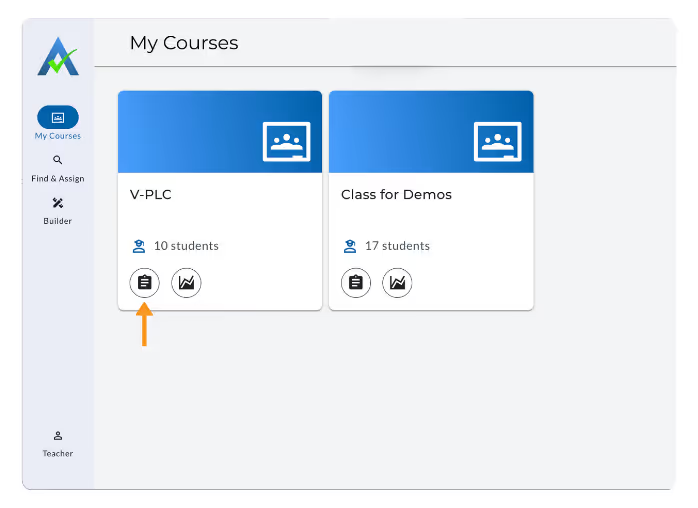
Locate the class card from which you’d like to access your Assignments. Click the Assignments icon on the card to open your list of assignments.
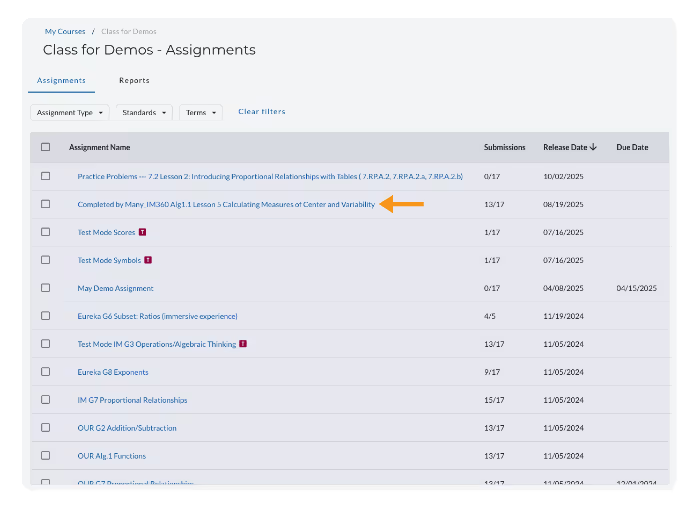
From there, click into the specific assignment you’d like to view.
Downloading the Assignment Report
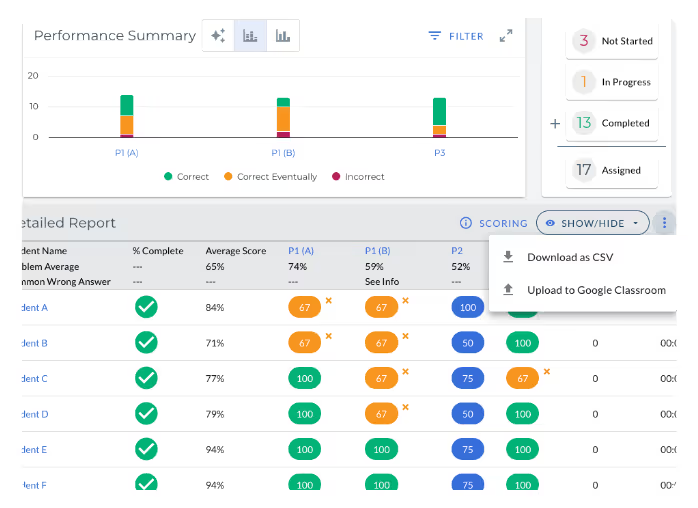
In the Detailed Report, click the ⋮ (triple dots) in the top right corner and select Download CSV from the dropdown menu.
Download the Skillbuilder Report
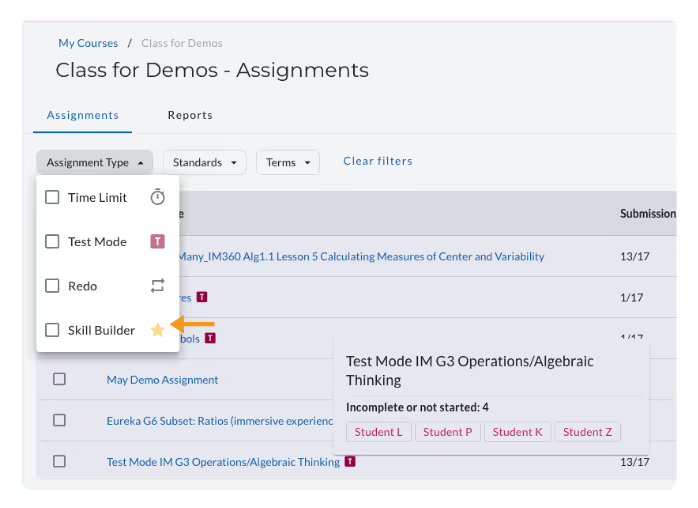
To download a Skillbuilder Report, use the Assignment Type filter to locate a Skillbuilder assignment.
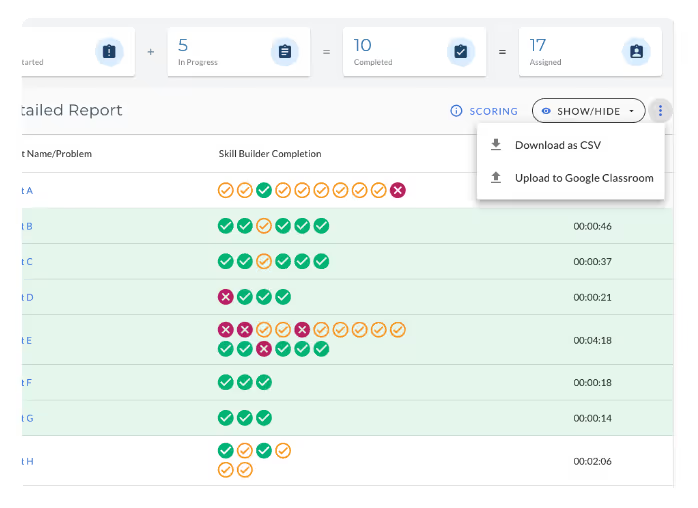
In the Detailed Report, click the ⋮ (triple dots) in the top right corner and select Download CSV from the dropdown menu
Downloading an Assignment Report
ASSISTments provides teachers the option to download the Assignment Report or Skillbuilder Report data into a .csv file.
Accessing the Assignment Report
Locate the class card from which you’d like to access your Assignments. Click the Assignments icon on the card to open your list of assignments.
From there, click into the specific assignment you’d like to view.
Downloading the Assignment Report
In the Detailed Report, click the ⋮ (triple dots) in the top right corner and select Download CSV from the dropdown menu.
Download the Skillbuilder Report
To download a Skillbuilder Report, use the Assignment Type filter to locate a Skillbuilder assignment.
In the Detailed Report, click the ⋮ (triple dots) in the top right corner and select Download CSV from the dropdown menu
Didn't Find What You Were Looking For?
.avif)
Charitable Number: 83-4228740


