


Student Supports
Student Supports in ASSISTments
Student Supports refer to any and all help offered to students in the Student Experience of ASSISTments. Student Supports come in the form of:
- Show Hint – provides a student with a teacher-written hint to help guide them toward solving the problem. A hint does not give away the answer. Using a hint will reduce a student’s score on that problem by 33%.
- Show Explanation – provides students with a full explanation of the solution to the problem, presented in either written or video format, and includes the correct answer. If a student selects Show Explanation, they will be marked incorrect on this problem and receive a score of 0%.
- Show Answer – simply gives students the correct answer to the problem. If a student selects Show Answer, they will be marked incorrect on this problem and receive a score of 0%.
Note: Learning Science Research is an important part of ASSISTments’ practice in building effective learning experiences. We are currently running a study examining the effectiveness of various types of student supports, including hints, explanations, and videos. Your students may each see different supports for the same problem.
Using Student Supports
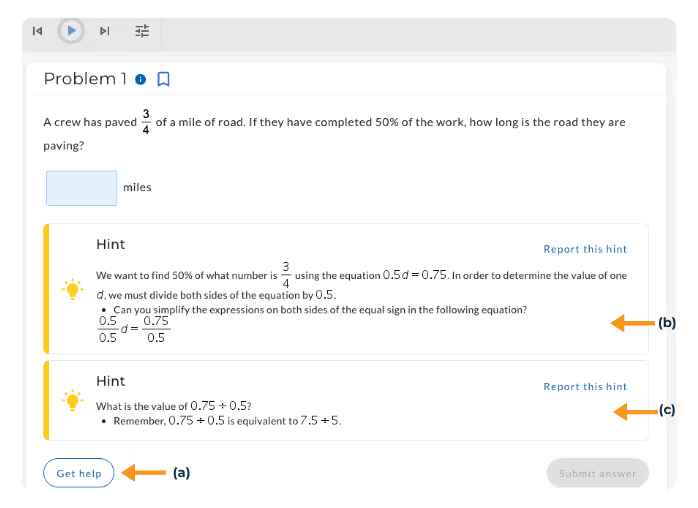
In the Student View, students will (a) see the ‘Get Help’ button in the bottom left corner of the problem, allowing them to access the support. Once clicked, the hint, explanation, or answer will appear below the problem body (b).
- Once clicked, the hint, explanation, or answer will appear below the problem body.
- If multiple hints are available, they are stackable (c).
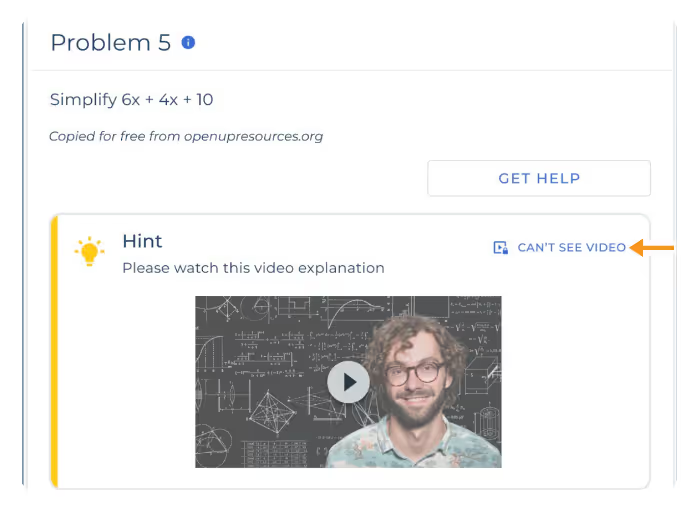
Note: For video supports, if a student is unable to view the video, they can click the ‘Can’t See Video’ button, which will revert the student’s score to what it was prior to accessing the support and provide the student with a new set of supports.
Student Tools
Read Aloud
Read Aloud reads problems, answer choices, and student supports aloud within ASSISTments. This supports access to content for students who benefit from audio presentation.
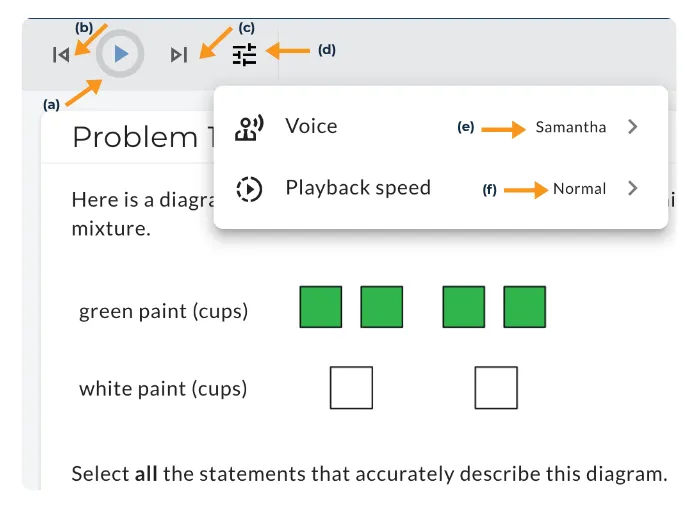
- Students can Play (a), Skip backward (b), or Skip forward (c).
- Read Aloud settings (d) let students change the Voice (e) and Playback speed (f).
- Hovering over the problem text, answer choices, or supports will also read them aloud (below).
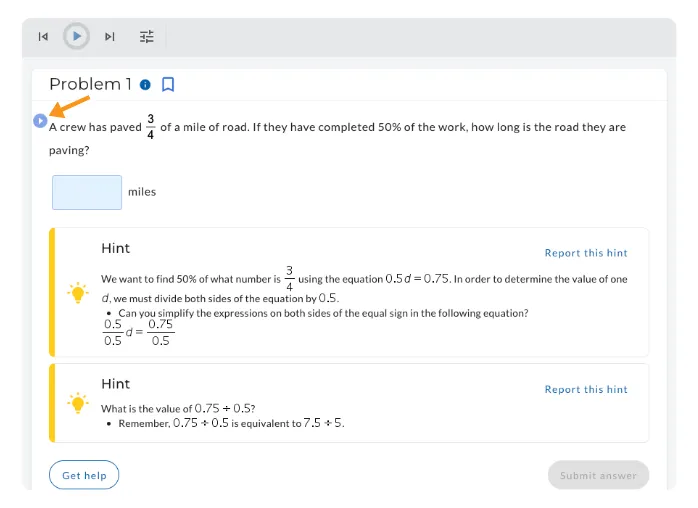
Students will know that a section of a problem can be read aloud by the blue circle with the Play icon. This allows students to select which portions of the problem they would like to hear — such as the problem text, answer choices, or supports — giving them control over their listening experience.
Highlighter Tool
The Highlight tool allows students to highlight text within their assignment.
%2520(1).gif)
Highlighter Settings allow students to change the highlight color, erase highlights, or clear all highlights.
%2520(1).gif)
Answer Eliminator Tool
The Answer Eliminator Tool allows students to cross out answer options on multiple-choice and multi-select problems.
.gif)
Line Reader Tool
The Line Reader Tool displays one line of text at a time, covering the remaining content. This supports focused reading by reducing visual distraction. Students can adjust the size and position using the grab handles.
%2520(1).gif)
Embedded Calculator Tool
The Embedded Calculator Tool allows students to access a calculator directly within ASSISTments while completing problems. When enabled, the Embedded Calculator Tool is available throughout the entire assignment and is available in two options:
- 4-Function Calculator – Supports basic operations including addition, subtraction, multiplication, and division.
.gif)
- Scientific Calculator – Includes advanced functions such as logarithms, sine, cosine, tangent, roots, and exponents.
.gif)
Student Supports in ASSISTments
Student Supports refer to any and all help offered to students in the Student Experience of ASSISTments. Student Supports come in the form of:
- Show Hint – provides a student with a teacher-written hint to help guide them toward solving the problem. A hint does not give away the answer. Using a hint will reduce a student’s score on that problem by 33%.
- Show Explanation – provides students with a full explanation of the solution to the problem, presented in either written or video format, and includes the correct answer. If a student selects Show Explanation, they will be marked incorrect on this problem and receive a score of 0%.
- Show Answer – simply gives students the correct answer to the problem. If a student selects Show Answer, they will be marked incorrect on this problem and receive a score of 0%.
Note: Learning Science Research is an important part of ASSISTments’ practice in building effective learning experiences. We are currently running a study examining the effectiveness of various types of student supports, including hints, explanations, and videos. Your students may each see different supports for the same problem.
Using Student Supports
In the Student View, students will (a) see the ‘Get Help’ button in the bottom left corner of the problem, allowing them to access the support. Once clicked, the hint, explanation, or answer will appear below the problem body (b).
- Once clicked, the hint, explanation, or answer will appear below the problem body.
- If multiple hints are available, they are stackable (c).
Note: For video supports, if a student is unable to view the video, they can click the ‘Can’t See Video’ button, which will revert the student’s score to what it was prior to accessing the support and provide the student with a new set of supports.
Student Tools
Read Aloud
Read Aloud reads problems, answer choices, and student supports aloud within ASSISTments. This supports access to content for students who benefit from audio presentation.
- Students can Play (a), Skip backward (b), or Skip forward (c).
- Read Aloud settings (d) let students change the Voice (e) and Playback speed (f).
- Hovering over the problem text, answer choices, or supports will also read them aloud (below).
Students will know that a section of a problem can be read aloud by the blue circle with the Play icon. This allows students to select which portions of the problem they would like to hear — such as the problem text, answer choices, or supports — giving them control over their listening experience.
Highlighter Tool
The Highlight tool allows students to highlight text within their assignment.
Highlighter Settings allow students to change the highlight color, erase highlights, or clear all highlights.
Answer Eliminator Tool
The Answer Eliminator Tool allows students to cross out answer options on multiple-choice and multi-select problems.
Line Reader Tool
The Line Reader Tool displays one line of text at a time, covering the remaining content. This supports focused reading by reducing visual distraction. Students can adjust the size and position using the grab handles.
Embedded Calculator Tool
The Embedded Calculator Tool allows students to access a calculator directly within ASSISTments while completing problems. When enabled, the Embedded Calculator Tool is available throughout the entire assignment and is available in two options:
- 4-Function Calculator – Supports basic operations including addition, subtraction, multiplication, and division.
- Scientific Calculator – Includes advanced functions such as logarithms, sine, cosine, tangent, roots, and exponents.
Didn't Find What You Were Looking For?
.avif)
Charitable Number: 83-4228740


