


Sharing Content with Colleagues
Sharing Content with Colleagues
ASSISTments allows teachers to easily collaborate by sharing customized problem sets through folders. This guide walks you through how to share a folder and how to access a folder that has been shared with you.
In this guide, learn how to initiate sharing, access shared content, and understand permissions related to editing and assigning problem sets.
Sharing a Folder
To Grant Access
- Go to My Problem Sets.
- Locate the folder you want to share.
- Click the three dots (⋮) next to the folder.
- Select Share from the menu.
%20(57).gif)
- Enter your colleague’s email address and hit ‘Enter’.
- To share with more than one colleague, separate each email with a comma.
Note: If you do not Hit ‘Enter’ colleagues’ emails will not be added.
- Click Done.
Note: The colleague will be added as a viewer by default.
You're done! The folder will now appear in your colleague’s Shared With Me section.
To Remove Access
- Locate the folder you want to update access to
- Click the three dots (⋮) next to the folder.
- Select Share from the menu.
- Click the down arrow next to Viewer besides the person’s email
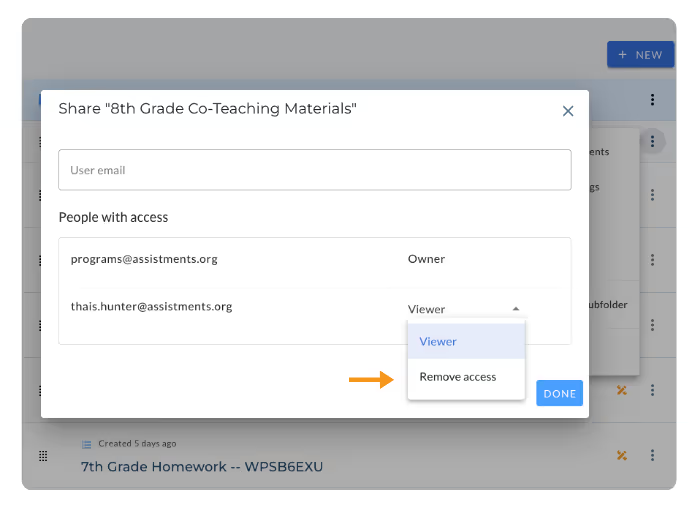
- Select Remove access from the dropdown menu
- This will immediately remove the folder from their Shared With Me view.
Accessing a Shared Folder
- Click the "Shared With Me" tab.
- Browse the folder(s) listed there.
- Click a folder to view its contents.
- Click on a problem set to be able to assign the problem set
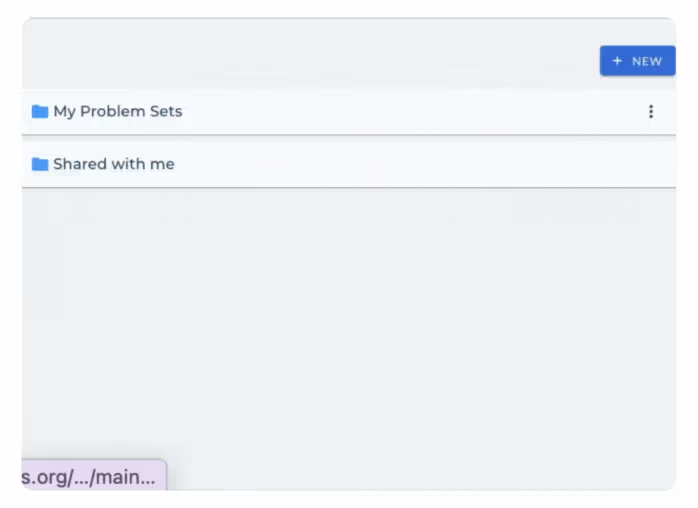
Note: You cannot edit problem sets in a shared folder. To make edits to a problem set that has been shared with you, you must first select + Add To Problem Set and save the problem set to your own My Problem Sets folder. To learn how to edit a problem set, refer to our user guide on modifying existing problems.
Troubleshooting Tips
Problem: I see “No Content Found” in my Shared With Me tab.
- Solution: Make sure a colleague has shared a folder with you. They must enter your correct email address in the sharing settings. If you're still not seeing anything, try refreshing the page or logging out and back in.
- Problem: I want to edit a shared problem set
- Solution: You can’t edit problem sets directly in a shared folder. First, click + Add To Problem Set to save it to your My Problem Sets folder. Then, follow the modifying existing problems guide to make changes.
- Problem: I accidentally shared a folder with the wrong person.
- Solution: Click the three dots (⋮) next to the folder, choose Share, click the down arrow next to their name, and select Remove access.
- Problem: A folder I previously saw in Shared With Me has disappeared.
Solution: The colleague who shared the folder may have removed your access. Reach out to them to confirm or request access again.
Sharing Content with Colleagues
ASSISTments allows teachers to easily collaborate by sharing customized problem sets through folders. This guide walks you through how to share a folder and how to access a folder that has been shared with you.
In this guide, learn how to initiate sharing, access shared content, and understand permissions related to editing and assigning problem sets.
Sharing a Folder
To Grant Access
- Go to My Problem Sets.
- Locate the folder you want to share.
- Click the three dots (⋮) next to the folder.
- Select Share from the menu.
- Enter your colleague’s email address and hit ‘Enter’.
- To share with more than one colleague, separate each email with a comma.
Note: If you do not Hit ‘Enter’ colleagues’ emails will not be added.
- Click Done.
Note: The colleague will be added as a viewer by default.
You're done! The folder will now appear in your colleague’s Shared With Me section.
To Remove Access
- Locate the folder you want to update access to
- Click the three dots (⋮) next to the folder.
- Select Share from the menu.
- Click the down arrow next to Viewer besides the person’s email
- Select Remove access from the dropdown menu
- This will immediately remove the folder from their Shared With Me view.
Accessing a Shared Folder
- Click the "Shared With Me" tab.
- Browse the folder(s) listed there.
- Click a folder to view its contents.
- Click on a problem set to be able to assign the problem set
Note: You cannot edit problem sets in a shared folder. To make edits to a problem set that has been shared with you, you must first select + Add To Problem Set and save the problem set to your own My Problem Sets folder. To learn how to edit a problem set, refer to our user guide on modifying existing problems.
Troubleshooting Tips
Problem: I see “No Content Found” in my Shared With Me tab.
- Solution: Make sure a colleague has shared a folder with you. They must enter your correct email address in the sharing settings. If you're still not seeing anything, try refreshing the page or logging out and back in.
- Problem: I want to edit a shared problem set
- Solution: You can’t edit problem sets directly in a shared folder. First, click + Add To Problem Set to save it to your My Problem Sets folder. Then, follow the modifying existing problems guide to make changes.
- Problem: I accidentally shared a folder with the wrong person.
- Solution: Click the three dots (⋮) next to the folder, choose Share, click the down arrow next to their name, and select Remove access.
- Problem: A folder I previously saw in Shared With Me has disappeared.
Solution: The colleague who shared the folder may have removed your access. Reach out to them to confirm or request access again.
Didn't Find What You Were Looking For?
.avif)
Charitable Number: 83-4228740


