


Math Keyboard in ASSISTments
Math Keyboard in ASSISTments
The Math Keyboard displays on fill-in problems and allows students to access math symbols and formatting options in addition to options on their standard keyboard.
Note: The Math Keyboard appears only on fill-in problems and requires no teacher setup.
Math Keyboard by Grade Level
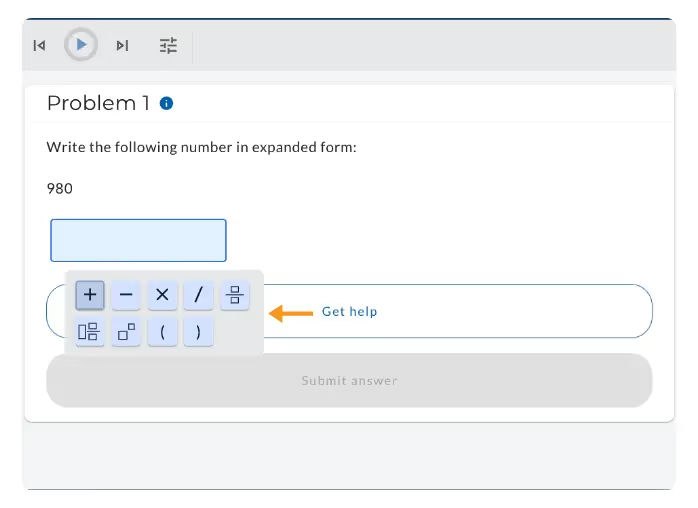
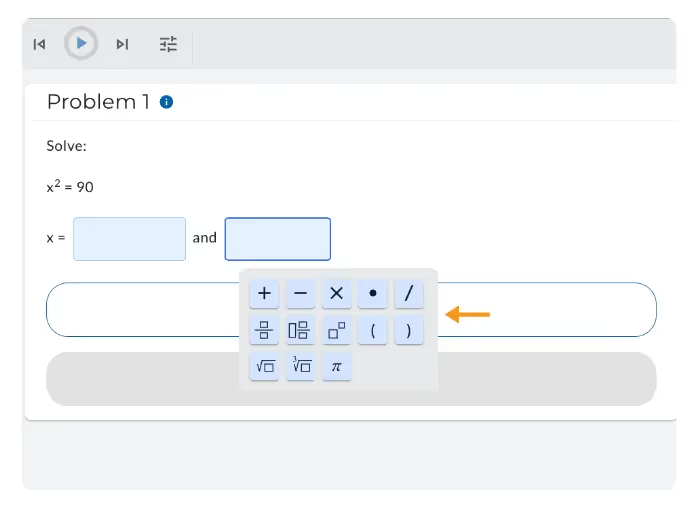
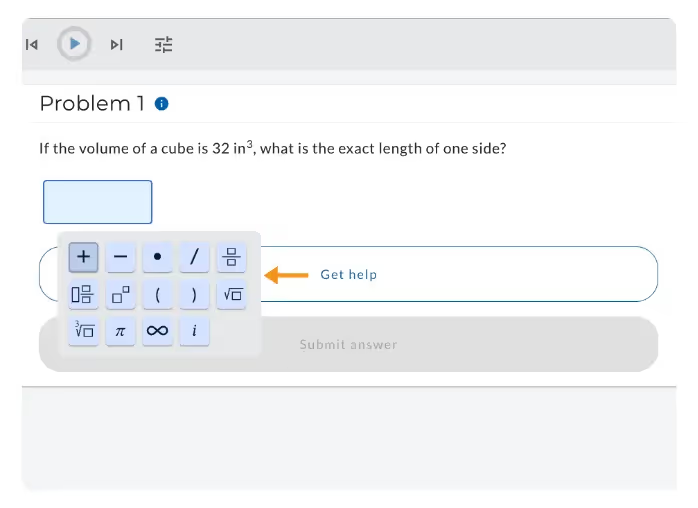
Buttons on the Math Keyboard align with the grade-level standard asked in the problem, providing students with options appropriate for the content they are interacting with.
Elementary (K–5): Basic fractions, operations (+, −, ×, ÷), and simplified symbols.
Middle School (6–8): Adds square roots, exponents, and additional operators.
High School (9–12): Includes advanced symbols such as the dot for multiplication (·) and imaginary numbers (i).
The Student Experience with Math Keyboard
When a fill-in answer is required, the Math Keyboard appears below the answer box as a student enters an answer.
How students enter answers using the Math Keyboard
- Students click on-screen symbols to build their answer.
%20(22).gif)
Common Math Problems:
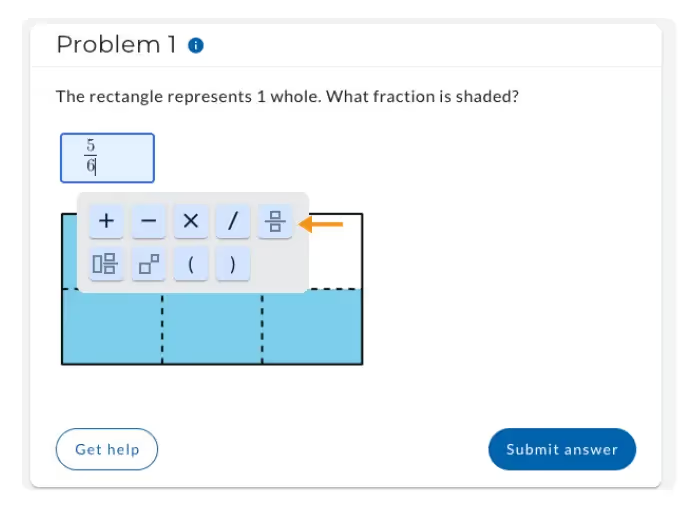
- Fractions/Mixed numbers: Tap the fraction key, enter the numerator, then select the gray denominator box and type the denominator.
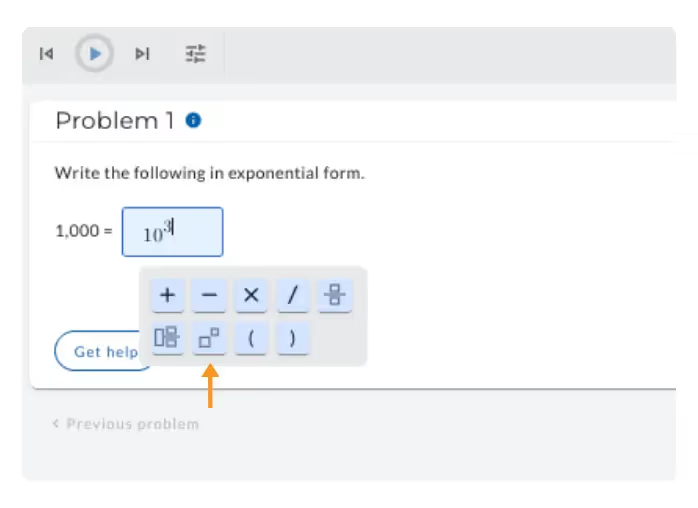
- Exponents: enter the base, tap the exponent key, then enter the exponent.
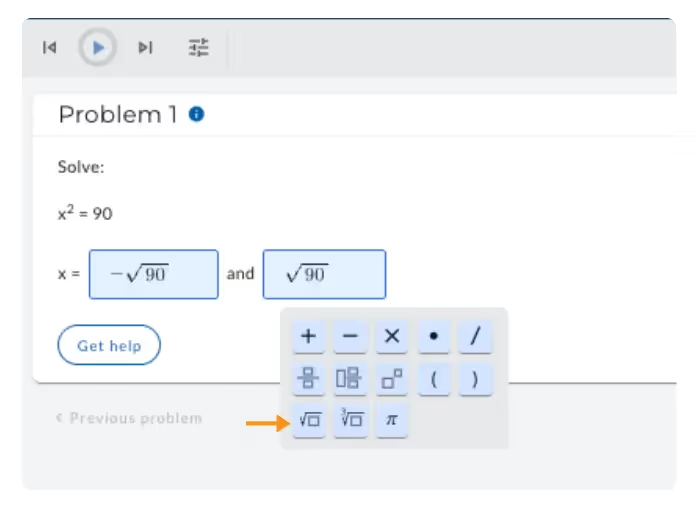
- Square roots: tap √, then enter the value under the radical.
Frequently Asked Questions
Q: When does the Math Keyboard appear?
A: The Math Keyboard appears below the answer box whenever students are asked to enter a numeric or algebraic response in a fill-in problem.
Q: Do students have to use the Math Keyboard?
A: No. Students may type their answers using their keyboard or click on-screen symbols. The Math Keyboard is designed to make entering math easier, but it is optional. For example, students can type 3/4 instead of using the fraction key, or x^2 instead of using the exponent key.
Q: Does the Math Keyboard look the same for all students?
A: No. The Math Keyboard adjusts by grade level: elementary, middle, and high school students each see different symbols aligned with the math they are learning. Refer to Math Keyboard by Grade Level.
Math Keyboard in ASSISTments
The Math Keyboard displays on fill-in problems and allows students to access math symbols and formatting options in addition to options on their standard keyboard.
Note: The Math Keyboard appears only on fill-in problems and requires no teacher setup.
Math Keyboard by Grade Level
Buttons on the Math Keyboard align with the grade-level standard asked in the problem, providing students with options appropriate for the content they are interacting with.
Elementary (K–5): Basic fractions, operations (+, −, ×, ÷), and simplified symbols.
Middle School (6–8): Adds square roots, exponents, and additional operators.
High School (9–12): Includes advanced symbols such as the dot for multiplication (·) and imaginary numbers (i).
The Student Experience with Math Keyboard
When a fill-in answer is required, the Math Keyboard appears below the answer box as a student enters an answer.
How students enter answers using the Math Keyboard
- Students click on-screen symbols to build their answer.
Common Math Problems:
- Fractions/Mixed numbers: Tap the fraction key, enter the numerator, then select the gray denominator box and type the denominator.
- Exponents: enter the base, tap the exponent key, then enter the exponent.
- Square roots: tap √, then enter the value under the radical.
Frequently Asked Questions
Q: When does the Math Keyboard appear?
A: The Math Keyboard appears below the answer box whenever students are asked to enter a numeric or algebraic response in a fill-in problem.
Q: Do students have to use the Math Keyboard?
A: No. Students may type their answers using their keyboard or click on-screen symbols. The Math Keyboard is designed to make entering math easier, but it is optional. For example, students can type 3/4 instead of using the fraction key, or x^2 instead of using the exponent key.
Q: Does the Math Keyboard look the same for all students?
A: No. The Math Keyboard adjusts by grade level: elementary, middle, and high school students each see different symbols aligned with the math they are learning. Refer to Math Keyboard by Grade Level.
Didn't Find What You Were Looking For?
.avif)
Charitable Number: 83-4228740


