

How can I preview the student view before assigning?
There are 2 ways in which you can preview the Student View Prior to Assigning.

1. Once you've found the problems you'd like to assign in the Find & Assign tab of your ASSISTments account,
hover over the top right corner of a problem and click the triple-dot appears to access Preview Problem Set as a Student.
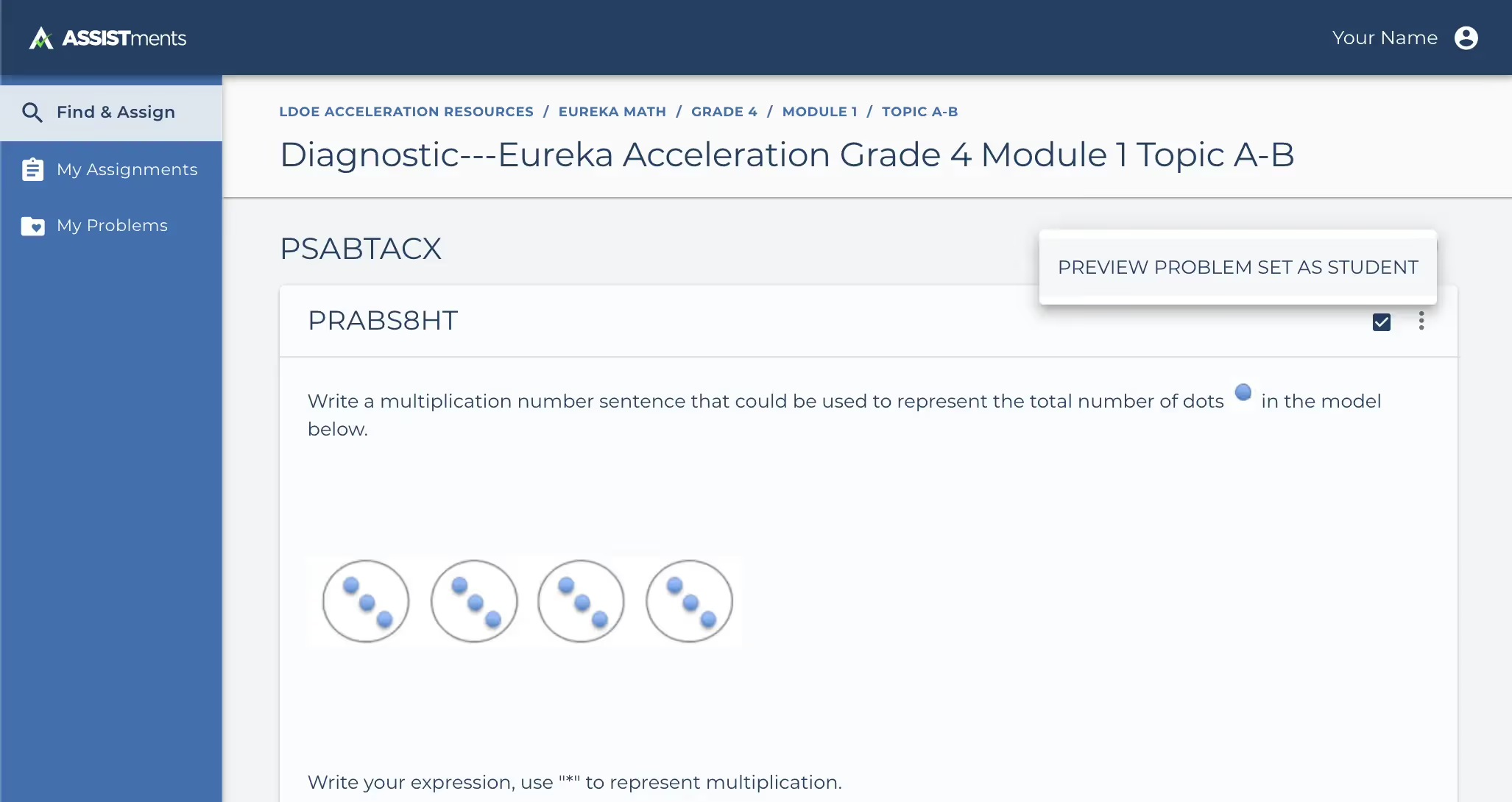
2. In the My Problems tab of your ASSISTments account, hover over the top right corner of any problem set to access Preview as a Student.
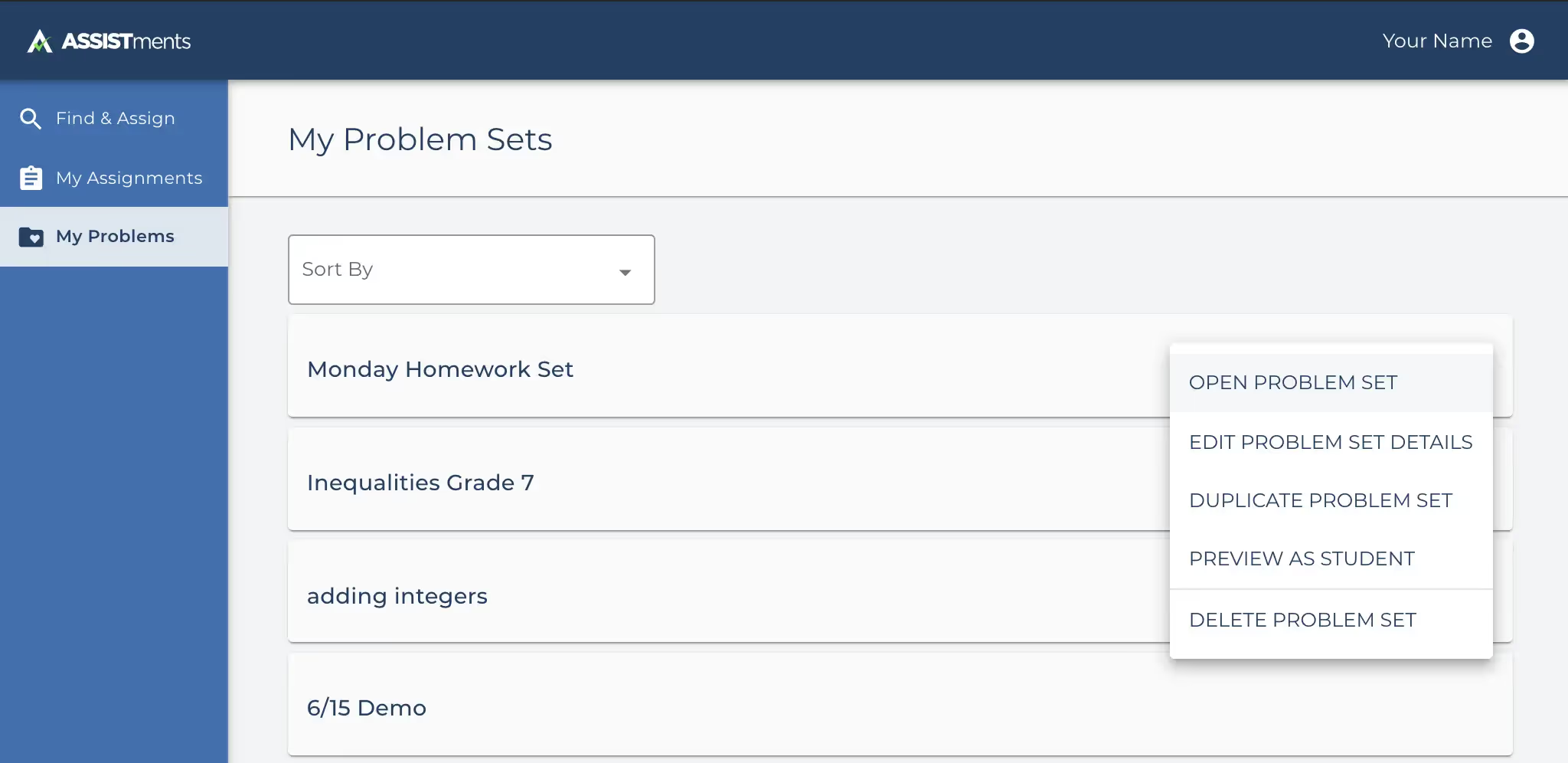
You can also access Preview as a Student after assigning in the My Assignments tab of your ASSISTments account by hovering over the top right corner of any assignment and clicking the triple-dot.

There are 2 ways in which you can preview the Student View Prior to Assigning.
1. Once you've found the problems you'd like to assign in the Find & Assign tab of your ASSISTments account,
hover over the top right corner of a problem and click the triple-dot appears to access Preview Problem Set as a Student.
2. In the My Problems tab of your ASSISTments account, hover over the top right corner of any problem set to access Preview as a Student.
You can also access Preview as a Student after assigning in the My Assignments tab of your ASSISTments account by hovering over the top right corner of any assignment and clicking the triple-dot.
Didn't Find What You Were Looking For?
.avif)
Charitable Number: 83-4228740


