

Create an Account with a Different LMS
Create an Account with All Other LMS
These are the steps to create an ASSISTments account All Other Learning Management Systems (LMS). Follow the directions below to create your account.
For schools and districts, ASSISTments can support the following Learning Management Systems (LMS) via Edlink.
- Schoology
- Microsoft Teams
- Brightspace by D2L
- Moodle
- Blackboard
Note: Before you can log into ASSISTments using your Schoology login credential, you will first need the tech administrator for your Schoology instance to set up an integration between ASSISTments and Schoology. To start that process, have your tech administrator complete this form so that a member of our team can help them set up the integration.
Once the ASSISTments integration with Schoology is active for your school, you will be able to log in!
- Go to www.assistment.org.
- Select “Teacher Sign Up”.
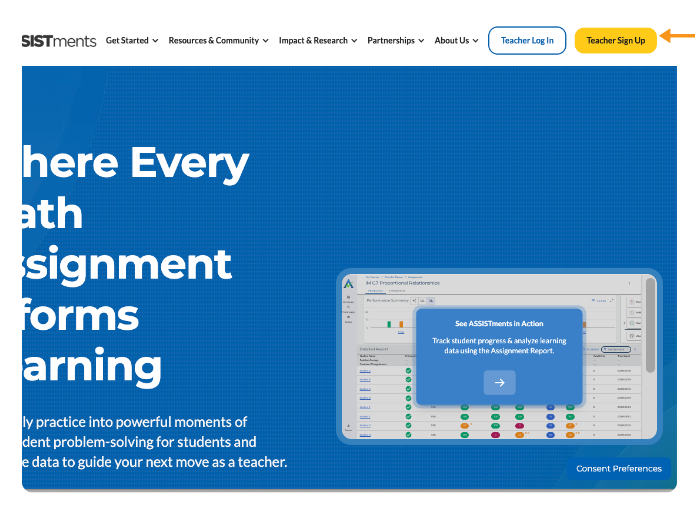
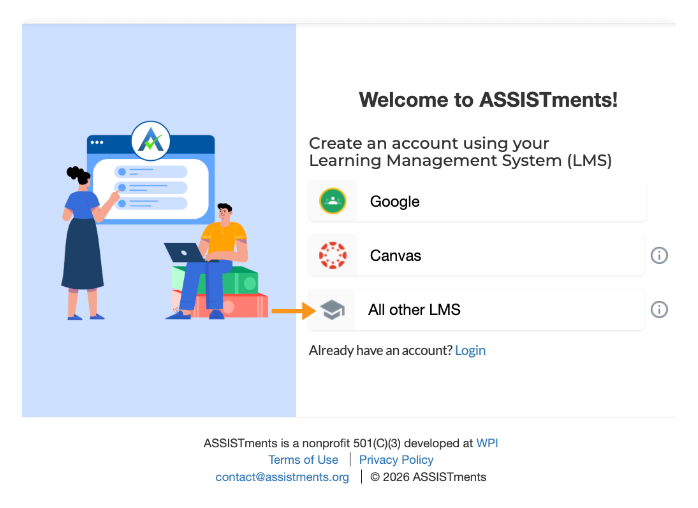
- Select “All Other LMS”.
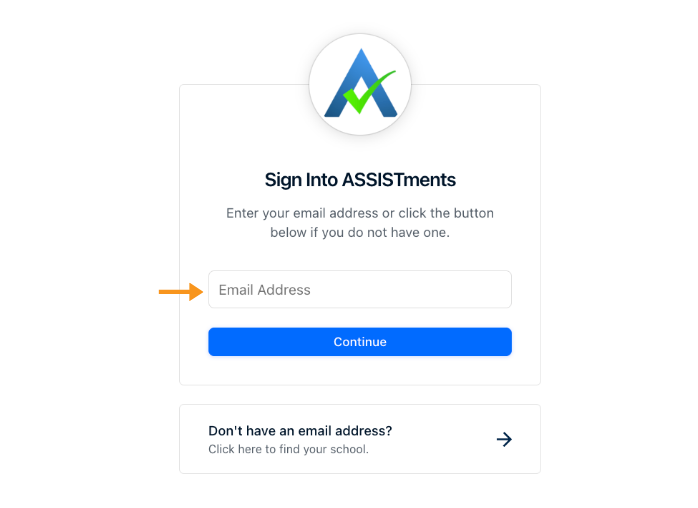
- Log in using the email address associated with your Schoology Account.
- Log in using your Schoology credentials.
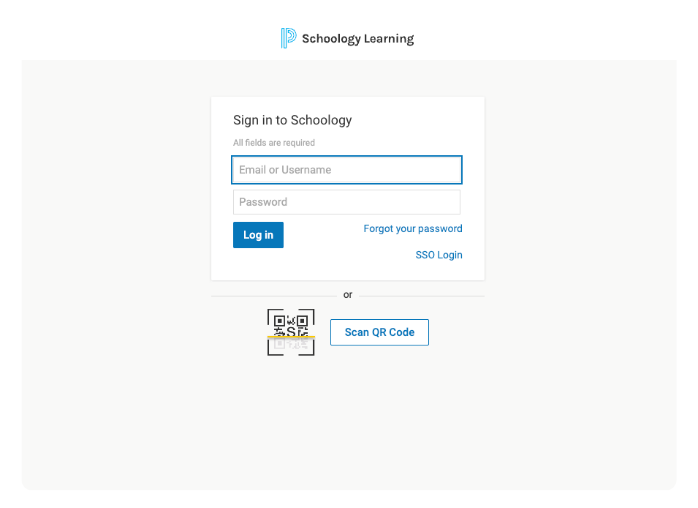
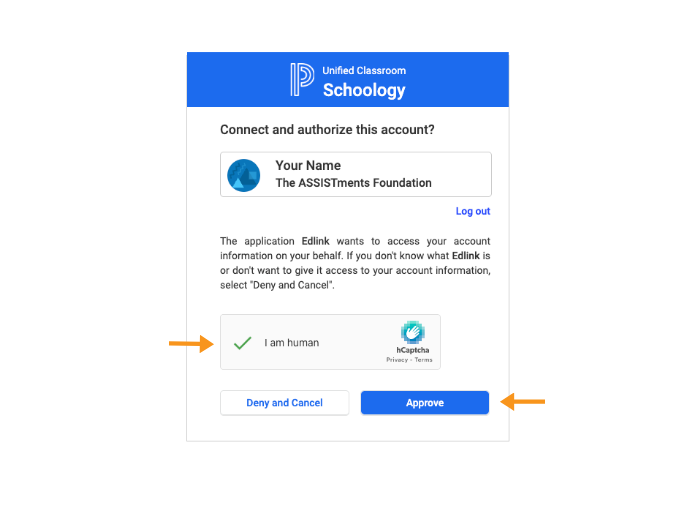
The first time you log in, you will also be prompted to authorize the connection with Schoology.
- Select “Create an account”
- Once you’re logged into ASSISTments for the first time, you will be prompted to:
- Share your Role
- Note: Choosing Administrator does not grant access to overall school data. You will need ASSISTments School & District Solution, Insights Hub. Learn more here.
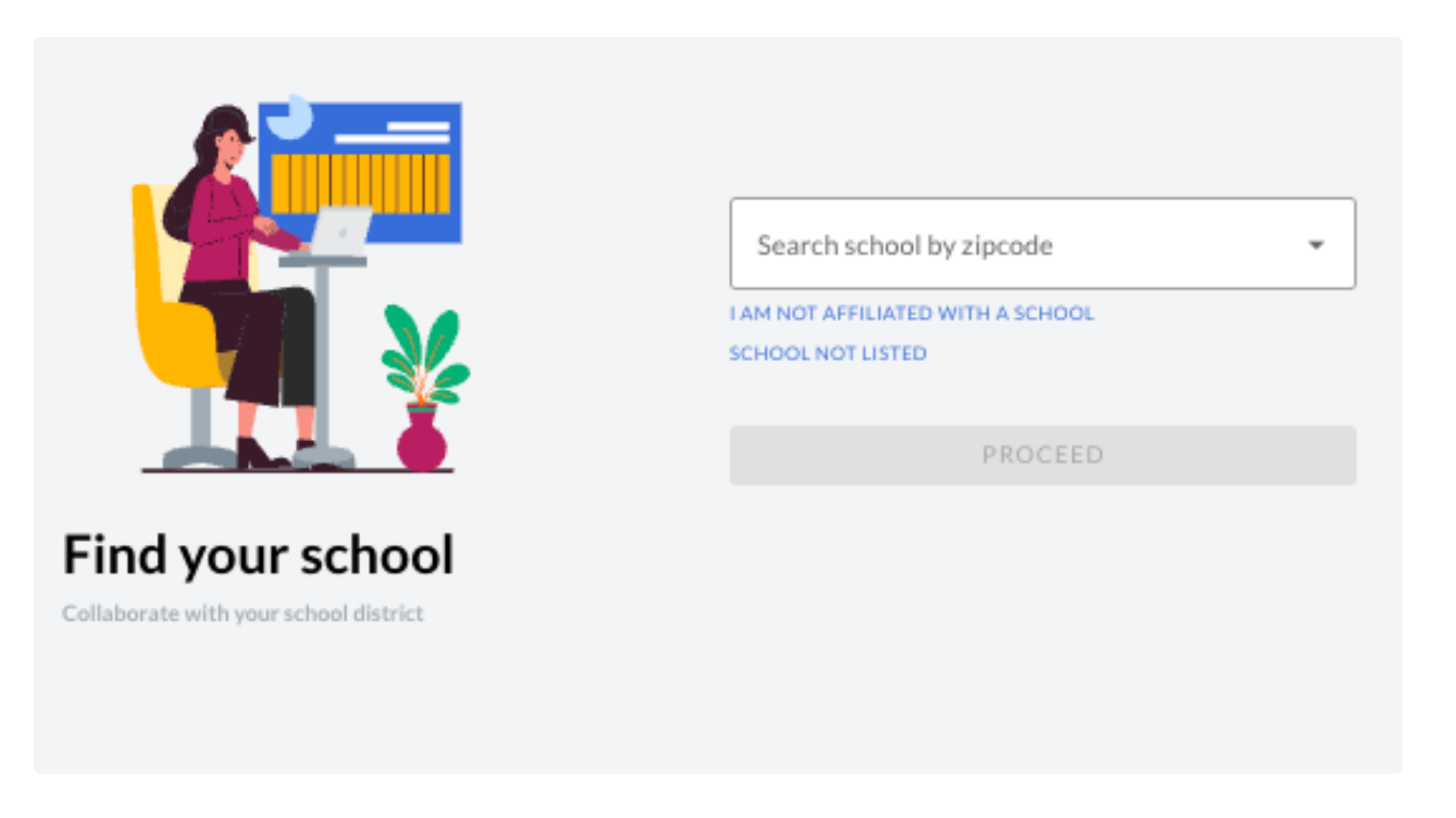
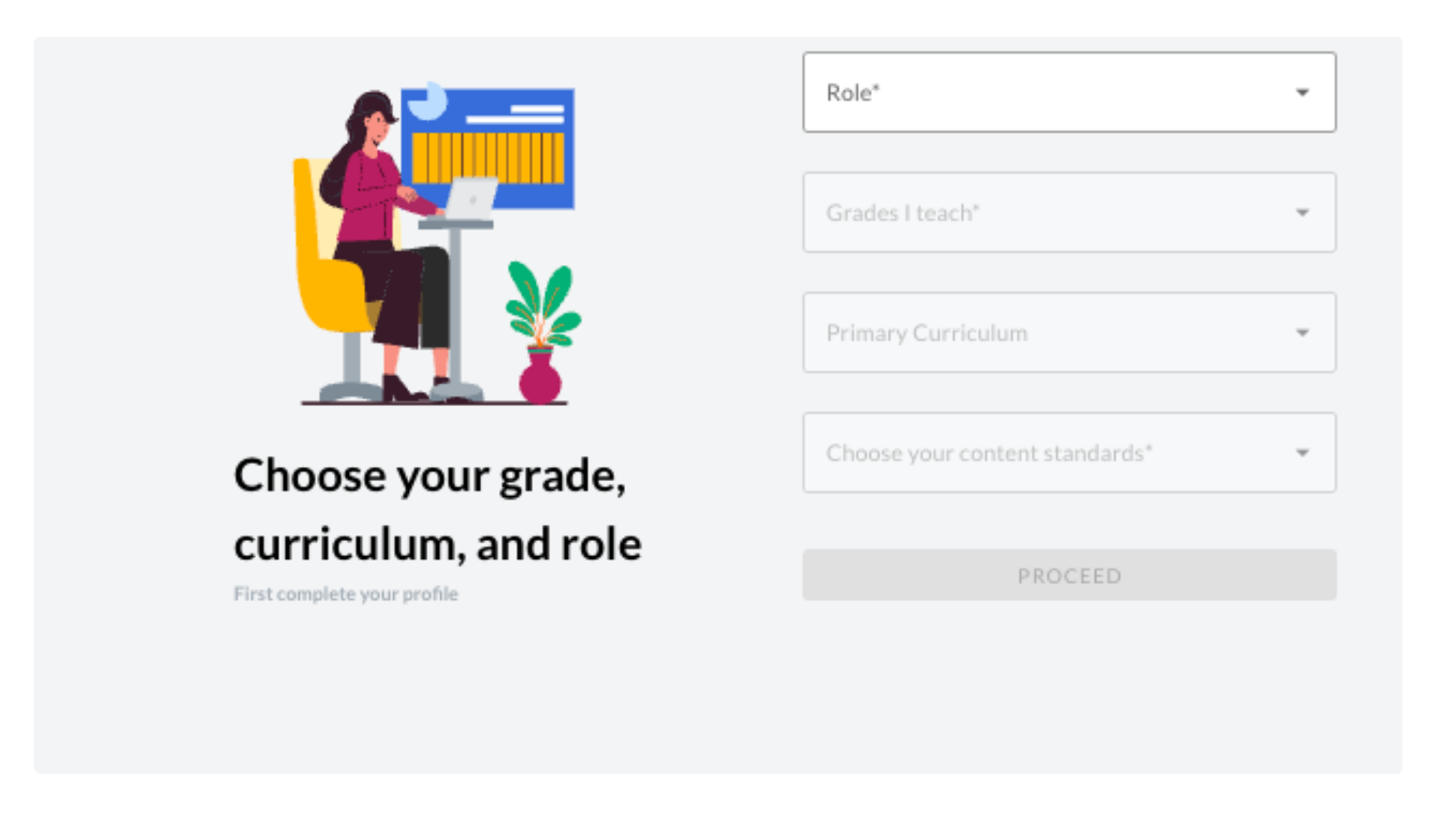
- You will be prompted share your role and choose the appropriate option for grade and curriculum. If you do not know or have your grade and curriculum information, click ‘Continue.' Next you will be prompted to find your school. If your school is not listed or you are not affiliated with a school, you can select the option, "I'm not affiliated with a school or School not listed" to enter your ASSISTments account.
- Share your Role
- Once your account is created, you will see your name in the bottom left corner of the page.
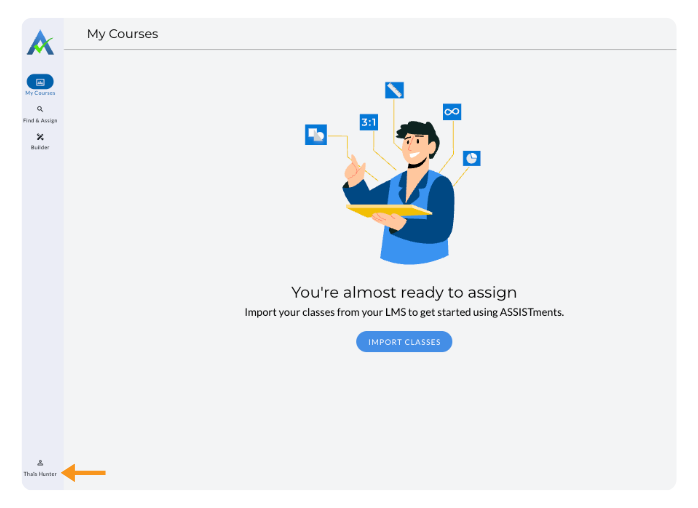
Import your classes and create your first assignment.
Create an Account with All Other LMS
These are the steps to create an ASSISTments account All Other Learning Management Systems (LMS). Follow the directions below to create your account.
For schools and districts, ASSISTments can support the following Learning Management Systems (LMS) via Edlink.
- Schoology
- Microsoft Teams
- Brightspace by D2L
- Moodle
- Blackboard
Note: Before you can log into ASSISTments using your Schoology login credential, you will first need the tech administrator for your Schoology instance to set up an integration between ASSISTments and Schoology. To start that process, have your tech administrator complete this form so that a member of our team can help them set up the integration.
Once the ASSISTments integration with Schoology is active for your school, you will be able to log in!
- Go to www.assistment.org.
- Select “Teacher Sign Up”.
- Select “All Other LMS”.
- Log in using the email address associated with your Schoology Account.
- Log in using your Schoology credentials.
The first time you log in, you will also be prompted to authorize the connection with Schoology.
- Select “Create an account”
- Once you’re logged into ASSISTments for the first time, you will be prompted to:
- Share your Role
- Note: Choosing Administrator does not grant access to overall school data. You will need ASSISTments School & District Solution, Insights Hub. Learn more here.
- You will be prompted share your role and choose the appropriate option for grade and curriculum. If you do not know or have your grade and curriculum information, click ‘Continue.' Next you will be prompted to find your school. If your school is not listed or you are not affiliated with a school, you can select the option, "I'm not affiliated with a school or School not listed" to enter your ASSISTments account.
- Share your Role
- Once your account is created, you will see your name in the bottom left corner of the page.
Import your classes and create your first assignment.
Didn't Find What You Were Looking For?
.avif)
Charitable Number: 83-4228740


