


Create an Account with Canvas
Create an Account with Canvas
These are the steps to get started with ASSISTments with Canvas. Follow the directions below to create your account.
Requirements to use Canvas with ASSISTments
- Institutional Canvas account (as opposed to an individual free teacher account).
- Set up in Canvas as a teacher of the class to which you wish to assign.
- Your Canvas Administrator for your school or district account has completed these steps and provided you with the URL or common name for your account.
Note: ASSISTments automatically publishes assignments to courses. You can manually upload grades through bulk upload. It does not support any other Canvas features, such as assignment settings specific to Canvas or multiple sections within a Canvas course.
- To start, go to www.assistment.org
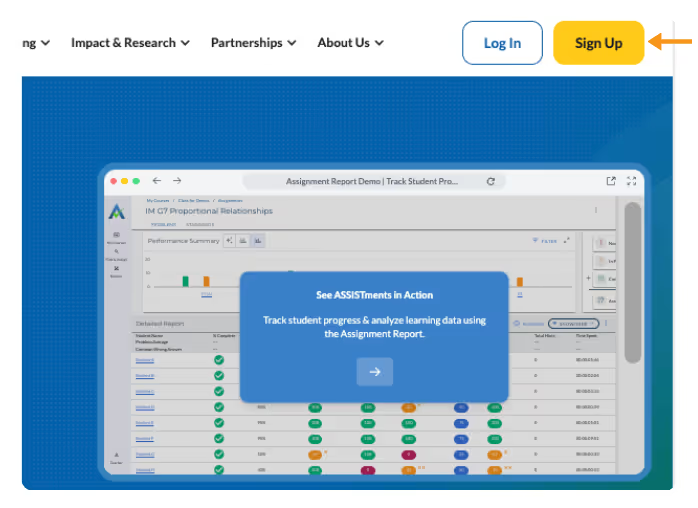
- Select “Sign Up”
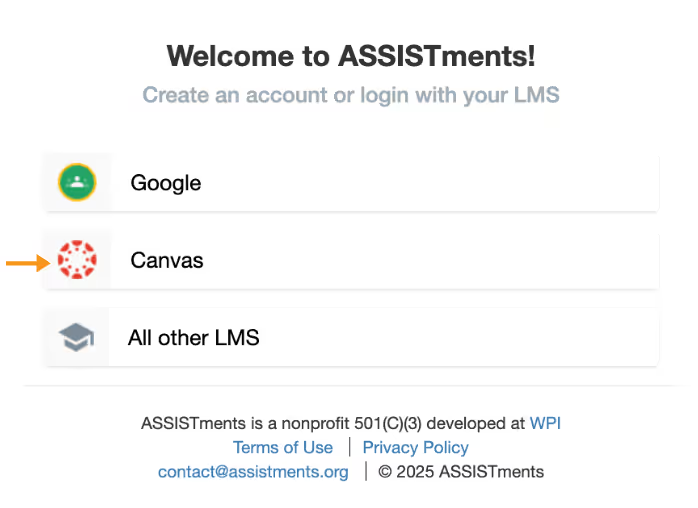
- Select “Canvas”
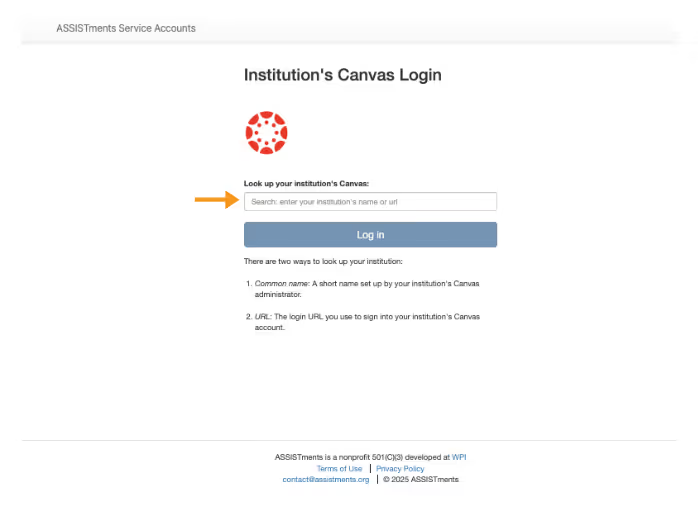
- Provide the URL or Common Name for your Canvas account (provided by your Canvas administrator) & click Log in.
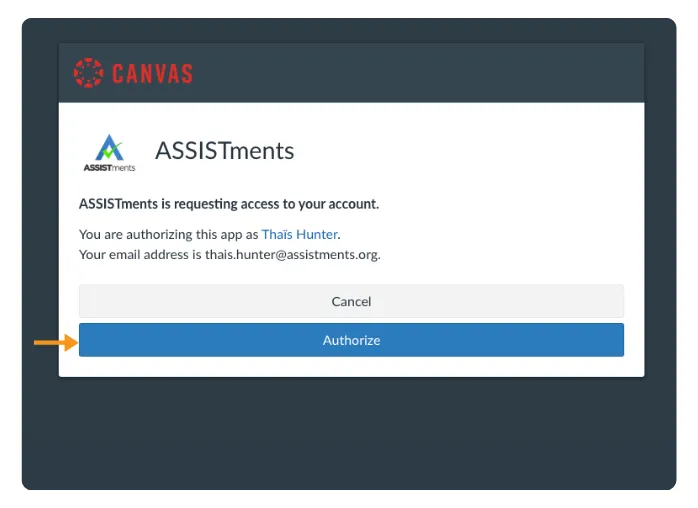
- Click ‘Authorize’
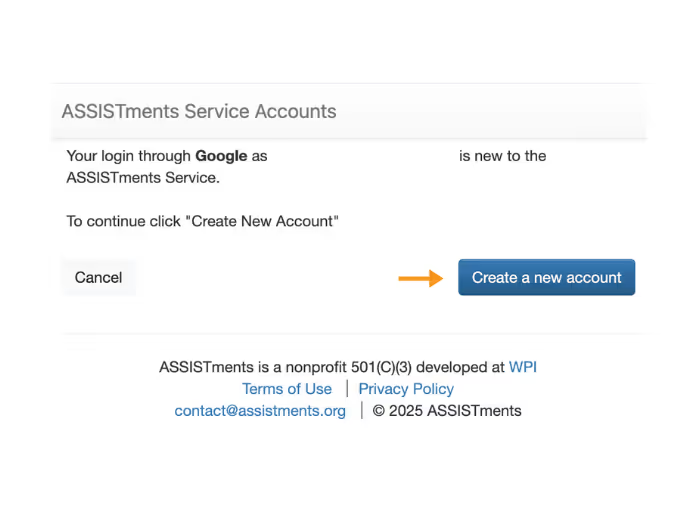
- Click “Create a new account.”
- Once you're logged into ASSISTments for the first time, you will be prompted to:
- Share your Role
- Note: Choosing Administrator does not grant access to overall school data. You will need ASSISTments School & District Solution, Insights Hub. Learn more here.
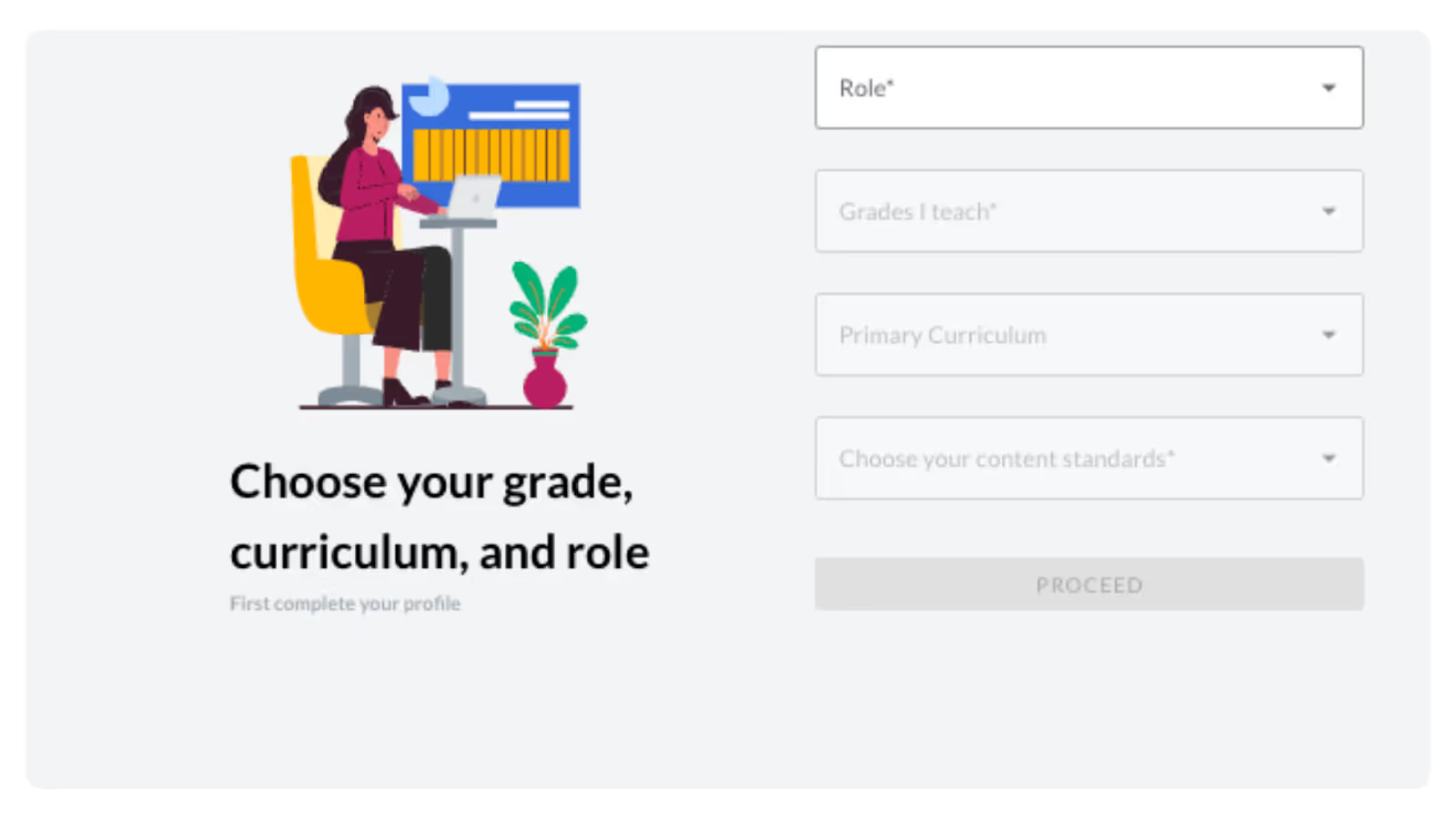
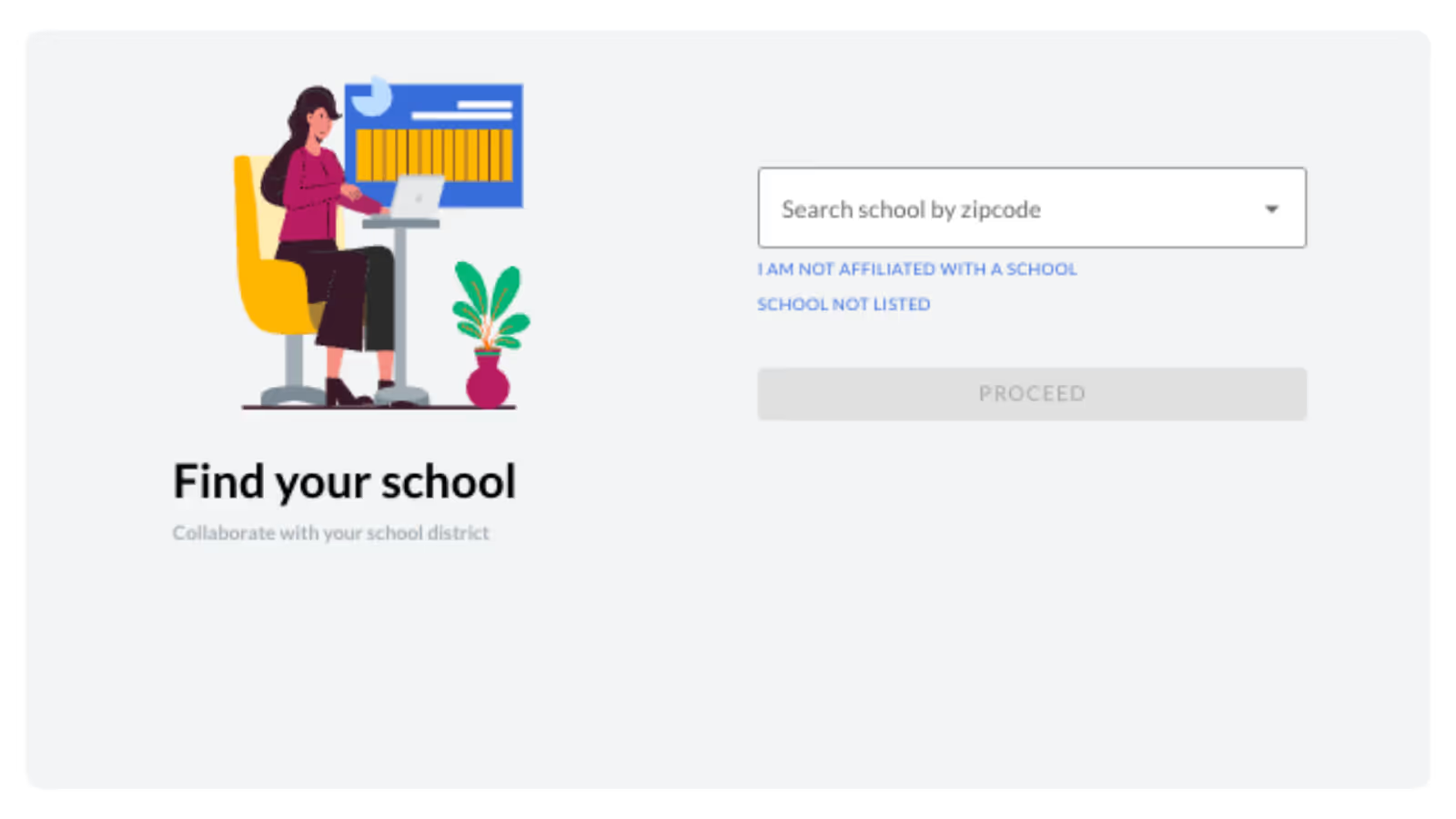
- You will be prompted share your role and choose the appropriate option for grade and curriculum. If you do not know or have your grade and curriculum information, click ‘Continue.' Next you will be prompted to find your school. If your school is not listed or you are not affiliated with a school, you can select the option, "I'm not affiliated with a school or School not listed" to enter your ASSISTments account.
- Share your Role
- Once your account is created, you will see your name in the bottom left corner of the page.
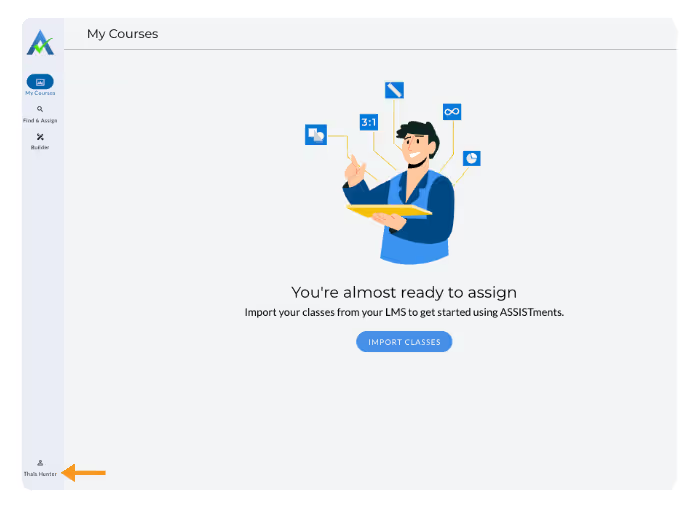
Import your classes and create your first assignment.
Create an Account with Canvas
These are the steps to get started with ASSISTments with Canvas. Follow the directions below to create your account.
Requirements to use Canvas with ASSISTments
- Institutional Canvas account (as opposed to an individual free teacher account).
- Set up in Canvas as a teacher of the class to which you wish to assign.
- Your Canvas Administrator for your school or district account has completed these steps and provided you with the URL or common name for your account.
Note: ASSISTments automatically publishes assignments to courses. You can manually upload grades through bulk upload. It does not support any other Canvas features, such as assignment settings specific to Canvas or multiple sections within a Canvas course.
- To start, go to www.assistment.org
- Select “Sign Up”
- Select “Canvas”
- Provide the URL or Common Name for your Canvas account (provided by your Canvas administrator) & click Log in.
- Click ‘Authorize’
- Click “Create a new account.”
- Once you're logged into ASSISTments for the first time, you will be prompted to:
- Share your Role
- Note: Choosing Administrator does not grant access to overall school data. You will need ASSISTments School & District Solution, Insights Hub. Learn more here.
- You will be prompted share your role and choose the appropriate option for grade and curriculum. If you do not know or have your grade and curriculum information, click ‘Continue.' Next you will be prompted to find your school. If your school is not listed or you are not affiliated with a school, you can select the option, "I'm not affiliated with a school or School not listed" to enter your ASSISTments account.
- Share your Role
- Once your account is created, you will see your name in the bottom left corner of the page.
Import your classes and create your first assignment.
Didn't Find What You Were Looking For?
.avif)
Charitable Number: 83-4228740


