No items found.


Bulk Upload
Bulk Upload
When a teacher selects one or more assignments on the Assignments List, they can upload the assignment data from all selected assignments to the connected LMS.
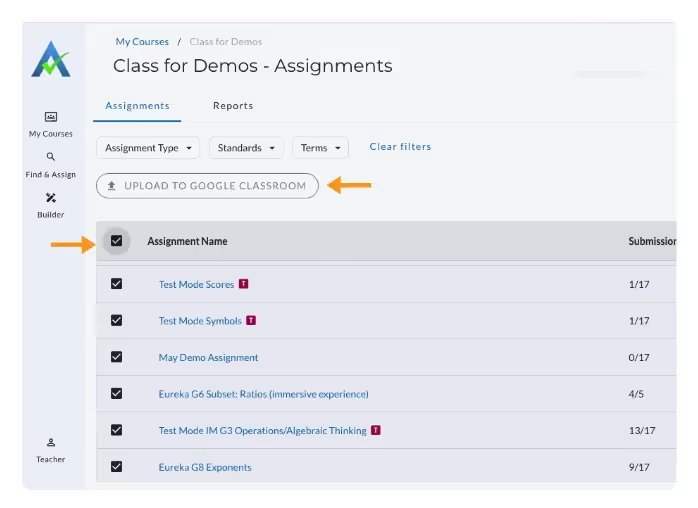
- From the Assignments List, check the box next to one or more assignments.
- Select Upload to Name of LMS (Canvas, Google Classroom, Schoology, etc).
- Confirm the upload. The selected assignment scores will sync to the connected LMS (Canvas, Google Classroom, Schoology, etc).
Thank you! Your submission has been received!
Oops! Something went wrong while submitting the form.
Bulk Upload
When a teacher selects one or more assignments on the Assignments List, they can upload the assignment data from all selected assignments to the connected LMS.
- From the Assignments List, check the box next to one or more assignments.
- Select Upload to Name of LMS (Canvas, Google Classroom, Schoology, etc).
- Confirm the upload. The selected assignment scores will sync to the connected LMS (Canvas, Google Classroom, Schoology, etc).
Thank you! Your submission has been received!
Oops! Something went wrong while submitting the form.
Didn't Find What You Were Looking For?
.avif)
The ASSISTments Foundation is a 501(c)(3) non-profit organization sponsored by Worcester Polytechnic Institute.
Charitable Number: 83-4228740
Charitable Number: 83-4228740


© 2026 ASSISTments. All rights reserved.