


Activity Overview - Track ASSISTments Usage Goals
Activity Overview
The Activity Overview in Insights Hub shows ASSISTments Plus School and District Instructional Coaches and Administrators whether teachers and students are meeting ASSISTments usage goals for cadence, completion, and report views, by grade, teacher, and class.
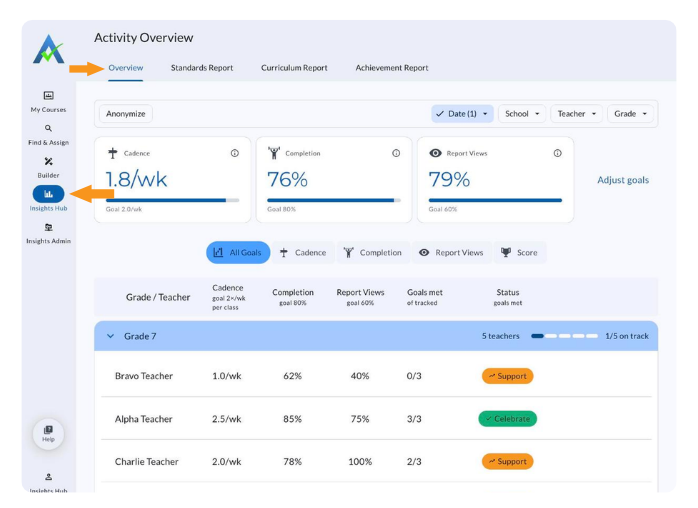
Open the Activity Overview
- Select the Insights Hub icon in the left navigation.
- Select the Overview tab at the top of the page.
Set Up Goals the First Time
The first time you open Insights Hub, the Set Up Goals page opens before the Activity Overview. Goals are set once per school year, and you can change them anytime with Adjust goals.
- Enter the number of assignments each class should receive per week in Assignments per week/class.
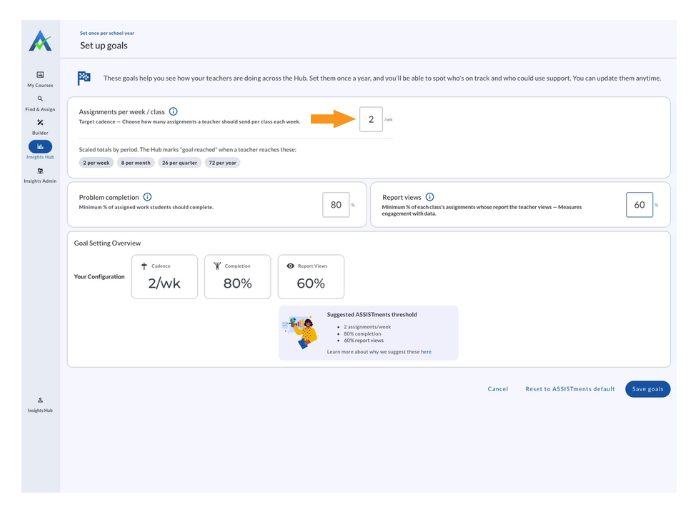
- Enter the minimum percentage of assigned problems students should complete in Problem Completion.
- Enter the minimum percentage for Report Views.
- Review the Goal Setting Overview and the Suggested ASSISTments Threshold.
- Click Save goals.
- Click Done on the Success message.
The Activity Overview opens with the goal cards set to the saved goals. Note: Click Reset to ASSISTments default to fill in the suggested goals.
Filter the Overview
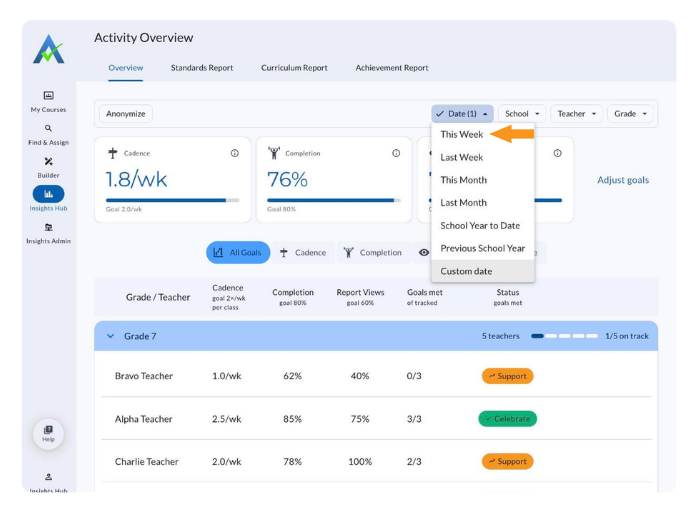
- Select a date range from the Date filter in the top right corner.
- Options: This Week, Last Week, This Month, Last Month, School Year to Date, Previous School Year, and Custom date.
- Note: The Date filter defaults to This Week. If no data displays, select a longer date range, such as This Month.
- Select the checkbox for each school, teacher, or grade to include from the School, Teacher, or Grade filter.
- Enter a name in the Search box to find an item in a long list.
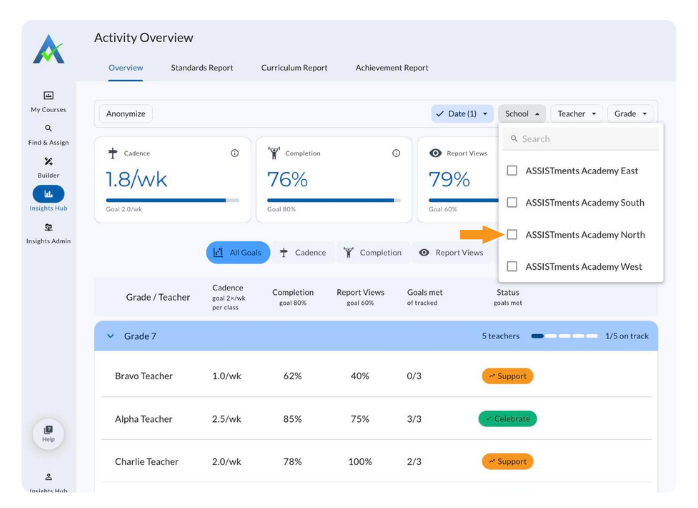
The goal cards and the table update to show only the selected date range, schools, teachers, and grades.
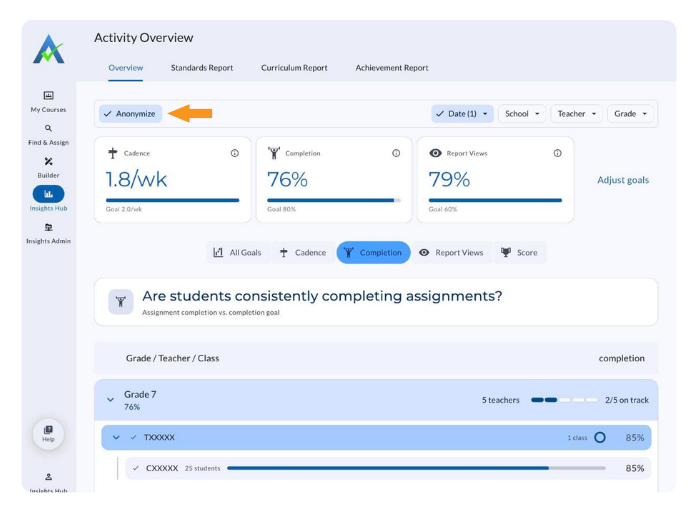
Note: Click Anonymize on the left side of the filter bar to hide names. Teacher names display as TXXXXX and class names as CXXXXX. Click Anonymize again to show names.
Review Goal Progress
- Review the Cadence, Completion, and Report Views cards at the top of the page.
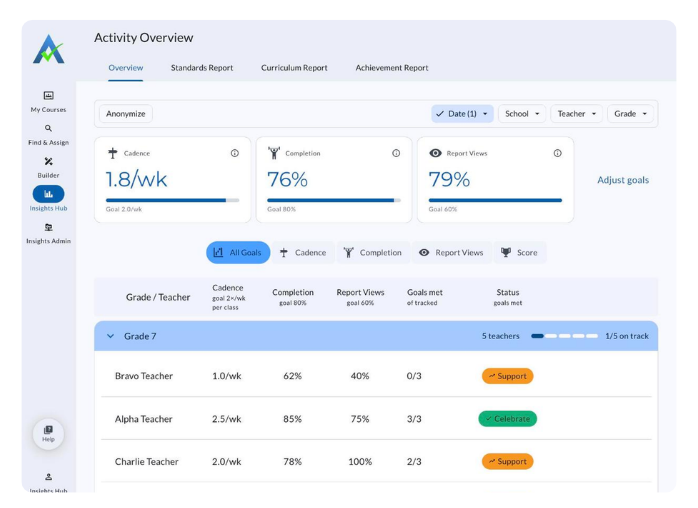
Each card shows the current value, a progress bar, and the goal below it:
- Cadence: the average number of assignments each class receives per week. The goal displays as Goal 2.0/week/class. It answers "Are my teachers consistently using ASSISTments?"
- Completion: the percentage of assigned problems students complete. It answers "Are students consistently completing assignments?"
- Report Views: the percentage of assignments whose report the teacher has viewed. It answers "Are teachers viewing the assignment reports?"
Note: Select the info icon on a card to see the question it answers.
- Review the All Goals table below the cards.
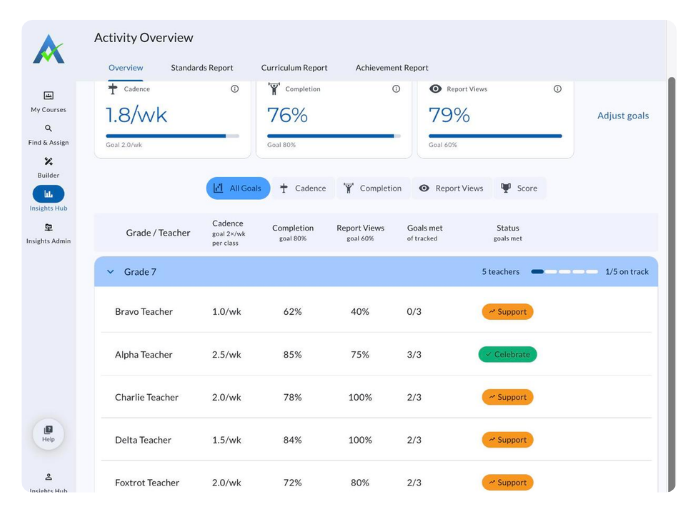
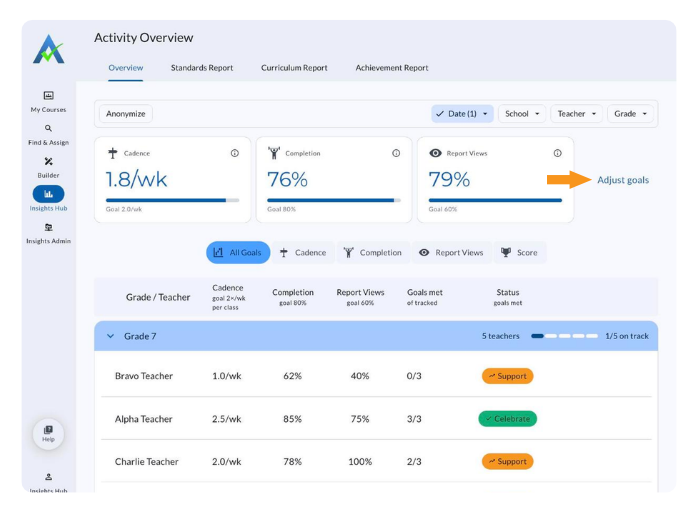
The table groups teachers by the course grade level. Each teacher row shows their Cadence, Completion, and Report Views values; Goals met (how many of the three goals the teacher meets); and Status.
A green Celebrate status marks teachers who meet all three goals (Goals met 3/3). An orange Support status marks teachers who meet fewer than three goals and may need help. Each grade row shows how many of its teachers are on track.
Select the arrow next to a grade to collapse or expand it.
View One Goal in Detail
- Select Cadence, Completion, Report Views, or Score above the table.
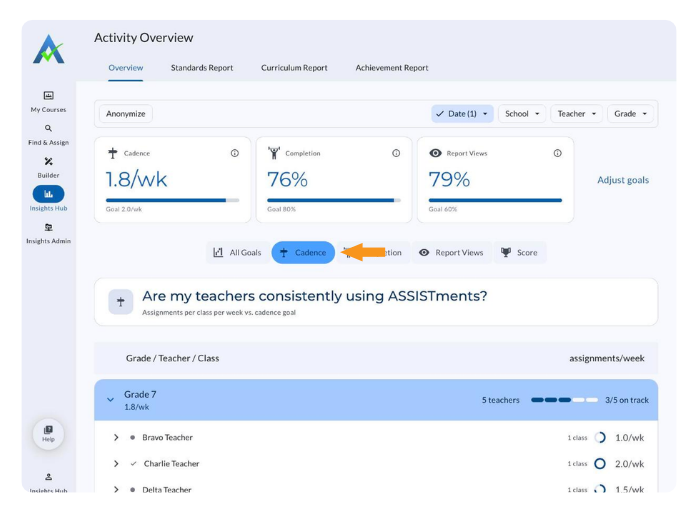
- Select the arrow next to a teacher's name to show their classes.
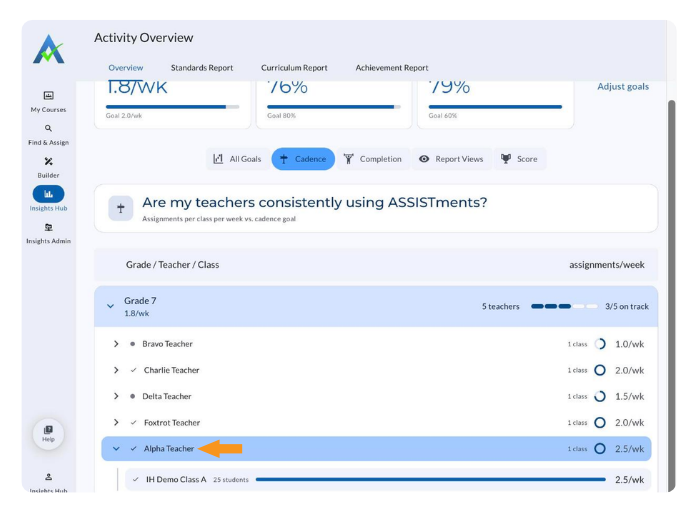
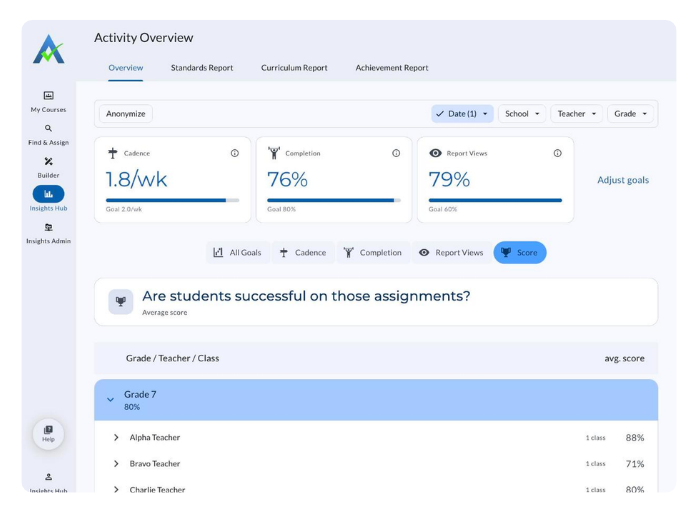
Each view shows the goal's question, a breakdown by grade, teacher, and class, and the value for each. A check mark next to a teacher's name means the teacher meets that goal.
The Score view shows the average score for each grade, teacher, and class. Score has no goal and is not counted in Goals met.
Adjust Goals
- Click Adjust goals to the right of the goal cards.
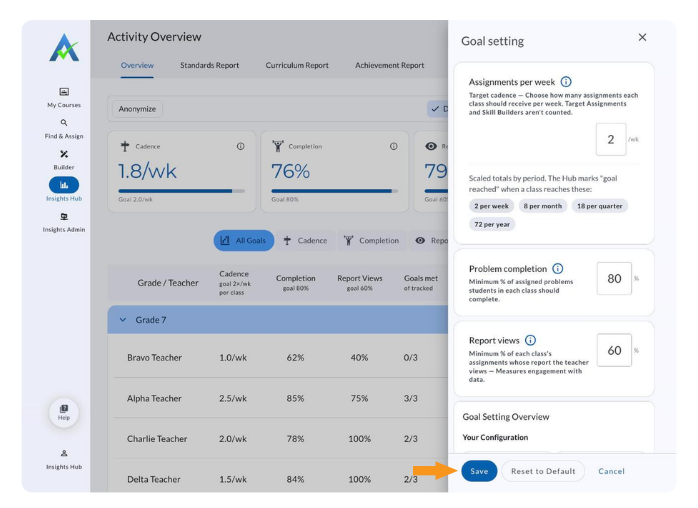
- Enter the number of assignments each class should receive per week in Assignments per week per class.
- Enter the minimum percentage of assigned problems students should complete in Problem Completion.
- Enter the minimum percentage of each class's assignment reports the teacher should view in Report Views.
- Review the Goal Setting Overview at the bottom of the panel.
- Click Save.
- Click Done on the Success message.
The goal cards and table then measure progress against the new goals. Goals apply only to the administrator who saves them. The Goal Setting Overview shows Your Configuration next to the Suggested ASSISTments threshold: 2 assignments per class per week, 80% completion, and 60% report views.
Under Assignments per week, the panel shows the goal scaled to a month, quarter, and year, and updates as you type (for example, 2 per week is 8 per month, 18 per quarter, and 72 per year). Insights Hub marks "goal reached" when a class reaches these totals.
Note: Target Assignments and Skill Builders are not counted toward cadence.
To return to the recommended goals, click Reset to Default, then click Save. To close the panel without changes, click Cancel.
Frequently Asked Questions
Q: Why don't my Skill Builders count toward cadence?
A: Target Assignments and Skill Builders are not counted at this time.
Q: What do the Celebrate and Support statuses mean?
A: Celebrate means the teacher meets all three goals. Support means the teacher meets fewer than three goals, including 2 of 3, and may need support.
Q: Will my goals change what other administrators see?
A: No. Goals apply only to the administrator who saves them.
Q: How is Completion calculated?
A: It is the number of problems completed out of the total problems assigned across all classes in the grade, so it can differ from an average of each teacher's Completion.
Q: What goals does ASSISTments suggest?
A: 2 assignments per class per week, 80% problem completion, and 60% report views.
Q: Why is my Score view missing a goal?
A: Score shows average student scores for context. It has no goal and does not count toward Goals met.
Last updated: November 2026
Activity Overview
The Activity Overview in Insights Hub shows ASSISTments Plus School and District Instructional Coaches and Administrators whether teachers and students are meeting ASSISTments usage goals for cadence, completion, and report views, by grade, teacher, and class.
Open the Activity Overview
- Select the Insights Hub icon in the left navigation.
- Select the Overview tab at the top of the page.
Set Up Goals the First Time
The first time you open Insights Hub, the Set Up Goals page opens before the Activity Overview. Goals are set once per school year, and you can change them anytime with Adjust goals.
- Enter the number of assignments each class should receive per week in Assignments per week/class.
- Enter the minimum percentage of assigned problems students should complete in Problem Completion.
- Enter the minimum percentage for Report Views.
- Review the Goal Setting Overview and the Suggested ASSISTments Threshold.
- Click Save goals.
- Click Done on the Success message.
The Activity Overview opens with the goal cards set to the saved goals. Note: Click Reset to ASSISTments default to fill in the suggested goals.
Filter the Overview
- Select a date range from the Date filter in the top right corner.
- Options: This Week, Last Week, This Month, Last Month, School Year to Date, Previous School Year, and Custom date.
- Note: The Date filter defaults to This Week. If no data displays, select a longer date range, such as This Month.
- Select the checkbox for each school, teacher, or grade to include from the School, Teacher, or Grade filter.
- Enter a name in the Search box to find an item in a long list.
The goal cards and the table update to show only the selected date range, schools, teachers, and grades.
Note: Click Anonymize on the left side of the filter bar to hide names. Teacher names display as TXXXXX and class names as CXXXXX. Click Anonymize again to show names.
Review Goal Progress
- Review the Cadence, Completion, and Report Views cards at the top of the page.
Each card shows the current value, a progress bar, and the goal below it:
- Cadence: the average number of assignments each class receives per week. The goal displays as Goal 2.0/week/class. It answers "Are my teachers consistently using ASSISTments?"
- Completion: the percentage of assigned problems students complete. It answers "Are students consistently completing assignments?"
- Report Views: the percentage of assignments whose report the teacher has viewed. It answers "Are teachers viewing the assignment reports?"
Note: Select the info icon on a card to see the question it answers.
- Review the All Goals table below the cards.
The table groups teachers by the course grade level. Each teacher row shows their Cadence, Completion, and Report Views values; Goals met (how many of the three goals the teacher meets); and Status.
A green Celebrate status marks teachers who meet all three goals (Goals met 3/3). An orange Support status marks teachers who meet fewer than three goals and may need help. Each grade row shows how many of its teachers are on track.
Select the arrow next to a grade to collapse or expand it.
View One Goal in Detail
- Select Cadence, Completion, Report Views, or Score above the table.
- Select the arrow next to a teacher's name to show their classes.
Each view shows the goal's question, a breakdown by grade, teacher, and class, and the value for each. A check mark next to a teacher's name means the teacher meets that goal.
The Score view shows the average score for each grade, teacher, and class. Score has no goal and is not counted in Goals met.
Adjust Goals
- Click Adjust goals to the right of the goal cards.
- Enter the number of assignments each class should receive per week in Assignments per week per class.
- Enter the minimum percentage of assigned problems students should complete in Problem Completion.
- Enter the minimum percentage of each class's assignment reports the teacher should view in Report Views.
- Review the Goal Setting Overview at the bottom of the panel.
- Click Save.
- Click Done on the Success message.
The goal cards and table then measure progress against the new goals. Goals apply only to the administrator who saves them. The Goal Setting Overview shows Your Configuration next to the Suggested ASSISTments threshold: 2 assignments per class per week, 80% completion, and 60% report views.
Under Assignments per week, the panel shows the goal scaled to a month, quarter, and year, and updates as you type (for example, 2 per week is 8 per month, 18 per quarter, and 72 per year). Insights Hub marks "goal reached" when a class reaches these totals.
Note: Target Assignments and Skill Builders are not counted toward cadence.
To return to the recommended goals, click Reset to Default, then click Save. To close the panel without changes, click Cancel.
Frequently Asked Questions
Q: Why don't my Skill Builders count toward cadence?
A: Target Assignments and Skill Builders are not counted at this time.
Q: What do the Celebrate and Support statuses mean?
A: Celebrate means the teacher meets all three goals. Support means the teacher meets fewer than three goals, including 2 of 3, and may need support.
Q: Will my goals change what other administrators see?
A: No. Goals apply only to the administrator who saves them.
Q: How is Completion calculated?
A: It is the number of problems completed out of the total problems assigned across all classes in the grade, so it can differ from an average of each teacher's Completion.
Q: What goals does ASSISTments suggest?
A: 2 assignments per class per week, 80% problem completion, and 60% report views.
Q: Why is my Score view missing a goal?
A: Score shows average student scores for context. It has no goal and does not count toward Goals met.
Last updated: November 2026
Didn't Find What You Were Looking For?

Charitable Number: 83-4228740


